How Do I Connect My iPhone to Apple CarPlay Step by Step
Connecting your iPhone to Apple CarPlay is easier than you think. This guide walks you through the entire process step by step, covering both wired and wireless methods. You will learn what you need, how to set it up, and how to fix common problems so you can start using Apple CarPlay on your very next drive.
Have you ever jumped into your car and wished your phone could just work with the dashboard screen? That is exactly what Apple CarPlay does. It mirrors the most useful parts of your iPhone right onto your car’s infotainment display. You get navigation, music, calls, and messages all in one place.
If you have been wondering how do I connect my iPhone to Apple CarPlay, you are in the right place. This step-by-step guide covers everything you need. Whether you have a new 1500cc to 2000cc cars in India with built-in CarPlay or an older setup, this guide will help you get connected fast.
The good news is that connecting your iPhone to CarPlay is not complicated. You do not need to be a tech expert. In just a few minutes, you will have your phone talking to your car’s screen. Let us walk through it together.
Key Takeaways
- Wired connection is the most reliable: A simple USB cable gets your iPhone on CarPlay in seconds.
- Wireless CarPlay is convenient: If your car supports it, you can connect without any cables at all.
- Not all cars support CarPlay: Check your vehicle model and infotainment system before you try.
- Troubleshooting is simple: Most connection issues can be fixed with a quick restart or cable swap.
- CarPlay works with Siri: You can make calls, send messages, and get directions hands-free.
- Keep your iPhone updated: The latest iOS version ensures the best CarPlay experience.
📑 Table of Contents
- What Is Apple CarPlay and Why Does It Matter?
- Before You Start: What You Need
- How to Connect Your iPhone to Apple CarPlay with a Cable
- How to Set Up Wireless Apple CarPlay
- Troubleshooting Common Apple CarPlay Connection Issues
- Tips to Get the Most Out of Apple CarPlay
- Common Mistakes to Avoid When Using Apple CarPlay
- Is Apple CarPlay Worth It?
What Is Apple CarPlay and Why Does It Matter?
Apple CarPlay is a smart system that lets your iPhone talk to your car’s display. It shows you a simplified version of your iPhone interface right on the dashboard. You can see your maps, play music, answer calls, and even send voice messages. All of this happens without you taking your eyes off the road.
Here is why CarPlay matters so much in daily driving:
- Safety first: CarPlay lets you use your phone through voice commands. You keep your hands on the wheel and your eyes on the road.
- Familiar interface: The layout feels just like your iPhone. You do not need to learn a completely new system.
- Great apps: Maps, music apps, podcasts, and messaging all work seamlessly through CarPlay.
- Siri integration: You can ask Siri to do almost anything. Set a destination, play a playlist, or send a text. Just speak up.
CarPlay is supported on most modern vehicles. If you drive a car with a touchscreen infotainment system, there is a good chance it already has CarPlay built in. It works with both iPhone and iPad, though iPhone is the primary device for CarPlay use.
Before You Start: What You Need
Before you try to connect, make sure you have everything ready. Missing one small thing can cause frustration. Here is your quick checklist.
Compatible iPhone
Apple CarPlay works with iPhone models from the iPhone 5s and newer. If you have an iPhone 6, iPhone 7, iPhone 8, iPhone X, or any newer model, you are good to go. Make sure your iPhone is running a recent version of iOS for the best experience.
The Right Cable
For a wired connection, you need a Lightning to USB cable. Apple’s official cable works best, but many third-party cables work too. Avoid cheap, low-quality cables. They often cause connection problems. If your car has a USB-C port, you may need a USB-C to Lightning cable instead.
A Car That Supports CarPlay
Not every car supports Apple CarPlay. Most vehicles from 2016 onward offer it. Check your car’s manual or visit the manufacturer’s website. Many popular brands like Toyota, Honda, Ford, Hyundai, and Volkswagen now offer CarPlay as standard or optional on most trims.
A Stable Connection
For wireless CarPlay, your car and iPhone need to support Bluetooth and Wi-Fi. Both devices must be on the same network or able to discover each other. Keep your Bluetooth turned on and your Wi-Fi enabled.
How to Connect Your iPhone to Apple CarPlay with a Cable
A wired connection is the most reliable way to use Apple CarPlay. It works with almost every CarPlay-enabled vehicle. Here is exactly how to do it.
Step 1: Plug In Your iPhone
Locate the USB port in your car. Some cars have the port on the center console. Others have it in the glove box or under the armrest. Plug your Lightning cable into your iPhone and then into the car’s USB port.
Make sure the cable is fully seated. A loose connection is the number one reason CarPlay fails to start. If your car has multiple USB ports, try a different one if the first does not work. Some ports are only for charging and do not support data transfer.
Step 2: Unlock Your iPhone
This is a step many people forget. Your iPhone must be unlocked when you plug it in. If your phone is locked, the car may not be able to establish a CarPlay connection. Simply tap the screen or use Face ID to unlock it.
Step 3: Trust the Connection
When you first connect your iPhone to a new car, you may see a prompt on your iPhone screen that says “Trust This Computer?” Tap “Trust” and enter your passcode if asked. This allows your car to communicate with your phone.
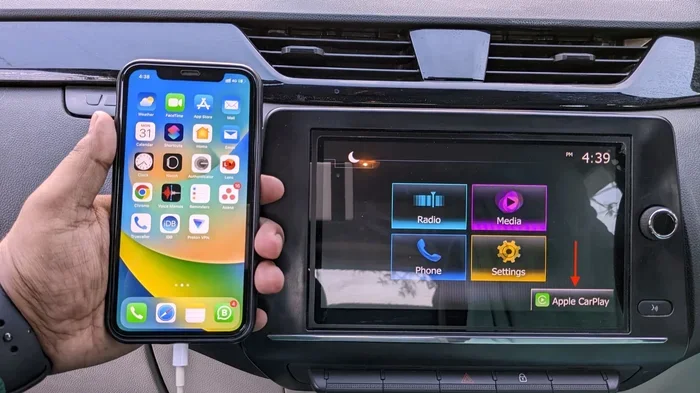
Step 4: Select CarPlay on Your Car Screen
Once connected, your car’s display should switch to the CarPlay interface automatically. If it does not, you may need to press the CarPlay or Source button on your car’s infotainment system. Look for the CarPlay icon, which looks like a smartphone silhouette with car keys.
Step 5: Set CarPlay as Your Default
On your iPhone, go to Settings > General > CarPlay. Here, you can select your car and set it as a trusted connection. You can also choose which apps appear on CarPlay. Pick the ones you actually use while driving.
How to Set Up Wireless Apple CarPlay
Wireless CarPlay is a game changer. It lets you connect your iPhone to your car without any cables. No fumbling with USB ports. No dealing with tangled cords. Just a clean, instant connection every time you get in the car.
Check If Your Car Supports Wireless CarPlay
Not all CarPlay systems support wireless connectivity. Wireless CarPlay requires both your car and your iPhone to support Wi-Fi Direct. Newer car models from brands like BMW, Mercedes-Benz, Tesla (with updates), and select Hyundai and Kia models offer wireless CarPlay out of the box.
Step-by-Step Wireless Setup
Setting up wireless CarPlay is straightforward. Follow these steps carefully:
- Turn on Bluetooth and Wi-Fi on your iPhone. Go to Settings and make sure both are enabled.
- Make sure your car is in park. Wireless CarPlay only connects when the vehicle is stationary.
- Access your car’s infotainment settings. Look for the CarPlay or Smartphone Connection menu.
- Select “Wireless” as the connection type if your car gives you a choice between wired and wireless.
- Wait for your iPhone to appear on the car’s screen. Tap on it to pair.
- Confirm the connection on your iPhone if prompted. You may need to enter a PIN displayed on the car screen.
Once paired, your iPhone should automatically connect to CarPlay whenever you get in the car. No cables needed. Just get in, start the engine, and your CarPlay interface appears.
Tips for a Strong Wireless Connection
Wireless CarPlay depends on a stable Wi-Fi signal between your phone and car. Here are some tips to keep the connection strong:
- Restart both devices occasionally if you notice lag or disconnections.
- Keep your iPhone charged. A low battery can sometimes affect wireless performance.
- Stay close to your car. The connection range is short, so this is usually not an issue in practice.
- Update your iPhone software. Apple regularly improves wireless CarPlay stability with iOS updates.
Troubleshooting Common Apple CarPlay Connection Issues
Even with the best setup, you might run into problems. Do not worry. Most CarPlay issues have simple fixes. Here are the most common problems and how to solve them.
CarPlay Does Not Appear on My Car Screen
This is the most common complaint. Try these fixes in order:
- Unplug and replug the cable. A loose connection is often the culprit.
- Try a different USB port. Some ports only charge and do not transfer data.
- Use a different cable. Damaged or low-quality cables are a frequent cause of CarPlay failure.
- Restart your iPhone. A simple reboot fixes many connection glitches.
- Restart your car’s infotainment system. Most systems have a power-off option. Hold the volume knob or power button for about 10 seconds.
CarPlay Disconnects Frequently
If your CarPlay keeps dropping, the issue is usually the cable or a software conflict. Replace your Lightning cable with a high-quality one. Also check that your iPhone is not in Low Power Mode, as this can limit CarPlay functionality. Go to Settings > Battery and turn off Low Power Mode if it is on.
Siri Does Not Respond Through CarPlay
Make sure “Hey Siri” is enabled on your iPhone. Go to Settings > Siri & Search and toggle on “Listen for Hey Siri.” Also check that your car’s steering wheel controls are set to activate Siri.
My Car Does Not Show Apple CarPlay at All
Some older cars do not support CarPlay. If your vehicle is from before 2016, it may not have the feature. However, you can add CarPlay support through an aftermarket 12V to 230V car inverter or a compatible aftermarket head unit. These devices plug into your car’s system and add modern features like CarPlay and Android Auto.
Tips to Get the Most Out of Apple CarPlay
Once you are connected, there are many ways to make your CarPlay experience even better. These tips will help you get the most out of every drive.
Customize Your CarPlay Apps
You do not need every app on CarPlay. Go to Settings > General > CarPlay on your iPhone and customize which apps appear. Keep the ones you actually use while driving. This keeps your screen clean and easy to navigate.
Use Siri for Everything
Siri is your best friend in CarPlay. Use voice commands to:
- Get directions to a restaurant or address
- Play a specific song or podcast
- Send and read text messages
- Make phone calls
- Check the weather
Using Siri keeps your hands on the wheel and your eyes on the road. It is the safest way to use your phone while driving.
Keep Your iPhone Charged
CarPlay can drain your battery, especially during long drives. Always plug your iPhone in when using CarPlay for extended periods. If your car does not have a USB port that provides enough power, consider using a 12V DC to 220V AC car power inverter to keep your devices charged on the go.
Update Both Your iPhone and Car Software
Apple releases iOS updates regularly. These often include CarPlay improvements and bug fixes. Similarly, car manufacturers release infotainment updates. Keep both your phone and your car’s system up to date for the smoothest experience.
Explore CarPlay Maps
CarPlay supports multiple navigation apps. Google Maps, Waze, and Apple Maps all work great with CarPlay. Try different apps to find which one gives you the best directions and traffic updates for your daily commute.
Common Mistakes to Avoid When Using Apple CarPlay
Avoiding these simple mistakes will save you a lot of frustration:
- Using a cheap or damaged cable: This is the top cause of CarPlay problems. Invest in a good quality Lightning cable.
- Forgetting to unlock your iPhone: An unlocked phone is required for the initial connection every time.
- Ignoring software updates: Outdated iOS or car software can cause compatibility issues.
- Overloading CarPlay with apps: Too many apps make the interface cluttered and harder to use safely.
- Not restarting when things go wrong: A simple restart of both devices fixes most issues.
Is Apple CarPlay Worth It?
The short answer is yes. Apple CarPlay transforms your driving experience. It makes your phone safer and more useful behind the wheel. You get reliable navigation, hands-free calling, and easy access to your favorite music. Whether you are on a daily commute or a long road trip, CarPlay keeps you connected without compromising safety.
If you are still deciding whether to set it up, just try it once. Plug in your iPhone and see how natural it feels. Once you start using CarPlay, it is hard to go back to driving without it.
Connecting your iPhone to Apple CarPlay does not have to be scary or confusing. With a cable or wirelessly, the process is quick and straightforward. Follow the steps in this guide, and you will be up and running in minutes. Enjoy a smarter, safer, and more connected drive every time you hit the road.