How Do I Program My Remote Without Programming Codes
Programming your remote without codes is easier than you think. Whether you own a universal remote or a brand-specific model, you can set it up using auto-search, brand lists, or the remote learning feature. This guide walks you through every method so you can control your devices without hunting down a single programming code.
Key Takeaways
- Auto-Search Method: Let your remote find the right code by scanning through all available signals automatically.
- Brand Code List: Use the printed code list that comes with your universal remote for a quick setup.
- Remote Learning Feature: Teach your new remote to copy signals from your old remote without any codes at all.
- USB or App Setup: Many modern remotes support computer or smartphone-based programming for even faster configuration.
- Troubleshooting Tips: Simple fixes like battery replacement and proper positioning solve most programming issues.
- Multiple Devices: One universal remote can replace five or more individual remotes in your home.
📑 Table of Contents
- How Do I Program My Remote Without Programming Codes?
- Why Would You Program a Remote Without Codes?
- Method 1: Auto-Search Programming (The Easiest Way)
- Method 2: Using the Brand Code List
- Method 3: The Remote Learning Feature
- Method 4: USB or App-Based Programming
- Common Problems and How to Fix Them
- Quick Tips for Flawless Remote Programming
- Expert Insights on Remote Programming
- Key Takeaways
- Conclusion
How Do I Program My Remote Without Programming Codes?
Have you ever stared at your remote control feeling completely lost? You want to set it up, but there are no codes in sight. Maybe the manual is missing, or the code list online doesn’t match your device. The good news is that you do not need programming codes to get your remote working. There are several simple methods that let you set up your remote in minutes. In this guide, we will walk you through every option step by step. You will learn how to use auto-search, brand lists, and even your old remote to configure a new one. By the end, you will feel confident tackling any remote setup task.
Programming a remote without codes might sound technical, but it really is not. Most universal remotes come with built-in features that do the hard work for you. Whether you are setting up a television, soundbar, streaming device, or cable box, these methods apply across the board. The key is knowing which method to use and when. That is exactly what this article covers. We will break everything down into clear, easy-to-follow steps. No jargon, no confusion, just practical advice you can use right away.
Why Would You Program a Remote Without Codes?
You might wonder why anyone would want to skip the codes altogether. The truth is, codes are not always easy to find. Your device model might be too new or too old for the available lists. Sometimes the codes listed online simply do not work. Other times, you may have lost the manual entirely. In all these situations, code-free programming methods save the day. They give you a reliable backup plan that works without guesswork.
Another big reason is convenience. Using codes means finding the right one, entering it carefully, and testing it. If it fails, you try another code. This process can take forever. Code-free methods like auto-search skip all that waiting. The remote does the searching for you. You just press a few buttons and let the technology do its job. It is faster, simpler, and often more reliable than manual code entry.
Common Situations Where You Need Code-Free Setup
- Lost or missing manual: You cannot find the code list anywhere online.
- New device model: The manufacturer released your device after the remote’s code database was updated.
- Multiple devices: You want to control several devices with one remote without entering multiple codes.
- Replacement remote: You bought a new universal remote and do not have the original codes.
- Smart home setup: You are integrating several entertainment devices and want a streamlined control solution.
Method 1: Auto-Search Programming (The Easiest Way)
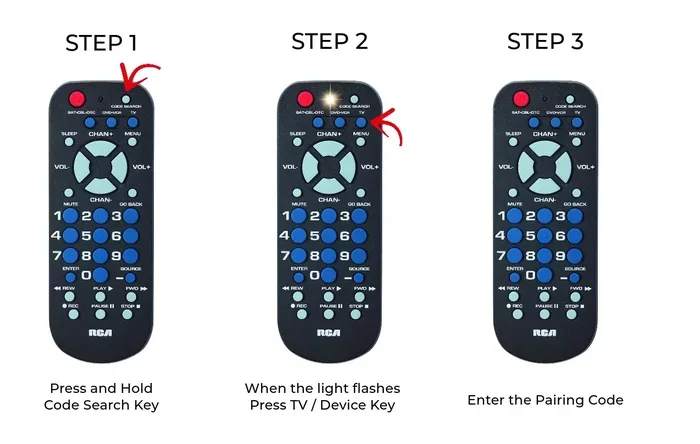
The auto-search method is the most popular way to program a remote without codes. It works by sending out signals and listening for a response from your device. When the remote finds the right signal, it locks in the code automatically. This method works with most universal remotes from brands like RCA, Universal Remote Control, and One For All.
Step-by-Step Auto-Search Instructions
Follow these steps carefully for the best results. Each remote brand has slight variations, but the general process is very similar.
- Turn on your device. Make sure your TV, soundbar, or other device is powered on and working.
- Point the remote at the device. Keep the remote within a few feet for a strong signal.
- Press and hold the setup button. This button is usually labeled “Setup,” “Code Search,” or “Auto Search.” Hold it until the indicator light turns on.
- Press the device button. Press the button for the device you want to control, such as “TV” or “DVD.”
- Press the power button repeatedly. The remote will cycle through codes. Your device will turn off when it finds the right one.
- Press setup to lock in the code. Once the device turns off, press setup again to save the code.
- Test the remote. Try turning the device back on and adjusting the volume to confirm it works.
This process usually takes between one and five minutes. If the first attempt does not work, simply repeat the steps. The remote will continue scanning until it finds a match. Patience is key here. Do not give up after the first try.
Tips for Auto-Search Success
- Use fresh batteries. Weak batteries can cause signal issues during the search process.
- Remove obstacles between the remote and device. Walls and furniture can block the infrared signal.
- Stay close to the device during programming. Three to five feet is ideal.
- Do not press too many buttons during the search. This can confuse the remote.
- If your remote has a “slow scan” option, use it for better accuracy.
Method 2: Using the Brand Code List
Many universal remotes come with a printed code list inside the box. This list contains codes for hundreds of device brands. Even if you do not have the original manual, you can often find the code list online on the manufacturer’s website. This method is faster than auto-search because you jump straight to the right code.
How to Find Your Brand Code
Start by identifying your device brand and model. Look at the back or bottom of your TV or other device. Write down the brand name. Then find the matching code in the list. Enter the code using the remote’s number pad. If the code works, your device should respond immediately. If not, try the next code on the list for that brand.
Some remotes also let you search by device type first. For example, you might select “TV” and then scroll through all the TV brand codes one by one. This takes a bit more time, but it covers every possibility.
Where to Find Code Lists Online
Most major remote manufacturers maintain online databases of codes. You can visit the official website of your remote brand and search by model number. The site will display a downloadable PDF or a web page with all the codes. Some popular sites also compile code lists for many remote models in one place. Always double-check that the code list matches your specific remote model. Using a list from the wrong remote model can cause errors.
For those interested in toy-related content and creative ways to engage with devices, you might enjoy reading 10 Lines On My Favourite Toy Car for some fun inspiration.
Method 3: The Remote Learning Feature
The remote learning feature is one of the most clever ways to program a remote without codes. This feature allows your new remote to copy the infrared signals from your old remote. You do not need to know any codes. You just need both remotes and a clear line of sight between them.
How Remote Learning Works
Every remote control sends out infrared signals that tell your device what to do. The learning feature captures these signals and stores them in the new remote. Once stored, the new remote sends the exact same signals when you press the corresponding button. Your device cannot tell the difference between the old remote and the new one.
Steps to Use the Learning Feature
- Find the learning button on your new remote. It is often labeled “Learn,” “Clone,” or “Macro.”
- Press the learning button and hold it. The indicator light should turn on.
- Press the button on the old remote you want to copy. Aim it directly at the new remote.
- Wait for the confirmation signal. The indicator light will blink or turn off to confirm the signal was captured.
- Repeat for each button you want to program.
- Test all programmed buttons on your device.
This method works great for replacing lost remotes or consolidating multiple remotes into one. It is especially useful for devices that are not in the remote’s code database. However, it does take more time than auto-search because you need to copy each button individually.
Method 4: USB or App-Based Programming
Modern remotes are getting smarter. Many newer models support USB or smartphone app-based programming. This method is the most high-tech option and often the fastest. Instead of entering codes manually, you connect the remote to your computer or phone and let software handle the setup.
USB Programming
Some universal remotes come with a USB cable. You plug the remote into your computer, open the manufacturer’s software, and follow the on-screen prompts. The software automatically detects your device model and loads the correct configuration. You then transfer the setup to the remote via USB. This method is especially helpful for complex setups with multiple devices.
App-Based Programming
Many brand-name remotes now have companion apps. For example, Logitech Harmony remotes use the Harmony app, and Philips remotes often use the Philips Remote Manager app. These apps guide you through the setup process with clear screens and instructions. They can also update the remote’s code database over Wi-Fi, ensuring you always have the latest codes available.
Benefits of Digital Programming
- Speed: Setup takes just a few minutes.
- Accuracy: The software selects the correct codes automatically.
- Updates: You can download new code updates whenever manufacturers add support for new devices.
- Customization: You can create custom button layouts and macros for your specific needs.
- Multiple devices: The software makes it easy to program controls for several devices at once.
Common Problems and How to Fix Them
Even with the best methods, you might run into issues during remote programming. Most problems are easy to fix with simple troubleshooting steps. Here are the most common issues and their solutions.
Remote Does Not Respond During Auto-Search
If the remote does not find any code, try these fixes. First, replace the batteries. Weak batteries are the number one cause of remote problems. Second, make sure you are pointing the remote directly at the device’s infrared sensor. Third, move closer to the device. Fourth, check that your device is turned on and functioning properly. If none of these work, try a different programming method.
Code Does Not Work After Entry
When you enter a code manually and nothing happens, do not panic. Try the next code on the list for your brand. Sometimes the first code is outdated or incorrect. Also, make sure you are entering the code for the right device type. A TV code will not work for a soundbar. Double-check that you selected the correct device button before entering the code.
Remote Works Partially After Programming
If some buttons work but others do not, the remote may have found a partial code match. Try the auto-search method again, but this time let it run all the way through without stopping. The remote might skip past the right code if you interrupt the search too early. Also, check that your device firmware is up to date, as updates can sometimes change remote compatibility.
Quick Tips for Flawless Remote Programming
Here are some expert tips that make the entire programming process smoother:
- Always start with fresh batteries. This alone solves half of all programming problems.
- Write down the codes you try. This prevents you from entering the same wrong code twice.
- Keep your device manual handy. Even if you are using code-free methods, the manual can provide helpful model-specific tips.
- Program in a dimly lit room. Infrared signals work best without competing light sources.
- Be patient with auto-search. It can take several minutes to find the right code, especially for older devices.
- Test every button after programming. Do not assume it works just because the power button functions.
- Reset the remote if things go wrong. Most remotes have a reset button or a reset sequence in the manual.
Expert Insights on Remote Programming
Experienced tech users know that remote programming is not one-size-fits-all. Different devices respond differently to various programming methods. A smart TV from 2024 might program easily with auto-search, while an older cable box might need a manual code entry. Understanding your device’s age, brand, and technology helps you choose the right method from the start.
One common mistake is assuming all universal remotes work the same way. In reality, each brand has its own programming logic and button layout. Spending five minutes reading the specific instructions for your remote model before starting can save you a lot of frustration. Another tip from the experts is to always program your remote in the same room where you use the device. Signal strength varies by distance and obstacles, and programming in the right environment ensures a strong, reliable connection.
Also, consider the age of your devices. Older devices sometimes use different infrared frequencies that newer remotes struggle to detect. In these cases, the learning feature or USB programming method tends to work better than auto-search. Knowing your device’s quirks gives you a major advantage when troubleshooting.
Key Takeaways
- Auto-Search Method: Let your remote find the right code by scanning through all available signals automatically.
- Brand Code List: Use the printed code list that comes with your universal remote for a quick setup.
- Remote Learning Feature: Teach your new remote to copy signals from your old remote without any codes at all.
- USB or App Setup: Many modern remotes support computer or smartphone-based programming for even faster configuration.
- Troubleshooting Tips: Simple fixes like battery replacement and proper positioning solve most programming issues.
- Multiple Devices: One universal remote can replace five or more individual remotes in your home.
Conclusion
Programming your remote without programming codes is not only possible, it is often the faster and more reliable option. Whether you choose auto-search, brand code lists, the learning feature, or app-based setup, you have powerful tools at your fingertips. Each method has its strengths, and the best one depends on your specific remote model and devices. The good news is that once you learn one method, the others come naturally.
Take the time to try each method if the first one does not work. Most remotes allow multiple programming attempts, so you have nothing to lose. With fresh batteries, a clear line of sight, and a little patience, you will have your remote programmed and working in no time. The satisfaction of controlling all your devices with a single remote is well worth the effort. Start today and enjoy the simplicity of a fully configured remote control setup.
Frequently Asked Questions
Can I program a universal remote without any codes at all?
Yes, absolutely. The auto-search method and the remote learning feature both work without entering any codes. Auto-search scans through signals until it finds a match, while the learning feature copies signals directly from your old remote. Both methods are simple and do not require you to look up or enter any codes manually.
What should I do if auto-search does not find my device?
First, check that your batteries are fresh and the remote is pointed directly at the device. Move closer if needed and make sure the device is powered on. If auto-search still fails, try the brand code list method or the remote learning feature. Some older or less common devices may not be in the remote’s database, but the learning feature can usually handle them.
How long does it take to program a remote without codes?
Auto-search typically takes one to five minutes. The brand code list method can take two to ten minutes depending on how many codes you need to try. The remote learning feature takes longer because you copy each button individually, but it usually takes about fifteen to twenty minutes for a full setup. App-based programming is often the fastest, taking just a few minutes.
Do I need any special equipment to program a remote without codes?
No special equipment is needed. You just need the remote, the device you want to control, and working batteries. For USB or app-based programming, you will need a computer or smartphone and sometimes a USB cable that comes with the remote. That is all you need to get started.
Can I program a remote to control multiple devices without codes?
Yes, most universal remotes support multiple device types. You can program each device type using the same methods described above. Auto-search works for each device separately. Once all devices are programmed, you simply switch between them using the device buttons on the remote. This is one of the biggest advantages of using a universal remote.
Is it better to use codes or code-free methods for remote programming?
It depends on your situation. Codes are faster when you have them, but they are not always available. Code-free methods like auto-search and learning features work in situations where codes are missing or outdated. For most users, auto-search is the best starting point because it requires no research and works with most devices right out of the box.