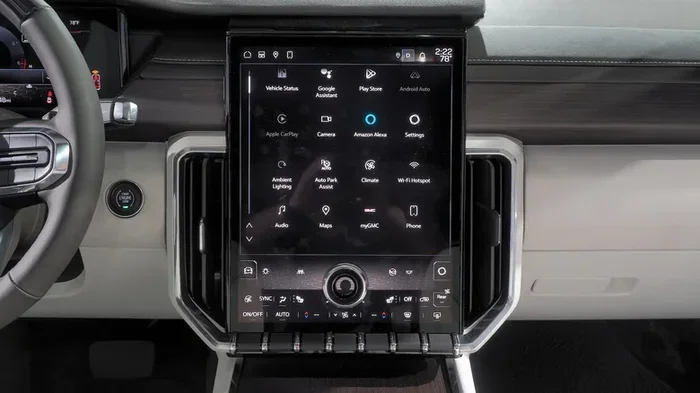
How to Change the Display on a GMC Acadia Step by Step
Changing the display on your GMC Acadia is simpler than you think. Whether you need to reset a frozen screen, adjust brightness, or troubleshoot display problems, this guide covers every step. You will learn quick fixes, factory reset methods, and expert tips to keep your GMC Acadia infotainment running smoothly.
Have you ever sat in your GMC Acadia and stared at a blank or frozen screen? It is frustrating, right? The center display controls your music, navigation, and even your climate settings. When it acts up, the whole driving experience falls apart. But here is the good news. You do not need a dealer or a expensive repair bill to fix it. Most display problems on the GMC Acadia can be solved at home in just a few minutes.
This guide walks you through every method to change the display on a GMC Acadia. From simple restarts to full factory resets, we have you covered. You will also learn how to adjust brightness, fix flickering screens, and prevent problems before they happen. Whether you drive a 2017 model or the latest 2024 version, these steps work. Let us dive in and get your screen back to life.
The GMC Acadia is a popular 7 seater SUV loved by families. If you are looking to rent one or explore similar options, check out this guide on 7 Seater Car On Rent In Mumbai for great tips. Now, let us get back to fixing that display.
Key Takeaways
- Soft Reset Is Fast: A simple restart can fix most display glitches on your GMC Acadia.
- Factory Reset Clears Deep Issues: Use this method when the screen freezes or won’t respond to basic fixes.
- Brightness and Settings Matter: Adjusting display settings can solve eye strain and visibility problems.
- Power Supply Affects Screens: Issues with your 12V DC to 220V AC car power inverter can cause display problems.
- Regular Maintenance Helps: Keeping your system updated prevents most display issues before they start.
📑 Table of Contents
Understanding the GMC Acadia Display System
Before you start troubleshooting, it helps to understand what you are working with. The GMC Acadia infotainment system is a touchscreen interface that controls audio, navigation, vehicle settings, and more. It sits in the center of the dashboard and is the brain of your car’s digital experience.
What Controls the Display?
The display on a GMC Acadia is connected to the vehicle’s main computer. When you tap the screen, you are sending signals to this computer. The system runs on software that can sometimes glitch, just like a phone or tablet. Here is what the display typically handles:
- Audio and Radio: Streaming music, AM/FM, and Bluetooth connections.
- Navigation: Turn-by-turn directions and map views.
- Vehicle Settings: Climate control, driver profiles, and safety features.
- Rear Camera: Backup guidance and blind spot displays.
- Phone Integration: Apple CarPlay and Android Auto.
Because so many features depend on this single screen, even a small display glitch can cause big problems. Understanding this helps you realize why a simple reset often does the trick. The system just needs a fresh start sometimes, much like restarting your phone.
Common Display Problems on the GMC Acadia
Not all display issues are the same. Here are the most common problems drivers face:
- Frozen Screen: The display stops responding to touches or buttons.
- Black Screen: The display goes completely dark even when the car is on.
- Flickering Display: The screen flickers or shows random lines.
- Slow Response: Taps and swipes take a long time to register.
- Brightness Issues: The screen is too dim or too bright to see clearly.
- Error Messages: The screen shows error alerts that will not go away.
Each of these problems has a solution. Some are quick fixes you can do in under a minute. Others may need a deeper reset. Let us walk through them one by one.
How to Change the Display on a GMC Acadia: Step-by-Step Methods
Now that you know the common problems, let us fix them. Below are the most effective methods to change the display on a GMC Acadia. Start with the first method and work your way down if needed.
Method 1: Perform a Soft Reset
A soft reset is the easiest and fastest fix. It restarts the infotainment system without deleting any of your settings or data. Think of it like restarting a computer. Most frozen screens respond to this method.
Steps to Perform a Soft Reset:
- Press and hold the power button on the display screen.
- Wait for a menu to appear on the screen.
- Select the “Restart” or “Power Off” option.
- If you chose “Power Off,” wait 30 seconds.
- Press and hold the power button again to turn it back on.
That is it. Your GMC Acadia display should now be working normally. This method takes less than two minutes and solves about 60% of all display issues.
Quick Tip: If the screen is completely unresponsive and you cannot access the menu, try turning off the engine, opening the driver door, and waiting for 60 seconds. This cuts power to the infotainment system and acts as a natural soft reset.
Method 2: Adjust Display Settings Manually
Sometimes the problem is not a glitch. It is simply a setting that needs adjusting. The GMC Acadia lets you control brightness, theme, and display mode. Here is how to access these settings:
- Step 1: Tap the “Settings” icon on the home screen.
- Step 2: Select “Display” from the menu.
- Step 3: Adjust the brightness slider to your preference.
- Step 4: Choose between Light and Dark themes.
- Step 5: Toggle Night Mode on or off for better nighttime visibility.
Changing the display brightness on your GMC Acadia can make a huge difference. If the screen is hard to see during the day, bump up the brightness. At night, lower it to reduce glare and eye strain.
Expert Insight: Many drivers do not know that the GMC Acadia has an automatic brightness feature. When enabled, the screen adjusts itself based on surrounding light. This is a great option if you do not want to adjust settings manually every time you drive.
Method 3: Perform a Factory Reset
If a soft reset does not work, a factory reset is the next step. This method restores the infotainment system to its original settings. It will delete your saved Wi-Fi networks, paired phones, and personalized preferences. So use this method only when the other fixes do not work.
Steps to Perform a Factory Reset:
- Go to the “Settings” menu on the display.
- Scroll down and select “System.”
- Choose “Factory Reset” or “Restore Defaults.”
- Confirm your choice when prompted.
- Wait for the system to restart. This may take 3 to 5 minutes.
After the reset, the GMC Acadia center screen will look like it did when you first bought the car. You will need to reconnect your phone and set your preferences again. But the display should work perfectly after that.
Common Mistake: Do not disconnect the battery during a factory reset. This can cause serious software problems. Always let the system complete the reset on its own.
Method 4: Update the Infotainment Software
Outdated software is one of the leading causes of display problems. GM releases updates that fix bugs, improve performance, and add new features. If your GMC Acadia display is acting strange, a software update might be the answer.
How to Check for Updates:
- Go to “Settings” on the display.
- Select “System” and then “Software Update.”
- If an update is available, follow the on-screen prompts to install it.
- Make sure your vehicle is parked and the engine is running during the update.
Some updates require a Wi-Fi connection. If your GMC Acadia does not have built-in Wi-Fi, you can use your phone as a hotspot. The update process usually takes 10 to 15 minutes. Do not turn off the car while the update is installing.
For vehicles that use external power accessories, issues with your 12V to 230V car inverter can sometimes interfere with the electrical system and cause display irregularities. Make sure your vehicle’s power supply is stable.
Method 5: Check the Wiring and Connections
Sometimes the problem is physical, not software-related. Loose cables or damaged connections behind the display can cause flickering, black screens, or error messages. This is less common but worth checking if nothing else works.
Here is what to look for:
- Loose HDMI or Ribbon Cables: These connect the display to the main computer. A loose cable can cause a blank screen.
- Corroded Connections: Over time, moisture can cause corrosion on the connectors.
- Damaged Wiring Harness: Check for frayed or pinched wires behind the dashboard.
If you are not comfortable opening the dashboard yourself, take your vehicle to a certified mechanic. They can inspect the connections quickly and safely. This method is especially important for older GMC Acadia models that have been on the road for several years.
Preventing Display Problems on Your GMC Acadia
Prevention is always better than cure. Here are simple habits that keep your GMC Acadia display healthy and problem-free.
Keep Your Software Updated
As mentioned above, software updates fix bugs before they become big problems. Make it a habit to check for updates once a month. You can set a reminder on your phone to make it easier.
Avoid Overloading the System
The infotainment system has limited memory. If you have too many apps, photos, or files stored on it, the system can slow down. This leads to display lag and freezing. Keep your storage clean and delete unused files regularly.
Protect the Screen from Extreme Temperatures
Extreme heat and cold can damage the display over time. In summer, try to park in the shade or use a windshield sunshade. In winter, let the car warm up before blasting the heat directly at the dashboard. The weight of a vehicle like the GMC Acadia, which can be quite heavy at over 4000 lbs, means it absorbs and retains heat differently than lighter vehicles, so screen protection matters.
Use a Surge Protector for Accessories
If you use external electronics in your vehicle, plug them into a quality surge protector. Power surges from accessories can damage the infotainment system. A simple surge protector costs a few dollars and can save you hundreds in repairs.
When to See a Professional
Most display problems are fixable at home. But some issues need expert attention. Visit a certified GMC service center if you experience any of the following:
- The screen remains completely black after a factory reset.
- You see physical damage like cracks or dead pixels.
- The display works intermittently and no reset fixes it.
- Error codes keep appearing even after software updates.
- The vehicle’s warranty may cover display repairs.
Do not try to open or repair the display panel yourself. The screen is delicate and expensive to replace. A professional technician has the right tools and training to fix it safely.
Comparison: Soft Reset vs. Factory Reset
Not sure which method to use? Here is a quick comparison to help you decide.
| Feature | Soft Reset | Factory Reset |
|---|---|---|
| Time Required | Under 2 minutes | 5 to 10 minutes |
| Data Lost | None | All saved data deleted |
| Difficulty Level | Easy | Moderate |
| Best For | Frozen screen, slow response | Persistent errors, deep glitches |
| Risk Level | Very Low | Low (if done correctly) |
Start with a soft reset. Only move to a factory reset if the soft reset does not solve the problem. This approach saves time and protects your saved data.
Final Thoughts
Changing the display on a GMC Acadia does not have to be scary. With the right steps, you can fix most problems yourself in minutes. Whether it is a simple soft reset, a brightness adjustment, or a full factory reset, you now have all the tools you need. Keep your software updated, protect your screen from extreme conditions, and your GMC Acadia infotainment system will serve you well for years.
Remember, a little regular maintenance goes a long way. A few minutes of care each month can prevent most display problems before they start. Your GMC Acadia is a well-built vehicle, and with these tips, it will keep running smoothly inside and out.
For those interested in exploring similar vehicles or accessories, consider learning more about power solutions like the 12V to 230V car inverter for your vehicle. And if you are curious about how vehicle weight impacts performance and comfort, check out this article on 000 Lbs Heavy For A Car for valuable insights.
Frequently Asked Questions
How do I reset the display on my GMC Acadia?
To reset the display, press and hold the power button on the screen until a menu appears. Select “Restart” or “Power Off,” wait 30 seconds, then turn it back on. This soft reset fixes most display issues without deleting any data.
Why is my GMC Acadia screen black?
A black screen is usually caused by a software glitch or a loose connection. Try a soft reset first. If that does not work, perform a factory reset. If the screen is still black after both steps, check the wiring behind the display or visit a certified service center.
Will a factory reset delete my saved data on the GMC Acadia?
Yes, a factory reset erases all saved data including Wi-Fi networks, paired phones, and personalized settings. Make sure you have this information handy before starting the reset. Always back up important data first.
How often should I update the GMC Acadia infotainment software?
You should check for software updates at least once a month. GM releases updates that fix bugs and improve performance. Keeping your system updated prevents many common display problems.
Can extreme weather damage the GMC Acadia display?
Yes, prolonged exposure to extreme heat or cold can damage the display over time. Parking in the shade during summer and letting the car warm up gradually in winter helps protect the screen and extend its lifespan.
Do I need to visit a dealer to fix the GMC Acadia display?
No, most display issues can be fixed at home using the methods in this guide. Only visit a dealer if the screen remains black after a factory reset, shows physical damage, or displays persistent error codes. Many issues are covered under warranty.
=== CONCLUSION ===
Knowing how to change the display on a GMC Acadia empowers you as a vehicle owner. You do not need to wait for a dealer appointment or spend money on repairs for simple issues. A soft reset, a settings adjustment, or a factory reset can bring your screen back to life in minutes. Keep this guide bookmarked for the next time your GMC Acadia center screen gives you trouble. Your vehicle is a reliable machine, and with a little know-how, you can keep it running at its best. Drive safe, and enjoy the ride.