How to Display Speed Limit on GMC Navigation System
Displaying the speed limit on your GMC navigation system is simple and keeps you informed while driving. With just a few taps in your GMC infotainment settings, you can enable real-time speed limit alerts on your dashboard. This guide covers everything from GMC Terrain to GMC Sierra models, giving you clear, actionable steps to set up and customize your speed limit display for a safer ride.
Have you ever been driving down a highway and suddenly realized you were going too fast? It happens to the best of us. That moment of panic when you glance at the speedometer and see you are over the limit can be stressful. Now imagine if your GMC navigation system could show you the speed limit before you even look down. That is exactly what this feature does, and it is a game changer for everyday driving.
The speed limit display on GMC navigation systems uses GPS and map data to show the current speed limit right on your screen. Whether you are driving a GMC Acadia, a GMC Sierra, or a GMC Terrain, this feature helps you stay aware and avoid speeding. In this article, we will walk you through exactly how to set it up, customize it, and troubleshoot any issues. Let us get started.
Key Takeaways
- Easy Setup: Enabling the speed limit display takes only a few minutes through your GMC touchscreen settings.
- Works Across Models: The feature is available on GMC Acadia, GMC Sierra, GMC Terrain, and other GMC vehicles with navigation.
- Customizable Alerts: You can adjust warning thresholds and visual preferences to suit your driving style.
- Improves Safety: Real-time speed limit awareness helps reduce speeding tickets and enhances road safety.
- GPS-Powered: The system uses GPS data and map information to show current road speed limits accurately.
- Troubleshooting Tips Included: Common issues and fixes are covered if the feature does not display correctly.
📑 Table of Contents
- What Is the Speed Limit Display on GMC Navigation?
- Which GMC Models Support Speed Limit Display?
- Step-by-Step Guide to Enable Speed Limit Display
- Customizing Your Speed Limit Display
- Common Issues and How to Fix Them
- Tips for Getting the Most Out of the Speed Limit Display
- Why Speed Limit Display Matters for Safe Driving
- Comparing GMC Speed Limit Display With Other Brands
- Future of Speed Limit Display Technology
- Conclusion
What Is the Speed Limit Display on GMC Navigation?
The speed limit display is a feature built into the GMC infotainment system. It shows the legal speed limit for the road you are currently driving on. This information appears on your navigation screen and sometimes on your driver information cluster. The system pulls data from GPS signals and detailed map information stored in your navigation system.
This feature is part of the broader driver assistance tools available in modern GMC vehicles. It works alongside other smart features like lane departure warnings and forward collision alerts. The goal is simple: keep you informed so you can drive more safely and confidently.
How Does It Work?
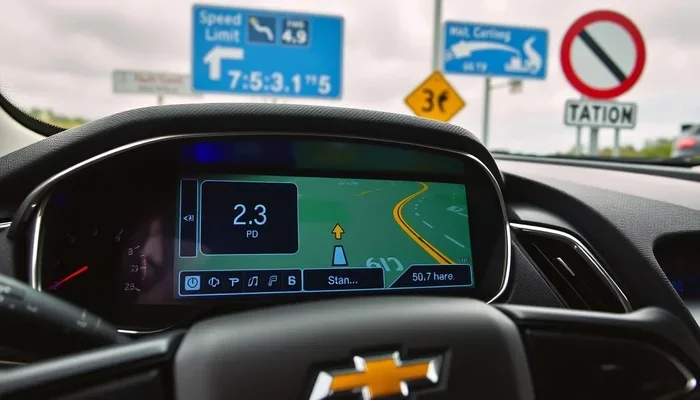
Here is how the system figures out your speed limit. Your GMC vehicle has a GPS receiver that tracks your exact location. The navigation system compares your location against a database of road speed limits. When a match is found, the system displays the limit on your screen. If you exceed the limit, the system can flash a warning. Some models even show the limit in the instrument cluster behind your steering wheel.
The accuracy depends on the map data in your system. GMC regularly updates its navigation maps, so the speed limit information stays current. However, temporary changes like construction zones may not always be reflected immediately.
Which GMC Models Support Speed Limit Display?
Most GMC vehicles with the navigation package include the speed limit display feature. Here are some popular models where you can expect to find this capability:
- GMC Acadia – A popular 7 seater car option for families. The Acadia comes well-equipped with modern tech features including navigation and speed limit alerts.
- GMC Sierra – GMC’s flagship truck. The Sierra offers top-tier navigation with full speed limit display support.
- GMC Terrain – A compact SUV with excellent features for its class. The Terrain includes navigation with speed limit information on higher trims.
- GMC Yukon – A full-size SUV with premium navigation and all the latest driver assistance features.
- GMC Canyon – A mid-size truck that also offers navigation with speed limit display in newer model years.
If you own a 1500cc to 2000cc cars in India or any other market, the feature availability may vary. Always check your specific model year and trim level. The navigation system hardware and software version determine whether the speed limit display is included. You can find this information in your owner’s manual or by checking the settings on your infotainment screen.
Step-by-Step Guide to Enable Speed Limit Display
Setting up the speed limit display on your GMC navigation system is straightforward. Follow these steps carefully. The exact menu names may vary slightly depending on your GMC model and infotainment generation.
Step 1: Start Your Vehicle
Turn on your GMC vehicle and let the infotainment system fully boot up. Make sure your GPS signal is active. You can usually see the GPS icon in the corner of the screen. If the signal is weak, wait a moment or drive to an open area where the signal is stronger.
Step 2: Open the Settings Menu
Tap the Settings icon on your GMC touchscreen. It usually looks like a gear or cog symbol. On some models, you may need to swipe down from the top of the screen to access quick settings. Once in Settings, look for the Navigation or Vehicle Settings option.
Step 3: Navigate to Display Settings
Inside the settings menu, find the section related to the navigation display. On newer GMC models with the IntelliLink or Infotainment 3 system, this is typically under “Navigation Settings” or “Display Preferences.” Older models may have a slightly different layout, but the options are similar.
Step 4: Enable Speed Limit Display
Look for an option labeled “Speed Limit Display,” “Speed Limit Indicator,” or “Road Speed Warning.” Toggle this setting to ON. Some systems may also let you choose between different display styles. You might see options like a simple number, a color-coded indicator, or a warning icon that appears when you exceed the limit.
Step 5: Adjust Warning Preferences
Many GMC systems let you customize how the speed limit warning behaves. You can set the warning threshold, which is how much over the limit the system will alert you. For example, you might set it to warn you when you are going 5 km/h or 3 mph over the limit. Some systems also let you turn the audio warning on or off. Choose the settings that feel right for your driving style.
Step 6: Test the Feature
After enabling the feature, take a short drive and watch your navigation screen. The speed limit should appear as you enter a new road. If you exceed the limit, the warning should activate. If nothing shows up, double-check your settings and make sure your GPS signal is strong.
Quick Tip: If you frequently drive in areas with changing speed limits, like school zones or construction areas, consider setting a lower warning threshold. This gives you more time to react and adjust your speed safely.
Customizing Your Speed Limit Display
Once the basic feature is enabled, you can fine-tune it to match your preferences. Customization makes the feature more useful and less distracting while driving.
Display Style Options
Different GMC models offer different ways to show the speed limit on screen. Common options include:
- Numeric Display: Shows the speed limit as a plain number on the navigation map.
- Color-Coded Indicator: Uses green for safe speed, yellow for approaching the limit, and red when you are over.
- Icon Warning: Displays a speed limit sign icon that lights up or flashes when you exceed the limit.
- Instrument Cluster Display: Shows the speed limit directly in the digital gauge cluster behind your steering wheel.
Audio and Visual Alerts
You can choose whether the system gives you a beep, a chime, or a visual-only warning when you exceed the speed limit. Some drivers prefer visual-only alerts to avoid distractions. Others like the audio cue because it pulls their attention even when they are not looking at the screen. Experiment with both options to see what works best for you.
Integration with Other Driver Assistance Features
The speed limit display works best when combined with other GMC driver assistance tools. For example, the GMC infotainment system can integrate the speed limit data with cruise control. Some models offer intelligent cruise control that automatically adjusts your speed based on the current road limit. This is especially helpful on long highway drives where speed limits change frequently.
Quick Tip: If you use your GMC for daily commuting, enabling all related alerts together creates a comprehensive safety net. The combination of speed limit display, lane keep assist, and forward collision warning makes your driving experience much safer.
Common Issues and How to Fix Them
Like any technology feature, the speed limit display can sometimes have issues. Here are the most common problems and their solutions.
The Speed Limit Is Not Showing
If the speed limit does not appear on your screen, the first thing to check is your GPS signal. A weak GPS connection means the system cannot determine your exact location, so it cannot match you to a road speed limit. Try driving to an open area away from tall buildings or dense trees and wait for the signal to strengthen.
Another common cause is outdated map data. GMC releases map updates periodically, and older maps may not have accurate speed limit information for newer roads. Check if a map update is available through your GMC dealer or the myGMC app. Updating your maps often resolves display issues immediately.
The Speed Limit Is Inaccurate
Sometimes the system shows a speed limit that does not match the actual limit on the road. This usually happens when map data is outdated or when temporary speed changes (like construction zones) are not yet reflected. In these cases, rely on posted road signs first and use the system as a helpful guide, not a definitive source.
The Warning Alerts Are Too Sensitive
If the system keeps beeping or flashing when you are only slightly over the limit, you may need to adjust the warning threshold. Go back to the settings menu and increase the tolerance. A threshold of 5 km/h or 3 mph is a good starting point for most drivers.
Screen Freezes or Lags
On rare occasions, the infotainment system may lag or freeze, causing the speed limit display to stop working. A simple system restart usually fixes this. Turn off your vehicle, wait 30 seconds, and restart. If the problem persists, a factory reset of the infotainment system may be needed. Consult your owner’s manual or contact a GMC dealer for guidance.
Tips for Getting the Most Out of the Speed Limit Display
Here are some practical tips to help you use the speed limit display feature more effectively in your daily driving.
- Keep Your Maps Updated: Regular map updates ensure the speed limit data is accurate. Check for updates at least once every few months.
- Use It Alongside Posted Signs: The system is a helpful tool, but always trust physical road signs first. Temporary changes like construction zones may not show up on the system.
- Adjust Brightness for Night Driving: If the speed limit display is too bright at night, adjust your screen brightness in the display settings to avoid glare.
- Pair with Cruise Control: On highways, combining the speed limit display with adaptive cruise control helps you maintain a safe and legal speed effortlessly.
- Teach Passengers: If you frequently carpool or let family members drive your GMC, make sure they know how the speed limit display works. This is especially useful if you drive a 7 seater car on rent in Mumbai or any other city where unfamiliar drivers may be behind the wheel.
- Check Your Power Accessories: If you use additional car electronics like a 12V to 230V car inverter or other power accessories, make sure they do not interfere with your infotainment system. Power fluctuations can sometimes cause minor display glitches.
Expert Insight: The speed limit display feature is part of a broader trend in automotive technology toward greater driver awareness. Automakers like GMC are investing heavily in these tools because studies show that informed drivers are safer drivers. When you know the speed limit at a glance, you spend less time scanning signs and more time focused on the road ahead.
Why Speed Limit Display Matters for Safe Driving
Speeding is one of the leading causes of road accidents worldwide. The National Highway Traffic Safety Administration consistently lists excessive speed as a major factor in fatal crashes. The speed limit display on your GMC navigation system is more than a convenience feature. It is a safety tool that keeps you aware and in control.
When you drive without knowing the current speed limit, it is easy to gradually increase your speed without realizing it. This is especially true on long, straight roads where the limit changes but the scenery stays the same. The speed limit display acts as a constant reminder, helping you stay within legal bounds and reducing the risk of accidents.
Beyond safety, the feature also helps you avoid costly speeding tickets. In many countries, speed cameras are common, and fines can be expensive. By keeping an eye on the displayed speed limit, you can adjust your speed proactively rather than reacting after the fact.
Additionally, if you are renting a vehicle or driving a car you are not familiar with, the speed limit display becomes even more valuable. You may not know the local speed limits, and the navigation system becomes your reliable guide. This is particularly relevant if you are considering vehicles like the ones featured in our article on 10 lines on my favourite toy car or exploring features across different vehicle categories.
Comparing GMC Speed Limit Display With Other Brands
GMC is not the only brand offering speed limit display. Many automakers now include this feature in their navigation systems. Here is a quick comparison of how GMC stacks up against some competitors.
| Feature | GMC Navigation | Toyota Navigation | Ford SYNC |
|---|---|---|---|
| Speed Limit Display | Available on most models | Available on select models | Available on most models |
| Customizable Alerts | Yes | Yes | Yes |
| Instrument Cluster Integration | Yes on higher trims | Yes on higher trims | Yes on higher trims |
| Map Update Frequency | Annual updates | Annual updates | Annual updates |
| GPS Accuracy | High | High | High |
| User Interface | Intuitive and clean | Simple and functional | Customizable and responsive |
As you can see, GMC holds its own against the competition. The user interface is intuitive, the display is clear, and the feature set is comprehensive. What sets GMC apart is the seamless integration of the speed limit display with other driver assistance features, creating a cohesive and safe driving experience.
When you compare the GMC infotainment system with others, the speed limit display stands out for its accuracy and ease of use. The system does not overwhelm you with too much information. It shows the limit clearly and warns you only when necessary. This balanced approach makes it a favorite among GMC owners.
Future of Speed Limit Display Technology
The technology behind speed limit displays is constantly evolving. Future GMC vehicles may include even more advanced features. Here are some trends to watch for.
- Camera-Based Speed Sign Recognition: Instead of relying solely on GPS and map data, future systems may use cameras to read actual speed signs on the road in real time.
- Integration with Traffic Management Systems: Connected vehicles may receive live speed limit updates from city traffic management systems, accounting for temporary changes like construction or weather-related limits.
- Augmented Reality Display: Imagine seeing the speed limit projected directly onto the road through your windshield using augmented reality technology.
- AI-Powered Predictions: Artificial intelligence could predict speed limit changes before you reach them, giving you even more time to adjust your speed.
These advancements will make the speed limit display even more accurate and useful. GMC is well-positioned to lead in this space, given its commitment to innovation and driver safety.
As automotive technology continues to evolve, features like the speed limit display will become standard across all vehicle brands. If you are shopping for a new vehicle, consider this feature as a key deciding factor. It is one of those small conveniences that makes a big difference in your daily driving experience.
Conclusion
The speed limit display on GMC navigation is a powerful yet simple feature that enhances both safety and convenience. Whether you drive a GMC Acadia, Sierra, Terrain, or Yukon, enabling this feature takes just a few minutes and pays off every time you get behind the wheel. From easy setup to customizable alerts, the system gives you the information you need at a glance.
Remember to keep your maps updated, adjust the settings to your preferences, and use the feature alongside posted road signs. The speed limit display is a tool to support you, not replace your judgment as a driver. With this feature active, you can drive with more confidence, stay within legal limits, and arrive at your destination safely.
Take a few minutes today to enable the speed limit display on your GMC navigation system. It is one of the best small upgrades you can make for a safer, smarter driving experience. Your future self will thank you every time you glance at that speed limit on your screen and know exactly what the limit is before you even think about slowing down.
Frequently Asked Questions
How do I turn on the speed limit display on my GMC navigation?
Go to your GMC infotainment Settings, then Navigation Settings, and look for the Speed Limit Display option. Toggle it to ON and customize your alert preferences. The exact menu path may vary slightly depending on your GMC model and infotainment system version.
Does the GMC speed limit display work in all countries?
The feature works in most countries where your GMC navigation maps include speed limit data. However, accuracy may vary depending on the region and how frequently the map data is updated. Always check posted road signs as the primary source of speed limit information.
Can I adjust how sensitive the speed limit warning is?
Yes, most GMC systems let you set the warning threshold. You can choose how much over the speed limit the system will alert you. A common setting is 5 km/h or 3 mph above the limit, but you can adjust this to your comfort level in the display settings.
Why is my GMC speed limit display not showing the correct limit?
This usually happens when map data is outdated or your GPS signal is weak. Try updating your navigation maps through the myGMC app or your dealer. Also ensure you have a strong GPS signal by driving in an open area. Temporary road changes like construction zones may not be reflected immediately.
Which GMC models have the speed limit display feature?
The feature is available on most GMC models with the navigation package, including the GMC Acadia, GMC Sierra, GMC Terrain, GMC Yukon, and GMC Canyon. Availability may depend on your specific trim level and model year. Check your owner’s manual for confirmation.
Can I use the speed limit display while off-road or on unpaved roads?
The speed limit display relies on GPS and map data, so it works best on paved roads with recorded speed limits. On unpaved or off-road paths, the system may not display a limit or may show inaccurate information. Always use caution and follow posted signs when driving off-road.