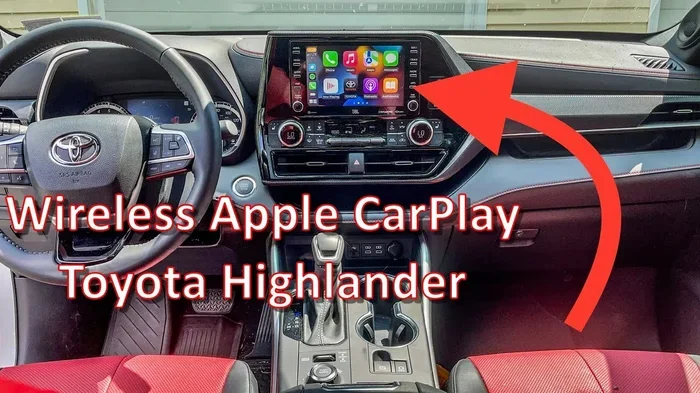
Does the Toyota Highlander Have Wireless Apple CarPlay
The Toyota Highlander offers wireless Apple CarPlay on most modern trims, making it easy to mirror your iPhone without cables. Does the Toyota Highlander Have Wireless Apple CarPlay? Yes, the answer is a clear yes for 2020 and newer models, especially on higher trims like XLE and Limited. You’ll find seamless smartphone integration, hands-free calling, and navigation right on the infotainment screen.
You slide behind the wheel of your Toyota Highlander, grab your iPhone, and expect everything to just work. The truth is, modern cars need to keep up with our phones. Does the Toyota Highlander Have Wireless Apple CarPlay? That is the question on many buyers’ minds. The short answer is yes, but the details matter. Which trims include it? How does the setup work? What happens when you switch from wireless to wired? This guide breaks it all down so you can drive away with confidence.
Wireless Apple CarPlay means you never have to dig for a cable again. Your phone connects the moment you start the car. You get your favorite apps, music, and navigation right on the big center screen. The Toyota Highlander has been a popular midsize SUV for years, and its tech keeps getting better. If you are shopping for a new or used model, understanding Apple CarPlay is essential. Let us walk you through everything you need to know.
Key Takeaways
- Wireless Apple CarPlay is available: Most 2020 and newer Toyota Highlanders come with wireless Apple CarPlay as standard or optional equipment.
- Trim levels matter: The XLE, XSE, Limited, and Platinum trims typically include wireless CarPlay, while the base L and LE trims may only offer a wired connection.
- Hybrid models support it too: The Toyota Highlander Hybrid also features wireless Apple CarPlay, and you can learn more about hybrid transitions in our guide on at what point does a hybrid switch to gas.
- Setup is simple: You can connect your iPhone automatically when you sit in the car, and the system uses Wi-Fi, not Bluetooth.
- Wired still works: If your Highlander is older or lacks wireless support, a USB cable will still give you Apple CarPlay functionality.
- Test before you buy: Visit a dealership like a local Chevrolet dealership that carries the following types of vehicles to test the system in person.
📑 Table of Contents
- What Is Apple CarPlay and Why It Matters in the Toyota Highlander
- Does the Toyota Highlander Have Wireless Apple CarPlay?
- Which Toyota Highlander Trims Offer Wireless Apple CarPlay?
- How to Set Up Wireless Apple CarPlay on Your Toyota Highlander
- Wireless vs. Wired Apple CarPlay: Which Is Better?
- Common Issues and How to Fix Them
- Expert Tips for the Best Apple CarPlay Experience
- The Toyota Highlander Hybrid and Apple CarPlay
- Should You Visit a Dealership to Test Wireless CarPlay?
- Common Mistakes to Avoid
- Expert Insights
- Key Takeaways
- Final Thoughts
What Is Apple CarPlay and Why It Matters in the Toyota Highlander
The Basics of Apple CarPlay
Apple CarPlay is a smart bridge between your iPhone and your car’s infotainment system. It mirrors the most useful parts of your phone onto the vehicle’s screen. You see your messages, music, maps, and podcasts in a safe, driver-friendly layout. The system uses Siri for hands-free control, so you keep your eyes on the road. Wireless Apple CarPlay takes this one step further by removing the cable entirely.
Why Wireless Is a Game-Changer
Wired Apple CarPlay works fine, but it has a small annoyance. You need a Lightning or USB-C cable every time. A wireless connection uses the car’s built-in Wi-Fi. Your iPhone pairs automatically when you enter the vehicle. This means no fumbling with cables in the dark or a cluttered center console. For the Toyota Highlander, wireless CarPlay adds a layer of convenience that feels modern and premium. It also reduces wear and tear on your charging port.
Does the Toyota Highlander Have Wireless Apple CarPlay?
The Short Answer
Does the Toyota Highlander Have Wireless Apple CarPlay? Yes, the majority of 2020 and newer models do. Toyota made wireless CarPlay standard on many trims starting with the 2021 model year. Earlier 2020 models might have it as part of an optional tech package. If you are looking at a used Highlander from 2019 or older, you will likely find only wired Apple CarPlay. Always check the specific trim and model year to be sure.
How Wireless CarPlay Works in the Highlander
The Highlander creates a secure Wi-Fi hotspot. Your iPhone detects it and prompts you to connect. Once paired, the phone and car share data without a cable. You can stream music, get live traffic updates, and send messages through Siri. The system stays connected even if you turn the car off and on again. It uses a dedicated Wi-Fi frequency, so your phone’s regular internet connection remains available for other tasks. This means your navigation app can pull real-time data while you drive.
Which Toyota Highlander Trims Offer Wireless Apple CarPlay?
Not every Highlander trim is the same. Toyota uses a tiered approach, and wireless Apple CarPlay availability shifts depending on the level of luxury and technology you choose. Below is a quick look at how the trims stack up.
| Trim Level | Wireless Apple CarPlay | Wired Apple CarPlay | Notes |
|---|---|---|---|
| L | No | Yes (USB) | Base model; focuses on essentials |
| LE | Optional (tech package) | Yes (USB) | Wired standard; wireless adds cost |
| SE | Yes (standard on most) | Yes (USB) | Sporty feel; tech included |
| XLE | Yes (standard) | Yes (USB) | Popular family trim |
| XSE | Yes (standard) | Yes (USB) | Sport + luxury combo |
| Limited | Yes (standard) | Yes (USB) | Premium features |
| Platinum | Yes (standard) | Yes (USB) | Top-tier; full tech suite |
SE and XLE Trims
The SE trim brings a sportier aesthetic and usually includes wireless CarPlay as standard. The XLE is the family-friendly sweet spot and also offers wireless connectivity out of the box. Both trims give you a great balance of features and value. If you want the wireless Apple CarPlay experience without stepping up to the top trims, these are excellent choices.
XSE and Limited Trims
The XSE adds a bit more style and performance tuning, and wireless CarPlay is part of the package. The Limited trim steps up the luxury with leather seats and a power liftgate, and it always includes wireless Apple CarPlay. These trims are ideal if you want a polished, tech-forward driving experience.
Platinum Trim
The Platinum is the crown jewel of the Highlander lineup. It comes with every available tech feature, and wireless Apple CarPlay is standard. The Platinum also offers a head-up display and a premium JBL audio system, which pair beautifully with CarPlay. If you want the full suite, this is the trim to choose.
How to Set Up Wireless Apple CarPlay on Your Toyota Highlander
Step-by-Step Connection
Setting up wireless Apple CarPlay is quick and painless. Follow these simple steps the first time you use it:
- Start the Toyota Highlander and make sure the engine is running.
- Ensure your iPhone is unlocked and on the home screen.
- On the car’s touchscreen, tap the Apple CarPlay icon. It usually looks like a smartphone silhouette.
- Your iPhone will detect the car’s Wi-Fi network. Tap “Connect” when the prompt appears.
- You may need to accept a few permissions, like “Allow” for notifications and location.
- Once connected, your CarPlay home screen appears on the center display.
The car will remember your iPhone after the first pairing. The next time you get in, CarPlay connects automatically. This seamless process is one of the biggest advantages of the wireless system.
Troubleshooting Tips
If CarPlay does not appear right away, do not panic. Try these quick fixes:
- Toggle Wi-Fi on your iPhone: Turn it off and back on to refresh the connection.
- Restart the infotainment system: Hold the power button on the touchscreen for a few seconds until the screen goes dark, then turn it back on.
- Check for iOS updates: Apple releases updates that fix CarPlay bugs. Go to Settings > General > Software Update.
- Forget the network: On your iPhone, go to Settings > Wi-Fi, find the Toyota Highlander network, and tap “Forget This Network.” Then reconnect.
Wireless vs. Wired Apple CarPlay: Which Is Better?
Speed and Convenience
Wireless Apple CarPlay wins on convenience. You never have to plug in a cable, and the connection feels instant. Wired CarPlay can sometimes be faster in data transfer, but for everyday use, the difference is barely noticeable. The wireless setup keeps your center console clean and free of dangling cords. For the Toyota Highlander, wireless is the clear choice if your trim supports it.
Reliability and Compatibility
Wired connections are extremely reliable. They do not depend on Wi-Fi signals, so they rarely drop. Wireless CarPlay is also very stable in the Highlander, but it can occasionally hiccup if there is interference from other Wi-Fi devices. A wired connection also charges your phone while you drive, which is helpful on long trips. If you often take road trips, you might want a wired backup even if your Highlander has wireless.
Quick Tips
- Use both systems: Keep a short USB-C cable in your glovebox for long drives when you want the phone to charge.
- Set Siri as your helper: Say “Hey Siri” to make calls or change music without touching your phone.
- Enable “Auto-Connect”: In your iPhone’s CarPlay settings, turn on “Auto-Connect” for the Toyota Highlander so it always links when you sit down.
Common Issues and How to Fix Them
CarPlay Not Showing Up
If the Apple CarPlay icon never appears on your Highlander’s screen, the first thing to check is your iPhone’s settings. Go to Settings > General > CarPlay and make sure the car is listed and enabled. Sometimes a simple restart of both devices solves the problem. Also, ensure your phone’s software is up to date. An outdated iOS version can cause compatibility issues with the Highlander’s infotainment system.
Audio Cutting Out
Some drivers report that audio from CarPlay cuts in and out. This usually happens when the Wi-Fi signal is weak or another device is hogging the network. Try moving your phone closer to the center console. You can also switch the car’s Wi-Fi band if the system supports both 2.4 GHz and 5 GHz. A stable connection keeps your music and navigation audio flowing smoothly.
Expert Tips for the Best Apple CarPlay Experience
Keep Your iPhone Updated
Apple regularly patches bugs that affect CarPlay. Updating your iPhone ensures you get the latest features and stability improvements. The Toyota Highlander’s system also benefits from periodic infotainment updates. Check with your dealer to see if your head unit has the latest software. A simple update can fix many connectivity quirks.
Use a Quality Wi-Fi Connection
Wireless CarPlay relies on a dedicated Wi-Fi link between your phone and the car. If you have many Wi-Fi networks saved on your iPhone, it might try to connect to a remembered network instead of the car. To prevent this, forget any old car networks you no longer use. This keeps the Highlander’s Wi-Fi as the primary connection and reduces pairing errors.
The Toyota Highlander Hybrid and Apple CarPlay
Does the Hybrid Model Support Wireless CarPlay?
Yes, the Toyota Highlander Hybrid supports wireless Apple CarPlay just like the gas-powered versions. The hybrid powertrain does not affect the infotainment system. You get the same seamless smartphone integration, whether you are driving on electric power, gas, or a mix of both. If you are curious about how the hybrid system works and when it switches between power sources, you can read more about at what point does a hybrid switch to gas in our detailed guide.
When Does the Hybrid Switch to Gas, and Does It Affect CarPlay?
The hybrid system switches to gas when the battery is low or when you need extra power for acceleration. This transition is smooth and does not interrupt Apple CarPlay. Your music, navigation, and calls continue without a glitch. The infotainment system runs on the car’s electrical system, which stays active regardless of the powertrain mode. So you can enjoy wireless CarPlay even while the Highlander is running purely on its gas engine.
Should You Visit a Dealership to Test Wireless CarPlay?
Reading about wireless Apple CarPlay is helpful, but nothing beats seeing it in action. When you visit a dealership, take a few minutes to test the system with your own iPhone. Ask the salesperson to walk you through the connection process. If you are shopping at a place like a local Chevrolet dealership that carries the following types of vehicles, you might find a Toyota Highlander on the lot as well. Many multi-brand dealerships let you test drive different models, so use that opportunity to experience the wireless CarPlay setup firsthand.
Common Mistakes to Avoid
Even with a simple system like Apple CarPlay, people make small mistakes that cause frustration. Here are a few to watch out for:
- Forgetting to enable CarPlay on your iPhone: Go to Settings > General > CarPlay and make sure your car is selected.
- Using a dirty or damaged Lightning cable: If you rely on wired CarPlay, a frayed cable will cause dropouts. Replace it regularly.
- Ignoring software updates: Both your iPhone and the Highlander’s head unit need updates for the best performance.
- Overloading the CarPlay screen: Too many apps can slow things down. Keep your most-used apps front and center.
Expert Insights
Automotive tech experts agree that wireless Apple CarPlay is now a must-have feature. The Toyota Highlander delivers it well across its lineup. The system is intuitive, and the large touchscreen makes it easy to read while driving. According to reviews from trusted sources, the Highlander’s wireless CarPlay connection is among the most stable in the midsize SUV class. It rarely disconnects, and the audio quality through the car’s speakers is clear and rich. If you value a modern, connected driving experience, the Highlander is a strong contender.
Key Takeaways
- Wireless Apple CarPlay is standard on most 2020+ Toyota Highlanders: It brings cable-free convenience to your daily commute.
- Higher trims like XLE, XSE, Limited, and Platinum always include it: Lower trims may require an optional tech package.
- Setup is automatic and remembers your iPhone: You connect once and forget about it.
- The hybrid version works the same way: The powertrain does not interfere with the infotainment system.
- Keep a USB cable handy for long trips: Wired CarPlay can charge your phone and offer a backup connection.
Final Thoughts
So, does the Toyota Highlander Have Wireless Apple CarPlay? The answer is a resounding yes for the vast majority of current models. Whether you choose the sporty SE, the family-friendly XLE, or the luxurious Platinum, you will enjoy seamless smartphone integration. The wireless connection keeps your cabin tidy and your focus on the road. It is one of those features that makes you wonder how you ever drove without it. If you are still on the fence, visit a dealership, plug in your iPhone, and experience the difference yourself. The Toyota Highlander proves that big SUVs can have big tech, and wireless Apple CarPlay is at the heart of that experience.
Frequently Asked Questions
Does every Toyota Highlander come with wireless Apple CarPlay?
Not every trim includes wireless Apple CarPlay. The base L and LE trims may only offer a wired connection unless you add the technology package. The SE, XLE, XSE, Limited, and Platinum trims almost always include wireless CarPlay as standard. Always check the specific model year and trim before purchasing.
Can I use wireless Apple CarPlay with an Android phone?
No, Apple CarPlay is designed exclusively for iPhones. Android users should look for Android Auto, which the Toyota Highlander also supports. The system works in a similar way, mirroring your phone’s apps onto the car’s screen. You can switch between CarPlay and Android Auto depending on your phone.
Does wireless Apple CarPlay drain my iPhone battery?
Wireless CarPlay uses Wi-Fi, which can use a bit more battery than a wired connection. However, modern iPhones handle this efficiently. If you are worried about battery life, you can keep your phone plugged in while using CarPlay. The Highlander’s USB ports can charge your phone even during a wireless session.
Is wireless Apple CarPlay safe to use while driving?
Yes, Apple CarPlay is designed with driver safety in mind. The interface is simplified for use behind the wheel, and Siri lets you keep your eyes on the road. You can make calls, send messages, and get directions using voice commands. The Toyota Highlander’s CarPlay system is fully hands-free when you use Siri.
What should I do if wireless Apple CarPlay keeps disconnecting?
First, try toggling Wi-Fi on your iPhone off and on again. You can also restart the car’s infotainment system by holding the power button. If the problem persists, forget the car’s Wi-Fi network on your iPhone and reconnect. Keeping both your iPhone and the car’s software up to date often resolves these issues.
Can I use Apple CarPlay while the car is in accessory mode?
Yes, you can use Apple CarPlay when the car is in accessory mode, which powers the infotainment system without starting the engine. This is handy for playing music or setting a destination before you drive off. Wireless CarPlay connects just as easily in accessory mode as it does when the engine is running.