How Do I Update BMW Navigation Maps for Free on My Car
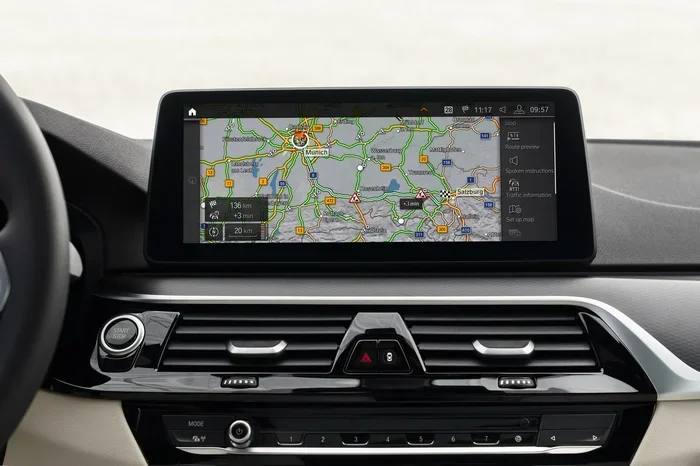
You can update BMW navigation maps for free directly from your vehicle’s iDrive system. This guide shows you how to check your current map version, download the latest data, and install updates without visiting a dealer. Keep your routes fresh and accurate with these simple steps.
Keeping your BMW navigation maps current is one of the easiest ways to get reliable directions every time you drive. Outdated maps can send you down closed roads or miss new highways. The good news is that you can update BMW navigation maps for free without ever leaving your home or visiting a dealer. This guide walks you through every step, from checking your current map version to downloading the latest data. You will learn two simple methods and how to fix common problems. By the end, you will feel confident keeping your BMW navigation maps fresh and accurate.
Your BMW’s navigation system relies on map data to guide you. This data includes road networks, speed limits, points of interest, and real-time traffic information. When automakers release new map versions, they add recent street changes and new businesses. Most BMW models support free map updates for the first few years after purchase. Even if your car is older, you can still get free updates through the iDrive system or the BMW website. All you need is a stable internet connection or a USB drive. Let us explore how to keep your BMW GPS working at its best.
Key Takeaways
- Free updates are possible: BMW offers free map updates via iDrive or the BMW website for many models.
- Check your map version first: Knowing your current version helps you find the right update.
- Two main methods: You can update using the car’s internet connection or a USB drive.
- Regular updates improve accuracy: Fresh maps give you new roads, points of interest, and traffic data.
- Troubleshooting is simple: Common issues like slow downloads or error messages have easy fixes.
- Keep your system updated: Regular updates ensure your BMW navigation maps work reliably.
📑 Table of Contents
- Why You Should Update BMW Navigation Maps for Free
- How to Check Your Current BMW Navigation Map Version
- Step-by-Step Guide to Update BMW Navigation Maps for Free
- BMW Map Update Options: iDrive vs. BMW ConnectedDrive
- Common Problems When Updating BMW Navigation Maps (and How to Fix Them)
- Tips to Keep Your BMW Navigation System Running Smoothly
- Conclusion
Why You Should Update BMW Navigation Maps for Free
The Importance of Fresh Map Data
Roads change constantly. New shopping centers, roundabouts, and speed cameras appear every month. Your BMW navigation maps need to reflect these changes. Outdated map data can cause you to miss turns or take longer routes. Fresh maps give you accurate route guidance and save you time. They also add new points of interest like restaurants, gas stations, and charging stations for electric vehicles. A simple map update keeps your driving experience smooth and stress-free.
What Happens When Maps Are Outdated
When your navigation system uses old map data, several problems can arise. You might see roads that no longer exist. Turn-by-turn directions may send you the wrong way. Real-time traffic information can become unreliable. In some cases, the system might not recognize new street names. This is why a free map update is so valuable. It restores map accuracy and ensures your BMW GPS works as intended. A quick update can prevent frustrating detours and save fuel.
How to Check Your Current BMW Navigation Map Version
Finding the Map Version in iDrive
Before you start, you need to know which map version your car currently has. This helps you find the correct update. Open your iDrive system and press the MENU button. Navigate to Settings. Then select Navigation. Finally, choose Map Information. The screen will display your current map data version and the date it was installed. Write this down or take a photo with your phone. This number tells you if an update is available.
Understanding Map Version Numbers
BMW map versions usually look like a year and a month. For example, a version labeled 2024.1 means January 2024 data. Newer versions have higher numbers. If your version is older than six months, an update is likely available. BMW releases map updates several times a year. Each update includes recent road changes and new points of interest. Checking your version regularly keeps your BMW navigation maps reliable.
Step-by-Step Guide to Update BMW Navigation Maps for Free
Method 1: Update Using Your Car’s Internet Connection
The easiest way to update BMW navigation maps for free is through your car’s built-in internet. This method works if your BMW has a connected drive module. Follow these simple steps.
- Turn on your car and press the MENU button on the iDrive controller.
- Go to Settings and then select Connection.
- Choose BMW Online and make sure your internet connection is active.
- Return to the Navigation menu and select Map Update.
- The system will check for available map data updates.
- If an update is found, press Download and wait for it to finish.
- Once downloaded, press Install. The car will restart the navigation system.
This method downloads the update directly to your hard drive. It usually takes 15 to 30 minutes depending on your connection speed. After installation, your BMW navigation maps will be up to date. You can start using the new route guidance right away.
Method 2: Update via USB Drive from the BMW Website
If your car does not have a permanent internet connection, you can use a USB drive. BMW provides free map updates on their website. Here is how to do it.
- Visit the BMW website and log in to your BMW ConnectedDrive account.
- Go to the Services section and select Map Update.
- Choose your vehicle model and current map version.
- Download the update file to your computer.
- Copy the file to a USB flash drive formatted as FAT32.
- Plug the USB drive into your car’s USB port.
- In iDrive, go to Navigation and select Map Update from USB.
- Follow the on-screen prompts to install the update.
This method is slightly longer but works for all BMW models. The map DVD option is also available for older models. A USB drive makes the process clean and simple. After the update, your BMW GPS will have the latest map accuracy.
How Long Does the Update Take?
The download time depends on your internet speed. A typical map update file is between 2 and 4 gigabytes. With a fast Wi-Fi connection, the download takes about 10 to 20 minutes. Installation takes another 5 to 10 minutes. You should not use the navigation system while the update installs. Let the car rest during this time. Once complete, your BMW navigation maps will be ready to go.
BMW Map Update Options: iDrive vs. BMW ConnectedDrive
Comparing the Two Update Methods
BMW offers two main ways to receive free map updates. You can use the iDrive system directly in the car, or you can use the BMW ConnectedDrive portal on a computer. Both methods give you the same map data. The choice depends on your car’s features and your preference. Here is a quick comparison.
| Feature | iDrive In-Car Update | BMW ConnectedDrive USB Update |
|---|---|---|
| Internet Required | Yes, built-in connection | No, use any computer |
| Hardware Needed | None | USB flash drive |
| Time to Update | 15–30 minutes | 20–40 minutes |
| Best For | Connected BMW models | Older models or no internet |
| Update Source | Direct from BMW servers | Downloaded via BMW website |
Both methods keep your BMW navigation maps current. If you have a newer BMW with a built-in SIM card, the iDrive method is the fastest. For older models, the USB method is reliable and simple. You can also check for updates through the BMW app on your phone. The app sends a notification when a new map version is ready.
Common Problems When Updating BMW Navigation Maps (and How to Fix Them)
Slow Download Speeds
Sometimes the map update downloads very slowly. This usually happens when the internet signal is weak. If you are using the car’s Wi-Fi, move the vehicle to a spot with better coverage. You can also try updating during off-peak hours. If you are using a USB drive, make sure the USB port is not faulty. A slow map download can be frustrating, but patience usually solves it. Restarting the iDrive system can also speed things up.
Error Messages During Installation
You might see a message like “Update failed” or “File corrupted.” Do not worry. This often means the downloaded file is incomplete. Delete the file from the USB drive or the car’s system. Download it again from the BMW website. Make sure the USB drive is formatted correctly as FAT32. Also, check that your car battery is fully charged. A low battery can interrupt the map installation. After re-downloading, try the update again.
Map Not Appearing After Update
In rare cases, the new map data does not show up after installation. This can happen if the system did not restart properly. Turn the ignition off and wait 30 seconds. Then start the car again. The navigation system should now display the updated BMW navigation maps. If the problem continues, reset the iDrive system to factory settings. This clears any temporary errors. You can find the reset option in the Settings menu under System.
Tips to Keep Your BMW Navigation System Running Smoothly
Regular Maintenance Habits
A little care goes a long way. Here are simple habits that keep your navigation system healthy.
- Check for map updates at least once every three months.
- Keep your car’s internet connection active if possible.
- Store your USB drive safely and format it regularly.
- Restart the iDrive system once a month to clear cache.
- Avoid turning off the car while a map update is installing.
These small steps prevent most problems. They also ensure your BMW GPS gives you the best route guidance every time. Fresh map data means fewer surprises on the road.
When to Seek Professional Help
Most map updates are simple and free. But sometimes you might need help. If the update keeps failing or your navigation system freezes, visit a BMW service center. Technicians can check your hard drive and iDrive controller. They can also perform a deep software reset. For owners who travel often, a reliable BMW navigation system is essential. Keep it maintained and it will serve you well for years.
While you are at it, consider small upgrades that improve your overall driving experience. For example, if you frequently travel with a large family, a 10-seater car for travelling might complement your BMW for group trips. Similarly, to reduce glare during night drives, you can apply 3M Anti Glare Film For Car Windshield for better visibility. For a brighter cabin, installing a 200 Watt Led Light For Car is an easy and affordable change. These extras keep your driving environment comfortable and safe.
Conclusion
Updating your BMW navigation maps for free is simple and rewarding. You now know how to check your map version, download updates via iDrive or USB, and fix common issues. Fresh map data gives you accurate directions, new points of interest, and better traffic information. Make it a habit to update your BMW navigation maps every few months. Your BMW GPS will stay reliable and ready for any journey. Take a few minutes today and enjoy a smoother, smarter drive tomorrow.
Frequently Asked Questions
Can I update BMW navigation maps for free if my car is older?
Yes, many older BMW models still support free map updates. You can use the USB method with the BMW website. Check your specific model on the BMW ConnectedDrive portal to confirm eligibility.
How often should I update my BMW navigation maps?
You should update your BMW navigation maps at least three to four times a year. BMW releases new map data regularly. Frequent updates ensure you always have the latest roads and points of interest.
Do I need an internet connection in my car to update maps?
You can update with or without an internet connection. If your car has a built-in connection, you can update directly through iDrive. Otherwise, use a USB drive and a computer to download the update file.
What should I do if my BMW map update fails repeatedly?
First, check your internet connection or USB drive format. Delete the old file and re-download the map update. If it still fails, reset the iDrive system. For persistent issues, visit a BMW service center for professional help.
Will updating maps delete my saved routes and favorites?
No, a map update does not delete your saved routes, home addresses, or favorites. The update only replaces the map data files. Your personal settings remain safe in the system memory.
Is it safe to use the navigation system during a map update?
It is best to avoid using the navigation system while the map update is installing. The system needs full attention to complete the process. Wait until the installation finishes and the car restarts before driving.