How Do I Connect My Phone Maps to My Car for Easy Navigation
Connecting your phone maps to your car is one of the easiest ways to upgrade your driving experience. Whether you use Apple CarPlay, Android Auto, or a simple Bluetooth connection, you can get GPS directions on your car screen with just a few taps. This guide walks you through every method step by step so you can start navigating with confidence today.
Have you ever been driving somewhere new and wished you had a bigger screen for your phone maps? Maybe you have been squinting at your small phone screen while trying to follow turn-by-turn directions. The good news is that connecting your phone maps to your car is easier than you think. You do not need expensive equipment or tech skills. In this guide, we will walk you through every method step by step. By the end, you will know exactly how to get your GPS navigation up on your car screen and start driving with confidence.
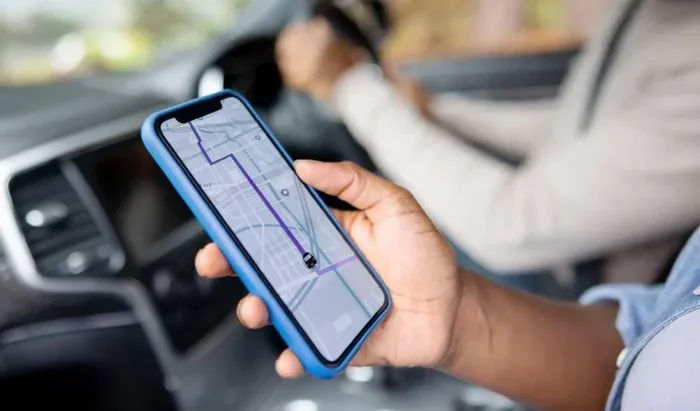
Millions of people use their phones for directions every single day. The problem is that holding your phone while driving is dangerous and often illegal. That is where car phone connection comes in. When you link your phone to your vehicle, you get a big screen view, voice-guided directions, and hands-free control. It makes every trip safer and less stressful. Let us dive into the different ways you can make this happen.
Key Takeaways
- Bluetooth pairing: The most universal method that works with almost any car and phone.
- Apple CarPlay: Gives iPhone users a seamless, screen-mirrored navigation experience on the road.
- Android Auto: Offers the same smooth mapping experience for Android phone users.
- Wireless vs. wired: Both options have pros and cons — knowing the difference helps you pick the best fit.
- Troubleshooting tips: Simple fixes can solve most connection problems in minutes.
- Hands-free driving: Connecting your maps lets you keep your eyes on the road and hands on the wheel.
📑 Table of Contents
- Why Connecting Phone Maps to Your Car Makes Sense
- What You Need Before You Start
- How to Connect via Bluetooth
- How to Connect Using Apple CarPlay
- How to Connect Using Android Auto
- Wireless vs. Wired Connection: Which Is Better?
- Troubleshooting Common Connection Issues
- Tips for a Better Navigation Experience
- Final Thoughts
Why Connecting Phone Maps to Your Car Makes Sense
Before we get into the how-to, let us talk about why this is such a big deal. Using your phone as a GPS navigation tool on the road changes everything. You get real-time traffic updates, automatic rerouting, and accurate turn-by-turn directions. But the real magic happens when that map appears on your car screen.
Here is why it matters so much:
- Safety: A larger screen means less squinting and fewer distracted moments.
- Convenience: You do not have to mount your phone on the dashboard anymore.
- Hands-free control: You can change routes using voice commands while keeping your hands on the wheel.
- Better audio: Navigation directions play through your car speakers, not tiny phone speakers.
- Seamless experience: Your map, music, and calls all work together in one place.
When you set up in-car navigation properly, your driving trips become smoother and more enjoyable. You spend less time figuring out where to go and more time enjoying the drive.
What You Need Before You Start
Setting up phone mirroring in your car is simple, but you do need a few things in place first. Let us go over the basics so you are ready to go.
Check Your Car Compatibility
Not every car has the same tech built in. Some vehicles come with infotainment systems that support smartphone car setup right out of the box. Others may need a simple adapter or cable. Here is how to check what your car supports:
- Look for a “Smartphone” or “Connectivity” section in your car manual.
- Check if your dashboard has a car infotainment system with a touchscreen.
- Search online for your car model and year to see what features it supports.
- Ask your car dealer if your vehicle supports wireless casting or screen sharing car options.
Check Your Phone Compatibility
Your phone also needs to meet a few requirements:
- Make sure your phone operating system is up to date.
- Your phone should have enough storage space for map data.
- Bluetooth and Wi-Fi need to be working properly.
- Install your preferred mapping app, such as Google Maps, Waze, or Apple Maps.
Gather the Right Cables (If Needed)
Some methods require a cable, while others are completely wireless. If you plan to use a wired connection, make sure you have a USB tethering cable that fits both your phone and your car. A high-quality cable can make a big difference in speed and reliability.
How to Connect via Bluetooth
Bluetooth connection is the most universal method for linking your phone to your car. Almost every modern vehicle has Bluetooth built in. This method works for audio and basic navigation, even if your car does not support Apple CarPlay or Android Auto.
Step-by-Step Bluetooth Pairing
Follow these simple steps to get your phone maps to car working over Bluetooth:
- Turn on your car and go to the settings or Bluetooth menu on your infotainment screen.
- Make sure Bluetooth is turned on in your car.
- Open the Bluetooth settings on your phone and turn it on.
- Your car should appear as a discoverable device on your phone. Tap on it.
- Your phone may ask you to confirm a pairing code. Make sure the code matches on both screens.
- Once paired, your phone will automatically connect when you get in the car.
Now when you open your navigation app on your phone, the audio will play through your car speakers. You will hear turn-by-turn directions clearly without having to look at your phone screen.
Setting Up Audio Routing
After pairing, you may need to adjust your audio settings so that navigation directions come through your car speakers instead of your phone speaker. Go to your phone’s Bluetooth settings and make sure your car is set as the audio output device. This is a small step that makes a huge difference in your driving directions experience.
How to Connect Using Apple CarPlay
If you have an iPhone, Apple CarPlay is a game-changer. It projects your phone screen onto your car display, giving you access to maps, music, messages, and more — all in a safe, driver-friendly interface.
What Apple CarPlay Offers
Wireless mapping and phone projection are at the heart of Apple CarPlay. You get a simplified version of your iPhone interface on your car screen. Your mobile navigation on big screen experience becomes much more usable. Here is what you can do:
- Use Google Maps, Apple Maps, Waze, or any supported navigation app on the big screen.
- Control your map with your car’s touchscreen or voice commands.
- Get Siri-powered directions without touching your phone.
- Receive and reply to messages hands-free.
How to Set Up Apple CarPlay
Setting up Apple CarPlay is straightforward:
- Make sure your iPhone is updated to the latest iOS version.
- Plug your iPhone into your car’s USB port using a Lightning cable.
- Your car screen should display the Apple CarPlay icon. Tap it.
- If your car supports wireless CarPlay, you can skip the cable and connect through Bluetooth and Wi-Fi.
- Follow the on-screen prompts to grant permissions for maps, music, and notifications.
- Once connected, tap the Maps icon on your car screen to start navigating.
Some newer cars support wireless CarPlay, which means no cables at all. You simply select your car from the CarPlay menu on your iPhone, and it connects automatically every time you get in.
How to Connect Using Android Auto
If you have an Android phone, Android Auto gives you the same kind of seamless experience. It mirrors your phone’s navigation and other apps onto your car screen, making it easy to get where you need to go.
What Android Auto Offers
Android Auto brings your favorite mapping apps to life on your car’s display. You get:
- Big-screen navigation with Google Maps or Waze.
- Voice-powered search and directions through Google Assistant.
- Easy access to music apps like Spotify, YouTube Music, and more.
- A clean, driver-friendly interface that reduces distractions.
How to Set Up Android Auto
Getting started with Android Auto is simple:
- Make sure your Android phone is running the latest version of the operating system.
- Download the Android Auto app from the Google Play Store if it is not already installed.
- Plug your phone into your car’s USB port.
- Your car screen should display the Android Auto interface. Follow the setup prompts.
- Grant the necessary permissions for location access, maps, and audio.
- Once connected, tap the Maps icon to start using your GPS navigation on the big screen.
Just like Apple CarPlay, some cars now support wireless Android Auto. This means you can connect without any cables at all, which is incredibly convenient.
Wireless vs. Wired Connection: Which Is Better?
One of the most common questions people ask is whether they should use a wireless connection or a cable. Both methods work well, but they each have their own strengths. Let us compare them so you can decide what works best for you.
| Feature | Wired Connection | Wireless Connection |
|---|---|---|
| Setup | Plug in a cable | Connect via Bluetooth and Wi-Fi |
| Reliability | Very stable, fewer disconnects | Slightly more prone to occasional drops |
| Convenience | Requires plugging in every time | Connects automatically |
| Charging | Yes, charges your phone | No, phone charges separately |
| Speed | Faster data transfer | Slightly slower but still smooth |
| Compatibility | Works with almost all cars | Requires wireless-capable car or adapter |
For most people, the choice comes down to convenience. If you want a hassle-free setup every time you get in the car, wireless mapping is the way to go. If you want the most stable connection and the added benefit of charging your phone, a wired setup works great too.
Troubleshooting Common Connection Issues
Even though connecting your phone maps to your car is usually smooth, you might run into problems from time to time. Do not worry — most issues have simple fixes.
Phone Does Not Show Up on Car Screen
This is the most common issue. Try these steps first:
- Make sure Bluetooth is turned on in both your phone and your car.
- Turn Bluetooth off and back on again on your phone.
- Delete the old pairing from your car and your phone, then pair again from scratch.
- Restart both your phone and your car infotainment system.
Navigation Audio Does Not Play Through Car Speakers
If you can hear your phone but not the navigation directions, check your audio output settings. Go to your phone’s Bluetooth settings and make sure your car is selected as the audio device. You may also need to check the audio source on your car’s infotainment system.
Maps Load Slowly or Lag
A slow connection can be frustrating. Try these fixes:
- Use a high-quality USB cable if you are going the wired route.
- Make sure your phone has a strong Wi-Fi or cellular signal.
- Clear the cache of your mapping app to free up space.
- Close other apps running in the background that might be using bandwidth.
CarPlay or Android Auto Disconnects Randomly
Random disconnections can be annoying. Here is what helps:
- Update your phone to the latest software version.
- Update your car’s infotainment system firmware.
- Turn off Wi-Fi Assist or adaptive battery features that might interfere.
- Re-pair your device by forgetting it and connecting again.
Tips for a Better Navigation Experience
Once you have your phone maps connected to your car, you can take your experience to the next level with a few smart habits.
Use Voice Commands
One of the best parts of connecting your maps to your car is the ability to use voice commands car features. Say “Hey Siri” or “OK Google” to search for destinations, reroute, or adjust volume — all without touching your phone. This keeps your eyes on the road and your hands on the wheel.
Download Offline Maps
Not every trip has perfect cell service. Download offline maps for areas you visit often or routes you plan to take through rural areas. Both Google Maps and Apple Maps let you download entire regions for offline use. This ensures you never lose your driving directions even in dead zones.
Keep Your Apps Updated
Regular updates improve performance, fix bugs, and add new features. Make sure your mapping app, phone operating system, and car infotainment system are all running the latest versions. A quick update can solve many connection and performance issues.
Use a Quality Mount as Backup
Even with screen sharing car technology, having a phone mount as a backup is always smart. If your connection fails or your car does not support mirroring, a good mount keeps your phone visible and accessible for navigation.
Final Thoughts
Connecting your phone maps to your car is one of the simplest upgrades you can make to your daily driving routine. Whether you choose Bluetooth, Apple CarPlay, or Android Auto, the process is straightforward and the benefits are huge. You get safer driving, clearer directions, and a more enjoyable trip every time you hit the road.
Take a few minutes today to set up your car phone connection using the steps in this guide. Once you experience the convenience of big-screen navigation and hands-free directions, you will wonder how you ever drove without it. Start exploring the roads with confidence, knowing your GPS navigation is right there on your car screen where it belongs.
Frequently Asked Questions
Can I connect my phone maps to any car?
Most modern cars support some form of phone maps to car connection. Bluetooth works with nearly every vehicle made in the last decade. For Apple CarPlay or Android Auto, your car needs to have a compatible infotainment system. Check your car manual or look up your car model online to confirm support.
Do I need an internet connection to use phone maps in my car?
Yes, you need an internet connection for real-time traffic updates and live rerouting. However, you can download offline maps ahead of time and still get basic directions without a signal. This is a great backup option for areas with weak coverage.
Is it safe to use phone maps while driving?
As long as you use a hands-free driving setup, it is safe and legal in most places. Connecting your maps to your car screen and using voice commands keeps your eyes on the road and hands on the wheel. Avoid tapping your phone directly while driving.
Can I use multiple navigation apps with CarPlay or Android Auto?
Yes, both Apple CarPlay and Android Auto support multiple navigation apps. You can download Google Maps, Waze, or any other compatible app and switch between them. Just make sure the app you want to use is installed on your phone before connecting.
Why does my Bluetooth connection keep disconnecting?
Bluetooth disconnections can happen for several reasons. Your phone might be too far from the car’s antenna, or the pairing may need to be refreshed. Try forgetting the device and pairing again, update both your phone and car software, and make sure nothing else is interfering with the Bluetooth signal.
What is the difference between wireless and wired CarPlay or Android Auto?
A wired connection uses a USB cable and tends to be more stable and faster. A wireless connection uses Bluetooth and Wi-Fi, which means no cables and automatic connecting. Both offer the same features, so the choice comes down to personal preference and your car’s capabilities.
=== CONCLUSION ===
Now you know exactly how to connect your phone maps to your car for easy navigation. From Bluetooth pairing to Apple CarPlay and Android Auto setup, you have all the tools you need to get started. Each method offers a great experience, and the best choice depends on your car, your phone, and your personal preferences.
Take action today. Pick the method that works best for you, follow the steps in this guide, and enjoy safer, smarter driving on every trip. Your GPS navigation experience is about to get a whole lot better.