How Do I Delete Unwanted Contacts From My Phone Quickly
Deleting unwanted contacts from your phone is faster than you think. Whether you are cleaning up your contact list on an iPhone, Android device, or even your car’s infotainment system, this guide shows you exactly how. We cover simple methods, bulk deletion tips, and common mistakes to avoid so your phone stays organized.
Have you ever opened your phone and felt overwhelmed by hundreds of contacts you do not even recognize? Old bosses, people you met once at a party, numbers from online shopping — they all pile up fast. Deleting unwanted contacts is one of the simplest ways to reclaim your phone and keep things organized.
But here is the thing. Most people do not know the fastest way to do it. They tap and hold, swipe around, and still end up frustrated. That is why we put together this complete guide. We will walk you through deleting contacts on iPhone, Android, and even your car’s infotainment system. By the end, you will know exactly how to remove any contact in seconds.
Key Takeaways
- Easy deletion on both iPhone and Android: Follow a few simple taps to remove any contact you no longer need.
- Bulk delete saves time: You can remove multiple contacts at once instead of doing them one by one.
- Car infotainment systems matter too: Learn how to clean up contacts synced to your vehicle’s Bluetooth and display.
- Avoid common mistakes: Prevent accidental deletions and sync issues with our expert tips.
- Keep your contacts fresh: Regular cleanup improves phone performance and makes finding real contacts easier.
📑 Table of Contents
- Why You Should Delete Unwanted Contacts Regularly
- How to Delete Unwanted Contacts on iPhone
- How to Delete Unwanted Contacts on Android
- How to Delete Contacts from Your Car’s Infotainment System
- Comparison: iPhone vs Android Contact Deletion
- Common Mistakes When Deleting Contacts
- Tips for Keeping Your Contact List Clean Long-Term
- Conclusion
Why You Should Delete Unwanted Contacts Regularly
Some people ignore their messy contact list. They think it does not matter. But a cluttered phone book can slow things down and cause real headaches. Here is why keeping your contacts clean matters.
First, a tidy contact list makes you faster. When you need to call someone, you do not want to scroll past fifty old numbers to find the right one. Second, too many contacts can eat up your phone storage. Each contact takes up a small amount of space, but hundreds of them add up. Third, a clean list means fewer wrong calls and messages. You are less likely to text the wrong person when your list is short and clear.
For drivers, this matters even more. Many modern cars sync phone contacts with the infotainment system. A bloated contact list can make it harder to find a number while driving, which is a safety concern. Keeping your contacts lean and relevant helps both your phone and your car run better.
The Hidden Cost of Cluttered Contacts
When your phone has too many contacts, searching becomes slow. Your keyboard may lag when you type a name. Autocomplete suggestions get messy. And if your phone syncs with a cloud service or your car’s Bluetooth phonebook, all that clutter travels with you. Cleaning up regularly prevents all of these issues.
How to Delete Unwanted Contacts on iPhone
If you use an iPhone, the process is straightforward. Apple makes it easy to remove contacts one at a time or in small groups. Here is how to do it step by step.
Method 1: Delete a Single Contact
- Open the Contacts app on your iPhone.
- Find the contact you want to remove.
- Tap on the contact name to open it.
- Scroll down and tap Edit at the top right.
- Scroll to the bottom and tap Delete Contact.
- Confirm by tapping Delete Contact again.
Method 2: Delete Multiple Contacts Using Groups
If you have several contacts to remove, you can use the Groups feature. Go to the Contacts app, tap Groups in the top left, and select the contacts you want to delete. Then tap Select All and choose Delete. This works well when you want to clear out an entire category of contacts at once.
Quick Tip for iPhone Users
If a contact is linked to multiple accounts — like iCloud and Gmail — you need to delete it from each account separately. Tap the contact, scroll to the bottom, and you will see options to choose which account to delete from. This trips up a lot of people, so keep that in mind.
How to Delete Unwanted Contacts on Android
Android phones offer a few different ways to remove contacts. The exact steps may vary slightly depending on your phone brand — Samsung, Google Pixel, OnePlus, and others all have small differences. But the general process is the same.
Method 1: Delete a Single Contact
- Open the Contacts app on your Android device.
- Find and tap the contact you want to delete.
- Tap the three-dot menu or the Edit button.
- Look for the Delete option, usually at the bottom or in the menu.
- Confirm the deletion when prompted.
Method 2: Bulk Delete Contacts
For deleting multiple contacts at once, open your Contacts app, tap the menu icon, and look for Manage Contacts or Delete Contacts. Some Android phones let you select multiple contacts by long-pressing on each name. Then tap the delete icon to remove them all at once.
Using Google Contacts for Android Cleanup
One of the best ways to manage and delete contacts on Android is through Google Contacts on the web. Go to contacts.google.com on your computer or browser. You can search, select, and delete contacts much faster than on a small phone screen. Any changes you make sync back to your phone automatically. This is especially useful if you want to clean up contacts before a road trip or before syncing your phone to your car’s Bluetooth system.
How to Delete Contacts from Your Car’s Infotainment System
This is where the automotive side comes in. Many modern vehicles let you access your phone contacts through the car’s display screen. You can make calls, send messages, and even use voice commands to dial contacts while driving. But over time, that contact list can become just as messy as your phone.
Here is how to clean up contacts on your car’s system.
Step 1: Delete Contacts from Your Phone First
The easiest way to remove a contact from your car is to delete it from your phone first. Most cars sync with your phone, so when you remove a contact on your device, it disappears from the car’s display too. This works for both Bluetooth and USB-connected systems.
Step 2: Clear Synced Contacts in Car Settings
Sometimes contacts stay on the car system even after you delete them from your phone. In that case, go to your car’s settings menu. Look for Phone or Bluetooth settings. Find the option to clear paired contacts or reset the phonebook. This wipes the synced list and forces the car to pull fresh data from your phone.
Step 3: Re-Pair Your Phone After Cleanup
After you clean up your contacts and reset the car’s phonebook, re-pair your phone if needed. This ensures a fresh, clean sync. Your car will now show only the contacts you want to keep. This is a great habit to build, especially if you share your car with family members and do not want your personal contacts showing up.
Comparison: iPhone vs Android Contact Deletion
Both iPhone and Android make it easy to delete contacts, but there are small differences in how the process works. Here is a quick comparison to help you understand what to expect.
| Feature | iPhone | Android |
|---|---|---|
| Single Contact Delete | Edit > Delete Contact | Edit > Delete |
| Bulk Delete | Groups feature in Contacts | Long-press and select multiple |
| Web-Based Management | iCloud.com contacts | contacts.google.com |
| Car Sync Cleanup | Delete on phone, car updates | Delete on phone, car updates |
| Undo Delete Option | No (permanent after confirmation) | Some apps offer undo |
| Linked Account Handling | Must delete per account | Google sync handles it automatically |
As you can see, both platforms work well. The main difference is that Android gives you a bit more flexibility with bulk selection directly on the phone. iPhone relies more on the Groups feature or web-based iCloud management. Either way, the process is simple and takes only a few minutes.
Common Mistakes When Deleting Contacts
Even though deleting contacts seems simple, people make mistakes all the time. Here are the most common ones and how to avoid them.
- Deleting the wrong contact: Always double-check the name and number before you confirm deletion. It is easy to tap the wrong contact in a long list.
- Forgetting linked accounts: If a contact exists in both iCloud and Google, you need to delete it from both places. Otherwise, it will reappear after the next sync.
- Not syncing after deletion: After deleting contacts, wait a moment for your phone to sync. If you do not see the change, check your sync settings.
- Ignoring the car system: Deleting a contact from your phone does not always remove it from your car immediately. You may need to reset the car’s phonebook as well.
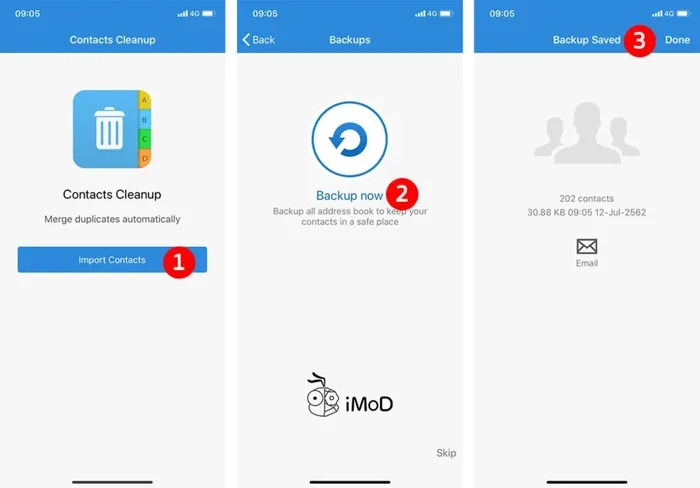
- Deleting without backing up: Before a big cleanup, export your contacts or take a screenshot of important numbers. This way, you never lose something you need later.
Expert Insight: The Best Cleanup Routine
Make contact cleanup a monthly habit. Set a reminder on the first Sunday of every month. Spend just ten minutes going through your list and removing old or irrelevant contacts. This keeps your phone running smoothly and ensures your car’s infotainment system always shows a clean, useful list of numbers. A little maintenance goes a long way.
Tips for Keeping Your Contact List Clean Long-Term
Deleting unwanted contacts is only half the battle. The real goal is to keep your list organized so it does not get messy again. Here are some practical tips.
- Add notes to new contacts: When you save a new number, add a quick note about how you know the person. This makes it easier to decide later if they should stay.
- Merge duplicate contacts: Both iPhone and Android have built-in tools to find and merge duplicate entries. Use them regularly.
- Unsubscribe from business contacts: If you no longer do business with someone, remove their number. Keep your personal and professional lists separate.
- Use favorites wisely: Star or favorite the contacts you actually call. This makes them easy to find and reduces the need to keep old numbers around.
- Review after events: After a conference, party, or trip, go through the new contacts you added and delete the ones you will not need again.
Quick Tips Section
- Use the search bar: When looking for a contact to delete, type the name in the search bar instead of scrolling. It saves a ton of time.
- Delete in batches: Do not try to delete contacts one by one all day. Set aside 15 minutes and knock them out in groups.
- Check your SIM card: Some contacts are stored on your SIM card, not your phone. Go to your Contacts settings and check the SIM folder too.
- Use voice commands in your car: Many modern vehicles let you say “delete contact” using the voice assistant. This is hands-free and very convenient while driving.
Conclusion
Deleting unwanted contacts is one of the simplest yet most effective ways to keep your phone and your car running at their best. Whether you are on an iPhone, an Android device, or managing contacts through your vehicle’s infotainment system, the steps are quick and easy. You do not need any special tools or technical skills — just a few minutes and a little willingness to tidy up.
Make it a routine. Clean your contact list once a month. Delete the numbers you no longer need, merge the duplicates, and back up anything important before you remove it. Your phone will run faster, your search results will be more accurate, and your car’s Bluetooth system will show a cleaner, more useful list of contacts.
Start today. Open your contacts app, pick five people you have not called in months, and delete them. You will feel the difference immediately. A clean contact list is a small change that makes a big impact on your daily digital life.
Frequently Asked Questions
Can I recover a contact after I delete it?
If you act quickly, you may be able to recover a deleted contact. On iPhone, check iCloud.com and look in the Recently Deleted folder. On Android, Google Contacts also has a trash folder that holds deleted contacts for 30 days. However, once the trash empties, recovery becomes very difficult. Always back up your contacts before doing a large cleanup.
How do I delete contacts from my car’s Bluetooth system?
The easiest way is to delete the contact from your phone first, then reset your car’s phonebook in the infotainment settings. Most cars will sync the updated list automatically. If the contact still appears, go to your car’s Bluetooth settings, clear the paired contacts, and re-pair your phone for a fresh sync.
Will deleting a contact on my phone also delete it from WhatsApp or other apps?
Usually, yes. Many apps like WhatsApp pull contact information from your phone’s address book. If you delete a contact and that person is not saved elsewhere, they may no longer appear in your WhatsApp chat list. However, some apps store their own copy of contact data, so the effect can vary.
Is it safe to delete all my unknown or spam contacts at once?
Absolutely. Removing unknown or spam contacts is a great idea and completely safe. Just make sure you are not accidentally selecting real contacts in the process. Use the search or filter features in your Contacts app to target only the entries you are sure about.
How often should I clean up my contact list?
A monthly cleanup is ideal for most people. If you meet a lot of new people regularly — at events, conferences, or through work — you may want to clean up every two weeks. A quick ten-minute session keeps your list manageable and prevents it from getting out of hand.
Can I delete contacts from my SIM card?
Yes. Go to your Contacts app, open the settings menu, and look for the SIM card contact manager. From there, you can view, select, and delete contacts stored on your SIM. Keep in mind that SIM cards have very limited storage, so they usually only hold a small number of contacts.