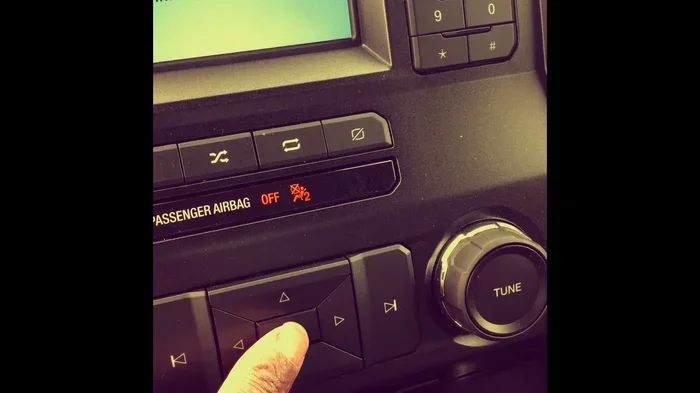
How to Delete a Phone From a Ford F-150 – Easy Guide
Deleting a phone from your Ford F-150 is simple once you know the right steps. Whether you use Ford SYNC 3 or SYNC 4, this guide walks you through the entire process. You will learn how to remove paired devices, reset your Bluetooth settings, and fix common issues. Follow these easy steps to keep your Ford F-150’s phone list clean and organized.
Have you ever stepped into your Ford F-150 and noticed a phone you no longer use is still connected to the system? Maybe it is an old device you sold, or perhaps a friend’s phone paired during a ride. Whatever the reason, learning how to delete a phone from a Ford F-150 is an essential skill every truck owner should have.
The good news is that the process is straightforward. Ford’s SYNC infotainment system makes it easy to manage your paired devices. In this guide, we will walk you through every method available. You will also find troubleshooting tips, common mistakes to avoid, and expert advice to keep your system running smoothly.
By the end of this article, you will feel confident removing any phone from your truck’s Bluetooth memory. Let us get started.
Key Takeaways
- Easy Removal: You can delete a phone from your Ford F-150 in just a few taps through the SYNC settings menu.
- Multiple Methods: There are several ways to unpair a device, including through the touchscreen, the SYNC app, and a full system reset.
- Troubleshooting Tips: If deletion fails, a soft reset or clearing the Bluetooth cache usually solves the problem.
- Regular Maintenance: Keeping your paired device list clean improves connection speed and overall system performance.
- No Data Loss: Deleting a phone from your F-150 does not erase any data from the phone itself.
- Road Trip Ready: A clean Bluetooth setup ensures smooth connectivity on long drives like a 2-day trip from Bangalore by car.
📑 Table of Contents
- Why You Should Delete Old Phones From Your Ford F-150
- How to Delete a Phone From a Ford F-150 Using the Touchscreen
- Using the Ford SYNC App to Remove a Paired Phone
- Deleting a Phone Through a Full System Reset
- Common Mistakes When Deleting Phones From Ford F-150
- Keeping Your Ford F-150 Bluetooth System Clean and Organized
- What to Do If Your Phone Keeps Reconnecting After Deletion
- Expert Tips for a Seamless Ford F-150 Bluetooth Experience
- Frequently Asked Questions
- Conclusion
Why You Should Delete Old Phones From Your Ford F-150
Keeping your paired device list tidy is more important than you might think. Here is why you should regularly clean up your Ford F-150 Bluetooth connections.
1. Faster Bluetooth Pairing
When your system has too many devices saved, it takes longer to search and connect. Removing unused phones speeds up the Bluetooth pairing process every time you start your truck.
2. Better Security
An old phone still connected to your system could potentially access your contacts and call history. Deleting it removes that access. This is especially important if you sold or gave away a device.
3. Improved System Performance
Every paired device uses a small amount of memory in your Ford infotainment system. Over time, a cluttered device list can slow things down. A clean list keeps everything running fast.
4. Avoid Connection Conflicts
Multiple phones trying to auto-connect can cause audio glitches and call drops. Removing old devices prevents these annoying Bluetooth connection issues.
Quick Tip: Make it a habit to review your paired devices every few months. A quick check-up keeps your Ford F-150 Bluetooth system in top shape.
How to Delete a Phone From a Ford F-150 Using the Touchscreen
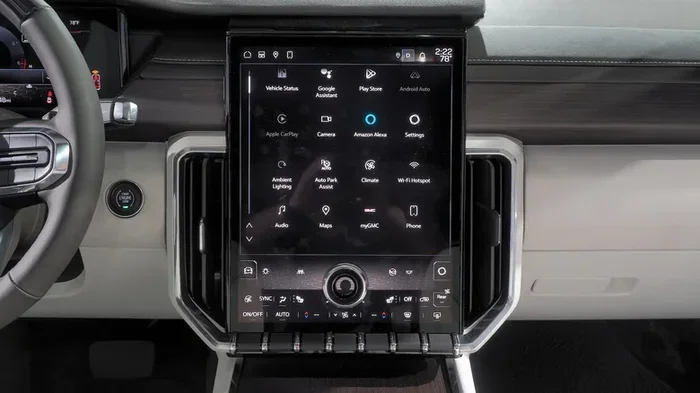
The most common way to remove a phone is directly through your truck’s touchscreen display. This method works on Ford SYNC 3 and SYNC 4 systems. Here is the step-by-step process.
Step-by-Step Guide
- Press the Phone button on your touchscreen or steering wheel controls.
- Navigate to Settings. Look for the gear icon or the “Settings” option on the home screen.
- Select Bluetooth. This opens your Bluetooth settings menu.
- Find the device you want to delete. Scroll through the list of paired phones.
- Tap on the device name. A menu will appear with several options.
- Choose Delete Device. Confirm your choice when prompted.
- Repeat for any other phones you want to remove.
That is it! The phone is now removed from your Ford F-150. The next time you start the truck, that device will not appear in the list anymore.
Quick Comparison: SYNC 3 vs SYNC 4
| Feature | SYNC 3 | SYNC 4 |
|---|---|---|
| Touchscreen Size | 8-inch or larger | 12-inch or larger |
| Delete Path | Phone > Settings > Bluetooth > Device > Delete | Phone > Settings > Bluetooth > Device > Delete |
| Voice Command Support | Limited | Full support |
| App Integration | Basic | Advanced (including FordPass) |
As you can see, both systems follow a very similar path. The main difference is the screen size and app features. Whether you have a 2018 Ford F-150 or a 2024 Ford F-150, the deletion process remains almost the same.
Using the Ford SYNC App to Remove a Paired Phone
Did you know you can also manage your paired phones from your smartphone? The Ford SYNC app lets you control your truck’s Bluetooth settings remotely. This is a great option if your touchscreen is unresponsive or if you prefer using your phone.
How to Use the Ford SYNC App
- Download the Ford SYNC app from the App Store or Google Play.
- Log in with your FordPass account.
- Select your vehicle from the dashboard.
- Go to Bluetooth settings. You will see all paired devices.
- Tap the device you want to remove. Select “Delete” or “Unpair.”
- Confirm the deletion. The phone is now removed from your truck.
This method is especially handy if you are away from your truck and need to clean up the device list. It also works well if you are managing multiple vehicles. For example, if you frequently switch between a Ford F-150 and another vehicle, the app gives you centralized control.
One thing to keep in mind: the Ford SYNC app requires a stable cellular connection. If you are in a remote area, you might need to use the touchscreen method instead. This is similar to how you would manage a 12v to 230v car inverter — some tasks are best done directly on the device rather than remotely.
Deleting a Phone Through a Full System Reset
If you are having trouble deleting a specific phone, or if your Ford F-150 Bluetooth system is acting up, a full system reset can help. This method clears all paired devices and resets your Bluetooth settings to factory defaults.
When to Use a System Reset
- A phone will not delete using the normal method.
- Your Bluetooth keeps connecting to an old device automatically.
- Your touchscreen is frozen or unresponsive.
- You are selling or giving away your truck and want a clean slate.
How to Perform a Soft Reset
- Turn off your Ford F-150. Make sure the engine is not running.
- Disconnect the negative battery terminal for about 30 seconds.
- Reconnect the battery terminal. Wait for the system to fully boot up.
- Go to Bluetooth settings and delete all devices you no longer need.
A soft reset is safe and does not erase your personal data or settings. It simply refreshes the system. Think of it like restarting your computer when it gets sluggish.
Expert Insight: Always try the normal deletion method first. Only use a reset if you are experiencing persistent issues. A reset should be your last resort, not your first step.
Common Mistakes When Deleting Phones From Ford F-150
Even though the process is simple, people still make mistakes. Here are the most common errors and how to avoid them.
Mistake 1: Confusing Delete with Unpair
Some drivers tap “Unpair” thinking it removes the device permanently. In most cases, unpairing just disconnects the phone temporarily. The device stays in the list. To fully remove it, you must select “Delete.”
Mistake 2: Not Restarting After Deletion
After deleting a phone, always restart your system. This ensures the changes take effect. Skipping this step can leave ghost devices in your Bluetooth list.
Mistake 3: Deleting the Wrong Device
Before you confirm deletion, double-check the device name. Phone names can be confusing, especially if you have multiple devices with similar names. Take a moment to verify.
Mistake 4: Forgetting to Clear Call History
Deleting a phone from your Ford F-150 Bluetooth list does not automatically clear call history. If you want complete privacy, go to your call log and clear it separately.
Common Mistake Alert: Never force restart your system by holding the power button for too long. This can cause software glitches. A gentle soft reset is always the safer option.
Keeping Your Ford F-150 Bluetooth System Clean and Organized
Now that you know how to delete phones, let us talk about keeping your system in great shape. A well-maintained Bluetooth setup makes every drive better.
Best Practices for Bluetooth Management
- Name your devices clearly. Use recognizable names like “John’s iPhone” instead of generic labels.
- Review your paired devices monthly. Set a reminder on your calendar to check your Bluetooth list.
- Update your SYNC system regularly. Ford releases updates that improve Bluetooth performance and fix bugs.
- Keep your phone’s software updated too. Outdated phone software can cause pairing problems.
- Limit the number of paired devices. Keep only the phones you actively use in the list.
Additional Car Maintenance Tips
Your Ford F-150 is a powerful machine that deserves proper care. Beyond Bluetooth management, there are other things you can do to keep your truck in excellent condition. For instance, regularly cleaning your car glass can make a huge difference in visibility and safety. If you want to learn more about what you can remove or clean from your vehicle, check out this guide on 30 unwanted things you can remove from car glass for helpful tips.
Also, if you are planning a road trip, having a clean and organized truck makes the experience much more enjoyable. Whether you are heading out for a two-day trip from Bangalore by car or just running errands around town, a well-maintained vehicle is always more reliable.
And for those who love upgrading their truck’s electrical features, exploring options like car power inverters can add tremendous convenience. These devices let you power electronics on the go, which pairs perfectly with a clean and efficient Ford F-150 setup.
What to Do If Your Phone Keeps Reconnecting After Deletion
Sometimes, even after you delete a phone, it keeps trying to reconnect. This can be frustrating, but it is a common issue with a simple fix.
Why Does This Happen?
When you delete a paired device, your phone might still remember the Ford F-150 Bluetooth signature. The phone tries to auto-connect because it has the truck stored in its memory. This creates a loop where the device keeps appearing.
How to Fix It
- On your phone, go to Bluetooth settings.
- Find your Ford F-150 in the list.
- Tap “Forget This Device” or “Remove.”
- Restart your phone.
- Restart your Ford F-150.
- Re-pair only the phones you want to keep.
This breaks the connection on both ends. Now only your current phones will auto-connect to the truck. It is a clean and permanent solution.
Quick Tip: If the problem persists after following these steps, try resetting your truck’s network settings. Go to Settings > System > Reset > Network Settings. This clears all Bluetooth and Wi-Fi connections and starts fresh.
Expert Tips for a Seamless Ford F-150 Bluetooth Experience
After helping countless Ford F-150 owners manage their Bluetooth connections, here are some expert tips that make a real difference.
1. Use Voice Commands for Quick Access
If you have a SYNC 4 system, you can use voice commands to manage your Bluetooth settings. Simply say “Phone” or “Bluetooth” and follow the voice prompts. This is a hands-free way to delete devices without touching the screen.
2. Keep Your SYNC Software Updated
Ford regularly releases software updates for the SYNC system. These updates often include Bluetooth improvements and bug fixes. Check for updates at your local Ford dealer or through the FordPass app.
3. Limit Auto-Connect to Essential Devices Only
In your Bluetooth settings, you can choose which devices auto-connect when you start your truck. Set it to only your primary phone. This reduces clutter and prevents connection conflicts.
4. Understand Your Truck’s Bluetooth Range
The Bluetooth range in a Ford F-150 is typically around 30 feet. If your phone is too far from the truck, it will not connect. Understanding this helps you troubleshoot connection issues more effectively.
5. Consider a Bluetooth Adapter for Older Models
If you have an older Ford F-150 without built-in Bluetooth, you can add a Bluetooth adapter. These plug into your car audio system and give you modern connectivity. Just remember to keep the adapter’s firmware updated for the best performance.
Expert Insight: A clean Bluetooth setup is like a well-organized garage. When everything has its place, you find what you need faster and enjoy the experience more. Take five minutes every month to review your paired devices.
Frequently Asked Questions
Can I delete a phone from my Ford F-150 without affecting my phone’s data?
Yes, absolutely. Deleting a phone from your Ford F-150’s Bluetooth list only removes the pairing from the truck’s system. It does not delete any contacts, photos, messages, or other data from your phone. The phone itself remains completely unchanged.
How many phones can I pair with my Ford F-150 at once?
Most Ford F-150 models can store up to 10 paired Bluetooth devices at a time. However, only a few phones can auto-connect simultaneously. Check your specific model’s manual for the exact number. Keeping your list under five active devices ensures the best performance.
What should I do if the delete option is greyed out?
If the delete option is greyed out, try restarting your infotainment system. Turn off the truck, wait 30 seconds, and turn it back on. If the problem persists, the device might be actively connected. Disconnect the phone first, then try deleting it again.
Will deleting a phone remove my Ford SYNC app pairing?
No, deleting a phone from the truck does not remove the Ford SYNC app pairing on your phone. You would need to do that separately in the app settings. However, the truck will no longer recognize the deleted device automatically.
How often should I clean up my paired Bluetooth devices?
It is a good practice to review your paired devices every one to two months. If you frequently give rides to friends or family, you might need to clean up more often. Regular maintenance keeps your Ford F-150 Bluetooth system fast and secure.
Can I delete all phones at once from my Ford F-150?
Yes, you can perform a factory reset of the Bluetooth system to remove all paired devices at once. Go to Settings > Bluetooth > Reset All Devices. Confirm the action, and all phones will be removed. You will need to re-pair your active devices afterward.
Conclusion
Deleting a phone from your Ford F-150 does not have to be complicated. With the steps outlined in this guide, you can manage your Bluetooth connections like a pro. Whether you use the touchscreen, the Ford SYNC app, or a system reset, you now have all the tools you need.
Remember to keep your paired device list clean and organized. It improves connection speed, enhances security, and makes your overall driving experience better. A well-maintained Ford F-150 Bluetooth system is a small thing that makes a big difference every time you turn the key.
Take a few minutes today to review your connected devices. Delete the ones you no longer need, and enjoy a faster, cleaner, and more secure connection tomorrow. Your truck — and your peace of mind — will thank you.