How Do I Add Apps to My Toyota with These Simple Steps
Adding apps to your Toyota is easier than you think. With the right steps, you can turn your Toyota infotainment system into a smart, connected hub. This guide walks you through every method, from Toyota Entune to Apple CarPlay and Android Auto, so you can enjoy your favorite apps safely on the road.
Have you ever wished you could use your favorite apps right from your Toyota dashboard? Maybe you want Spotify on the big screen. Or perhaps you need Google Maps for a road trip. Whatever the reason, adding apps to your Toyota opens up a whole new world of convenience and entertainment.
The good news is that you do not need to be a tech expert to get this done. Whether you drive a brand-new 2024 RAV4 or an older Camry, there is a way to add apps to your ride. In this guide, we will walk you through every method, step by step. You will learn about Toyota Entune, smartphone mirroring, USB downloads, and more. By the end, you will know exactly how to make your Toyota smarter and more connected.
Let us dive right in. No jargon. No confusing tech talk. Just simple, practical steps you can follow today.
Key Takeaways
- Multiple Methods Available: You can add apps via Toyota Entune, Apple CarPlay, Android Auto, or direct USB downloads depending on your Toyota model.
- Toyota Entune Is Key: The Entune app suite gives you access to navigation, music, and weather directly from your Toyota touchscreen.
- Smartphone Integration Matters: Apple CarPlay and Android Auto let you mirror your phone apps safely while driving.
- Regular Updates Keep Things Running: Updating your Toyota software ensures new apps work properly and old ones stay functional.
- Not All Toyotas Are Equal: Older models may need additional hardware or workarounds to support modern apps.
- Safety First: Always set up apps before driving, and use voice commands or steering wheel controls to interact with them on the road.
📑 Table of Contents
What Are Toyota Apps and Why Should You Add Them?
Toyota apps are software programs designed to work with your Toyota vehicle. They run on your car’s infotainment system or connect through your smartphone. These apps cover many needs, from navigation and music to weather updates and remote vehicle controls.
So why should you bother adding them? Here are a few reasons:
- Better Navigation: Apps like Google Maps and Waze offer real-time traffic updates that factory navigation sometimes lacks.
- More Music Options: Spotify, Pandora, and Amazon Music give you millions of songs at your fingertips.
- Remote Control: Apps like Toyota Remote Connect let you start your car, lock doors, or check fuel levels from your phone.
- Enhanced Safety: Some apps provide dashcam features, collision alerts, and roadside assistance integration.
- Personalization: You can tailor your driving experience with the apps you actually use every day.
If you have ever wondered whether downloading an app to start your car is possible, the answer is yes. Many Toyota owners use apps for remote starting and other smart features. This is just the beginning of what your Toyota can do with the right apps installed.
How to Add Apps to Your Toyota: Step-by-Step Guide
There are several ways to add apps to your Toyota. The method you choose depends on your Toyota model, year, and infotainment system. Let us go through each approach in detail.
Method 1: Use Toyota Entune
Toyota Entune is the brand’s built-in app platform. It comes pre-installed on many newer Toyota models. Entune gives you access to a suite of apps, including navigation, music, and news, all through your car’s touchscreen.
Here is how to get started:
- Press the Entune button on your dashboard or touchscreen.
- Select the App Store icon from the main menu.
- Browse the available apps. You will see categories like Navigation, Audio, and Lifestyle.
- Tap on the app you want to download.
- Follow the on-screen prompts to complete the installation.
- Once installed, the app will appear in your app list for easy access.
Some Entune apps require a subscription. For example, the Entune 3.0 suite offers a free trial, but you may need to pay for full features after that. Check your Toyota dealer for pricing details.
If you are curious about whether you can manage your car’s settings and diagnostics yourself, you might also want to read about doing your own car diagnostics. It pairs well with the tech-savvy mindset of adding apps to your vehicle.
Method 2: Connect via Apple CarPlay or Android Auto
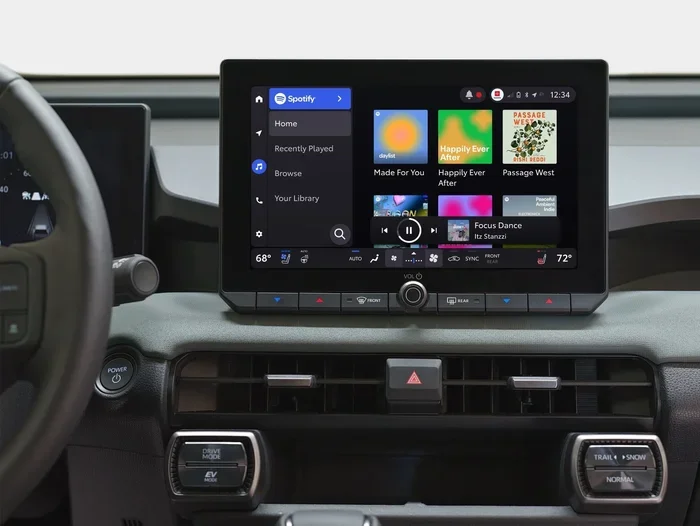
This is the most popular way to add apps to a Toyota. Apple CarPlay and Android Auto mirror your phone’s apps onto your car’s screen. You get access to all your favorite phone apps without downloading anything extra into the car itself.
Here is how it works:
- For Apple CarPlay: Plug your iPhone into the USB port or connect wirelessly if your Toyota supports it. A CarPlay icon will appear on your screen. Tap it, and your phone apps will show up on the car display.
- For Android Auto: Plug in your Android phone using a USB cable. Follow the setup prompts on both your phone and the car screen. Once connected, you can access Google Maps, Spotify, WhatsApp, and more.
The beauty of this method is that you do not need to worry about compatibility. Your phone already has the apps. The car just displays them in a driver-friendly format. This also keeps your eyes on the road and your hands on the wheel.
Make sure your phone is running the latest version of iOS or Android. Outdated software can cause connection problems. If your Toyota does not support wireless CarPlay or Android Auto, a simple USB cable will do the trick every time.
Method 3: Download Apps Directly via USB or SD Card
Some older Toyota models do not support Entune, CarPlay, or Android Auto. In these cases, you can still add apps using a USB drive or SD card. This method works best for audio and video apps.
Here is the process:
- Check your Toyota owner’s manual for supported file formats. Most Toyotas accept MP3, WMA, and AAC audio files.
- Download the app content on your computer. For example, you can download podcasts or audiobooks as MP3 files.
- Transfer the files to a USB drive formatted as FAT32.
- Plug the USB drive into your Toyota’s USB port.
- Use the car’s media player to browse and play the files.
This method is not as seamless as wireless connectivity, but it works well for older Toyotas. It is also a great option if you want to listen to audiobooks or podcasts on long road trips without using up your phone data.
Method 4: Use the Toyota App Store on Your Phone
Toyota offers mobile apps that work alongside your vehicle. The Toyota App Suite includes tools like Remote Connect, Service Connect, and more. These apps do not run on the car’s screen directly, but they add smart features to your ownership experience.
To get these apps:
- Go to the Apple App Store or Google Play Store on your phone.
- Search for “Toyota Remote Connect” or “Toyota Service Connect.”
- Download and install the app.
- Create an account or sign in with your Toyota credentials.
- Pair the app with your vehicle using the VIN and setup instructions.
These phone apps let you do things like pre-condition your car’s temperature, lock and unlock doors remotely, and even locate your vehicle in a crowded parking lot. They are a great complement to the apps running on your car’s infotainment system.
Popular Apps You Can Add to Your Toyota
Not sure which apps to start with? Here are some of the most popular and useful apps for Toyota owners:
Navigation Apps
- Google Maps: Offers real-time traffic, alternate routes, and business reviews. Works through Android Auto and CarPlay.
- Waze: A community-driven navigation app that alerts you to accidents, speed traps, and road closures.
- Apple Maps: A solid default for iPhone users with clean integration into CarPlay.
Music and Audio Apps
- Spotify: Stream millions of songs and playlists. Available on both CarPlay and Android Auto.
- Pandora: Great for personalized radio stations based on your music taste.
- Amazon Music: Offers ad-free streaming for Prime members.
- Podcast apps: Apple Podcasts, Spotify, and Pocket Casts all work well through phone mirroring.
Utility and Lifestyle Apps
- Weather apps: Check forecasts before heading out. Most CarPlay and Android Auto setups include a weather widget.
- Messaging apps: WhatsApp and iMessage work through CarPlay and Android Auto with voice-to-text features.
- Fuel price apps: GasBuddy helps you find the cheapest fuel near your location.
If you are also wondering about other car-related topics, like whether you can carry extra weight in your vehicle, check out our article on how much weight your car can handle. It is a great companion read for Toyota owners who use their vehicles for hauling and travel.
Troubleshooting Common App Issues
Sometimes things do not go smoothly when adding apps to your Toyota. Here are the most common problems and how to fix them.
App Not Showing Up on the Screen
This usually happens when the app is not properly installed or the system needs a restart. Try these steps:
- Turn off the infotainment system completely. Wait 30 seconds. Turn it back on.
- Check if the app is installed by going into the app menu or settings.
- If using CarPlay or Android Auto, disconnect and reconnect your phone.
App Keeps Crashing or Freezing
Crashing apps are often caused by outdated software. Here is what to do:
- Update your Toyota infotainment system. Go to Settings, then System, and check for updates.
- Update the app on your phone if you are using CarPlay or Android Auto.
- Clear the app cache if your system allows it.
- Delete and reinstall the app if the problem persists.
Connection Issues with Phone Mirroring
If your phone will not connect to the car, try these fixes:
- Use a different USB cable. Some cables are charge-only and do not support data transfer.
- Make sure Bluetooth is turned on if you are using a wireless connection.
- Restart both your phone and the car’s infotainment system.
- Check for software updates on both your phone and your Toyota system.
If you are running into broader tech issues with your car, you might want to explore whether you can use a car power inverter to expand what your Toyota can power. It is another great way to enhance your vehicle’s capabilities.
Tips for Getting the Most Out of Toyota Apps
Once you have your apps set up, a few best practices will help you get the best experience:
- Set Up Apps Before You Drive. Always configure and test apps while parked. Interacting with your touchscreen while driving is dangerous and often illegal.
- Use Voice Commands. Most CarPlay and Android Auto setups support voice activation. Use Siri or Google Assistant to control apps hands-free.
- Keep Your System Updated. Toyota releases software updates regularly. These updates add new features, fix bugs, and improve app compatibility.
- Manage Storage Space. Your car’s infotainment system has limited storage. Only install the apps you actually use to keep things running smoothly.
- Use a Quality USB Cable. A good USB cable ensures stable connections and faster data transfer between your phone and car.
- Explore the Toyota App Suite. Beyond the infotainment screen, Toyota’s phone apps add powerful features like remote start and vehicle tracking.
Do You Need a Toyota Dealer to Add Apps?
Here is the short answer: no. Most app additions can be done by you at home. You do not need to visit a dealer or pay for expensive installation. The only time you might need a dealer is if your Toyota needs a software update that requires specialized equipment, or if you are installing hardware like a new head unit.
For the vast majority of Toyota owners, adding apps is a DIY project. It takes about 10 to 15 minutes and costs nothing if you already have a smartphone. The built-in tools like Entune, CarPlay, and Android Auto are designed to be user-friendly, so you should not run into any trouble.
If you are considering a newer Toyota model and want to know what tech features come standard, it is worth checking what software version the car comes with. Newer Toyotas come with Entune 3.0 or even newer systems that support wireless CarPlay and Android Auto out of the box.
You may also be interested in learning about fuel choices for your Toyota, especially if you are trying to optimize performance alongside your new app setup. Using the right fuel keeps your engine running clean, which supports all the electronic features you are adding.
Final Thoughts
Adding apps to your Toyota is one of the best ways to modernize your driving experience. Whether you use Entune, CarPlay, Android Auto, or a simple USB setup, the process is straightforward and rewarding. You get access to navigation, music, messaging, and utility apps that make every trip better.
Start with the methods that match your Toyota model. If you have a newer car, Apple CarPlay and Android Auto will likely be your go-to options. If you have an older model, Entune or USB-based apps still deliver great value. And do not forget the Toyota phone apps, which add remote features that make owning a Toyota even more convenient.
The key is to set everything up before you drive, keep your software updated, and use voice commands for safe interaction. With these simple steps, your Toyota will feel like a brand-new smart vehicle. So go ahead, add those apps, and enjoy the ride.
Frequently Asked Questions
Can I add apps to any Toyota model?
Most Toyota models support at least one method of adding apps. Newer Toyotas come with Entune, Apple CarPlay, or Android Auto built in. Older models may need a USB connection or aftermarket solutions. Check your owner’s manual or Toyota’s website for your specific model’s capabilities.
Do I need Wi-Fi to add apps to my Toyota?
It depends on the method. Toyota Entune apps can download over Wi-Fi if your car has a built-in Wi-Fi connection. Apple CarPlay and Android Auto do not need Wi-Fi in the car since they mirror apps from your phone. For direct downloads, you may need Wi-Fi or a phone hotspot.
Are there free apps available for Toyota?
Yes, many apps are completely free. Google Maps, Spotify’s free tier, Apple Maps, and various weather apps all come at no cost. Some Entune apps offer free trials but may require a subscription for full access. Always check the app details before downloading.
Can I remove apps I added to my Toyota?
Yes, you can. Go to the app menu or settings on your Toyota infotainment system, find the app you want to remove, and select the delete or uninstall option. For CarPlay and Android Auto, you can simply disconnect your phone or turn off the specific app in your phone’s settings.
Will adding apps void my Toyota warranty?
No. Adding apps through official channels like Entune, CarPlay, Android Auto, or the Toyota app suite will not void your warranty. However, installing unauthorized software or modifying your car’s system could potentially cause warranty issues. Stick with official methods to stay safe.
How often should I update the apps on my Toyota?
You should update your Toyota infotainment system whenever a new update is available, typically every few months. For phone-mirrored apps like CarPlay and Android Auto, updating your phone’s operating system and apps will keep everything running smoothly. Set your phone to auto-update for the best experience.