How Do I Enable Apple Carplay?
Enabling Apple CarPlay is easy and transforms your car’s dashboard into a smart, safe driving hub. Whether you use a USB cable or go wireless, this guide walks you through every step with clear instructions. You will learn how to connect your iPhone, adjust settings, fix common problems, and get the most out of your car’s infotainment system. No tech expertise is needed — just follow along and enjoy a smarter drive.
Have you ever wanted your car’s screen to feel as smart as your iPhone? That is exactly what Apple CarPlay does. It mirrors your phone’s most useful features onto your car’s dashboard display. You get navigation, music, messages, and calls — all without taking your eyes off the road.
If you have never set it up before, you might be wondering how to get started. The good news is that enabling Apple CarPlay is simpler than most people think. Whether your car uses a cable or connects wirelessly, the process is quick and straightforward. In this guide, we will walk you through every step with clear, easy-to-follow instructions.
By the end of this article, you will know exactly how to connect your iPhone, customize your settings, and troubleshoot any issues. Let us get you up and running with Apple CarPlay right away.
Key Takeaways
- Wired and wireless options: You can enable Apple CarPlay using a USB cable or through a wireless Bluetooth connection, depending on your car.
- Simple setup process: Connecting your iPhone takes just a few minutes and requires no special tools or technical skills.
- Customization is key: You can personalize your CarPlay home screen, rearrange apps, and choose your preferred navigation app.
- Troubleshooting is straightforward: Most common CarPlay issues can be fixed with basic steps like restarting your iPhone or updating your car’s software.
- Compatibility matters: Not all cars support CarPlay, but most models from 2016 onward are compatible with either wired or wireless CarPlay.
- Safety first: Apple CarPlay is designed for hands-free use, making your driving experience safer and more convenient.
📑 Table of Contents
- What Is Apple CarPlay and Why Should You Use It?
- How to Enable Apple CarPlay via USB Cable
- How to Set Up Wireless Apple CarPlay
- Apple CarPlay Settings and Customization
- Troubleshooting Common Apple CarPlay Issues
- Cars That Support Apple CarPlay
- Tips for Getting the Most Out of Apple CarPlay
- Frequently Asked Questions
- Conclusion
What Is Apple CarPlay and Why Should You Use It?
Apple CarPlay is a smart system that links your iPhone to your car’s infotainment screen. Once connected, you can access your favorite apps right from the dashboard. Think of it as a safer, simpler way to use your phone while driving.
How Apple CarPlay Works
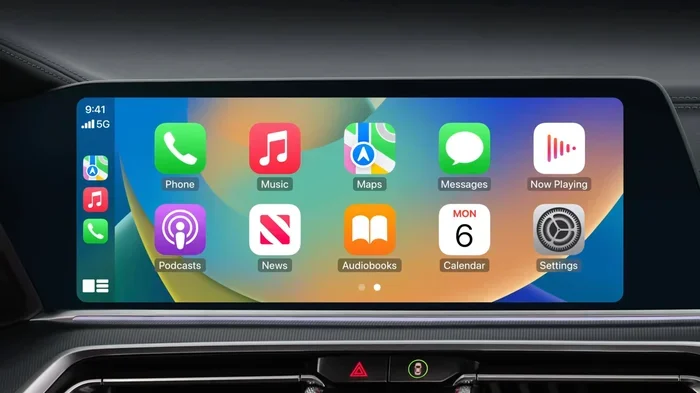
When you connect your iPhone to your car, the screen displays a simplified version of your phone’s interface. You see large icons for apps like Phone, Messages, Music, and Maps. The system is designed to minimize distractions. You can use Siri voice commands to make calls, send texts, or get directions without touching your phone.
Your car infotainment system takes over the display. This means you do not need to hold your phone or look down while driving. Everything you need is right in front of you on the car dashboard display.
Why Apple CarPlay Is a Game Changer
There are many reasons why Apple CarPlay has become so popular. Here are some of the biggest benefits:
- Hands-free operation: You can control everything with your voice using Siri Eyes Free mode.
- Familiar interface: The layout looks just like your iPhone, so there is no learning curve.
- Better navigation: You can use Apple Maps or third-party apps like Google Maps and Waze.
- Music and podcasts: Access Spotify, Apple Music, Podcasts, and more directly from your car.
- Safer driving: Less screen time on your phone means fewer distractions on the road.
Overall, Apple CarPlay makes driving more enjoyable and much safer. If you have not tried it yet, you are missing out on a great experience.
How to Enable Apple CarPlay via USB Cable
The most common way to set up Apple CarPlay is through a wired connection. This method works with almost every CarPlay compatible vehicle on the road today. All you need is a Lightning or USB-C cable and a compatible car.
Step-by-Step Wired Setup
Follow these simple steps to connect your iPhone using a USB cable:
- Check your cable: Make sure you have a good-quality Lightning or USB-C cable. Avoid cheap cables that may not transfer data properly.
- Plug into your car: Locate the USB port in your car. Many cars have a port labeled with a CarPlay or smartphone icon. Plug your cable in.
- Plug into your iPhone: Connect the other end of the cable to your iPhone.
- Unlock your iPhone: You may need to unlock your phone and tap “Trust” when prompted. This allows your car to access your phone.
- Wait for the connection: Within a few seconds, your car screen should switch to Apple CarPlay. If it does not, try a different USB port.
Which USB Port Should You Use?
Not all USB ports in a car are created equal. Some ports only charge your phone and do not support CarPlay setup. Look for a port with a smartphone or CarPlay symbol next to it. If you are unsure, try each port until you find the right one.
Also, make sure your cable supports data transfer. Some cables are charge-only and will not work with Apple CarPlay. If you experience connection issues, try a different cable first.
How to Set Up Wireless Apple CarPlay
Wireless Apple CarPlay is becoming more common in newer cars. It lets you connect your iPhone without any cables. Your phone pairs with your car through Bluetooth and Wi-Fi, giving you a clean, clutter-free dashboard.
Setting Up Wireless CarPlay
Here is how to enable wireless Apple CarPlay on supported vehicles:
- Make sure your car supports wireless CarPlay: Check your car’s manual or settings menu. Look for a “Wireless CarPlay” or “Mirror iPhone Screen” option.
- Turn on Bluetooth and Wi-Fi on your iPhone: Go to Settings and make sure both Bluetooth and Wi-Fi are enabled.
- Bring your iPhone near your car: Place your phone close to the car’s infotainment system.
- Select Wireless CarPlay from your car’s menu: Go to your car’s settings and choose the wireless CarPlay connection option.
- Follow the prompts on both screens: Your car and iPhone will pair automatically. Confirm the connection when prompted.
Wired vs. Wireless Apple CarPlay
Both wired and wireless Apple CarPlay offer the same features. The main difference is convenience. Wireless CarPlay eliminates the need for cables, but wired connections tend to be more stable. Here is a quick comparison:
- Wired CarPlay: More reliable connection, no setup needed, but requires a cable.
- Wireless CarPlay: More convenient, no cables needed, but requires a compatible car and may occasionally disconnect.
If your car supports both, you can choose whichever method suits your needs. Many drivers keep a cable in their car as a backup, just in case the wireless connection drops.
Apple CarPlay Settings and Customization
Once Apple CarPlay is connected, you can customize it to fit your preferences. The settings menu lets you tweak almost everything about how CarPlay looks and behaves.
Customizing Your CarPlay Home Screen
Your CarPlay home screen shows your most-used apps in a grid layout. You can rearrange these apps to make your favorites easier to reach. Here is how:
- Open Settings on your iPhone: Go to Settings > General > CarPlay.
- Select your car: Tap on your car’s name from the list.
- Customize your apps: You can choose which apps appear on the home screen and in what order.
- Set your default navigation app: Pick your preferred app for directions, whether it is Apple Maps, Google Maps, or Waze.
Adjusting Display and Sound Settings
You can also adjust how Apple CarPlay looks and sounds on your car’s display. Some useful settings include:
- Text size: Make the text larger or smaller for easier reading while driving.
- Dark mode: Switch to a darker theme to reduce glare on bright days.
- Sound balance: Adjust the audio balance between your car speakers and your phone.
- Siri settings: Choose whether Siri reads your messages aloud and how it responds to voice commands.
Taking a few minutes to customize your CarPlay settings can make a big difference in your daily driving experience. Small adjustments lead to a much smoother and more enjoyable ride.
Troubleshooting Common Apple CarPlay Issues
Even though Apple CarPlay is designed to work seamlessly, you may run into issues from time to time. The good news is that most problems are easy to fix.
CarPlay Not Connecting
If your iPhone CarPlay connection fails, try these steps:
- Check your cable: A faulty cable is the most common cause. Try a different cable and see if that fixes the problem.
- Restart your iPhone: A simple restart often resolves connection issues. Just power off your phone and turn it back on.
- Restart your car’s infotainment system: Most systems can be restarted by holding the power button for a few seconds.
- Update your iOS: Make sure your iPhone is running the latest version of iOS. Go to Settings > General > Software Update.
- Check for car software updates: Your car’s system may also need an update. Check with your dealer or your car’s manual.
CarPlay Disconnecting Frequently
If your wireless CarPlay keeps disconnecting, here are some tips:
- Stay within range: Keep your iPhone in a fixed location near the car’s antenna, usually in the center console or cup holder.
- Forget and re-pair the connection: Go to your car’s Bluetooth settings, forget the iPhone, and pair it again.
- Turn off Wi-Fi Assist: This iPhone feature can sometimes interfere with Bluetooth CarPlay connections. Go to Settings > Cellular > Wi-Fi Assist and turn it off.
- Clear your car’s Bluetooth cache: Some cars allow you to reset Bluetooth connections in the settings menu.
Screen Not Responding or Lagging
A slow or unresponsive car dashboard display can be frustrating. Try these fixes:
- Close unused apps on your iPhone: Too many open apps can slow down the connection.
- Reduce the number of CarPlay apps: Having too many apps on the home screen can cause lag.
- Check your car’s RAM and processor: Older cars may struggle with newer versions of Apple CarPlay.
Most CarPlay troubleshooting issues can be resolved with a quick restart or a simple setting change. Do not let a minor glitch stop you from enjoying your CarPlay experience.
Cars That Support Apple CarPlay
Apple CarPlay compatible vehicles span a wide range of brands and models. Whether you drive a sedan, SUV, or truck, there is a good chance your car supports Apple CarPlay.
Popular Brands with CarPlay Support
Most major car manufacturers now include CarPlay support in their vehicles. Here are some popular brands:
- Toyota: Most models from 2016 onward support CarPlay.
- Honda: Nearly all Honda vehicles from 2016 and newer are compatible.
- Ford: Ford Sync 3 and newer systems support Apple CarPlay.
- Chevrolet: Most Chevrolet models from 2016 onward include CarPlay.
- BMW: BMW vehicles with the iDrive system support wireless and wired CarPlay.
- Hyundai and Kia: Most models from 2016 and newer are CarPlay ready.
- Nissan: Many Nissan models support CarPlay through the Infiniti InTouch system.
How to Check If Your Car Supports CarPlay
If you are not sure whether your car supports Apple CarPlay, here are a few ways to check:
- Look for a CarPlay icon: Many cars display a CarPlay icon on the infotainment screen or near the USB port.
- Check your car’s manual: The owner’s manual will list all supported connectivity features.
- Visit the car manufacturer’s website: Search for your car model and year to see if CarPlay is listed.
- Ask your dealer: Your local dealer can confirm CarPlay compatibility for your specific vehicle.
Even if your older car does not come with built-in CarPlay, you can still add support through aftermarket head units. Many car stereo manufacturers offer CarPlay radio upgrades that fit seamlessly into most dashboards.
Tips for Getting the Most Out of Apple CarPlay
Once you have Apple CarPlay up and running, a few simple tips can help you get even more from the experience.
Use Siri for Hands-Free Control
The best way to stay safe while driving is to keep your hands on the wheel and your eyes on the road. Use Siri voice commands to control Apple CarPlay without touching your phone. You can say “Hey Siri, call Mom” or “Hey Siri, navigate to the nearest gas station.”
Keep Your iPhone Charged
Using Apple CarPlay can drain your iPhone battery, especially during long drives. Keep your phone plugged in while using CarPlay to avoid running out of battery. A long, high-quality USB cable ensures a stable connection and steady charging.
Update Regularly
Both Apple and car manufacturers release regular software updates that improve Apple CarPlay performance. Keep your iPhone updated to the latest iOS version and check for car software updates periodically. These updates often bring new features, bug fixes, and improved CarPlay stability.
Explore Third-Party Apps
Apple CarPlay supports many apps beyond the basics. Try apps like Spotify for music, WhatsApp for messaging, and Waze for navigation. You can download these from the App Store and they will appear on your CarPlay home screen automatically.
Frequently Asked Questions
Can I use Apple CarPlay with any iPhone?
Apple CarPlay works with iPhone 5 and later models that are running iOS 7.1 or newer. For the best experience, make sure your iPhone is updated to the latest version of iOS. Most modern iPhones support all CarPlay features without any issues.
Do I need a special cable for Apple CarPlay?
You do not need a special cable, but using a high-quality Lightning or USB-C cable ensures a stable connection. Cheap or damaged cables are the most common reason for CarPlay connection problems. Look for cables that are MFi certified, which means they are made for Apple devices.
Can I use Apple CarPlay with the screen off?
Yes, you can use Siri Eyes Free with the screen off on many cars. This lets you make calls, send messages, and get directions without ever looking at the display. Just press the voice command button on your steering wheel and speak to Siri.
Why does my Apple CarPlay keep disconnecting?
Frequent disconnections are usually caused by a loose cable, outdated software, or Bluetooth interference. Try using a different cable, restarting both your iPhone and your car’s system, and making sure your software is up to date. For wireless CarPlay, staying within range of the car’s antenna helps maintain a steady connection.
Can I use Apple CarPlay while driving?
Yes, Apple CarPlay is designed specifically for use while driving. The interface is simplified to reduce distractions, and you can use Siri voice commands to control most features. However, some actions like typing a message still require you to pull over for safety.
Can I add Apple CarPlay to an older car?
Absolutely. If your older car does not support Apple CarPlay natively, you can install an aftermarket head unit. Many car audio shops offer CarPlay radio replacements that fit most dashboards. This is a great way to upgrade your car’s technology without buying a new vehicle.
Conclusion
Enabling Apple CarPlay is one of the easiest ways to make your driving experience smarter and safer. Whether you connect with a USB cable or go wireless, the process is quick and user-friendly. From hands-free calling with Siri voice commands to seamless navigation with Apple Maps, CarPlay brings your favorite phone features right to your car dashboard display.
Remember to keep your iPhone and car software updated, use a quality cable, and take advantage of customization options to make Apple CarPlay work best for you. If you run into issues, the troubleshooting tips in this guide should help you get back on track quickly.
Now that you know how to enable and get the most out of Apple CarPlay, there is no reason not to try it. Connect your iPhone today and enjoy a safer, more connected drive every time you hit the road.