How Do I View Footage on My Dash Cam Without a Computer
Viewing your dash cam footage is easier than you think. You can watch recorded videos right on the dash cam screen, transfer files to your smartphone, or play clips on a TV or tablet. This guide covers every method so you can review dash cam footage quickly and safely.
Have you ever wanted to watch your dash cam footage right after a drive? Maybe you saw something unusual on the road and need to check the recording. Or perhaps you just want to save a clip of a beautiful trip. Whatever the reason, knowing how to access your videos is essential.
Good news. You do not need a computer to view your dash cam recordings. There are several simple ways to play back dash cam video on the go. Whether you prefer using the built-in screen, a phone app, or even your television, this guide has you covered.
In this article, we will walk you through every method step by step. We will also share tips on organising your files and fixing common playback issues. By the end, you will feel confident about accessing your dash cam recordings anytime, anywhere.
Key Takeaways
- Built-in Screen Playback: Most dash cams have a screen that lets you view footage directly without any extra devices.
- Smartphone Apps Work Great: Download the official app from your dash cam brand to watch clips on your phone wirelessly.
- SD Card Transfer Is Reliable: Remove the memory card and plug it into a reader for easy file access on any computer or laptop.
- TV and Tablet Viewing Is Simple: Use an HDMI cable or wireless casting to share dash cam video on a bigger screen.
- Organise Your Clips Regularly: Delete unnecessary footage and back up important files to free up space and keep things tidy.
📑 Table of Contents
- How Dash Cam Footage Gets Stored
- Viewing Footage Directly on the Dash Cam Screen
- Using Your Smartphone to View Dash Cam Footage
- Viewing Footage on a Tablet or Television
- Tips for Organising and Managing Your Dash Cam Footage
- Common Problems When Viewing Dash Cam Footage and How to Fix Them
- Expert Insights on Getting the Most from Your Dash Cam
- Final Thoughts
How Dash Cam Footage Gets Stored
Before we dive into viewing methods, it helps to understand where your videos live. Every dash cam records video onto a storage device. Most modern cameras use a microSD card. This small card slides right into the dash cam unit.
When the card fills up, the dash cam starts overwriting the oldest files. This is called loop recording. It means you always have the latest footage available. But it also means older clips get deleted automatically unless you save them first.
Some dash cams come with built-in memory instead of a card slot. These models store footage internally. The viewing process is similar, but you may need to connect the device directly to a phone or screen.
Understanding your storage setup helps you manage dash cam video files better. It also prevents surprises when you go to watch a clip and find the card is full.
Types of Storage Used in Dash Cams
- MicroSD Cards: The most common option. They come in sizes from 16GB to 256GB.
- Built-In Memory: Found in compact dash cams. Storage is fixed and cannot be upgraded.
- Cloud Storage: Some premium models upload clips to the cloud using Wi-Fi or LTE.
- USB Flash Drive: A less common option. Some dash cams accept USB drives instead of SD cards.
No matter which type you use, the goal is the same. You need to retrieve and view your recorded footage when you want to. Let us look at how to do that.
Viewing Footage Directly on the Dash Cam Screen
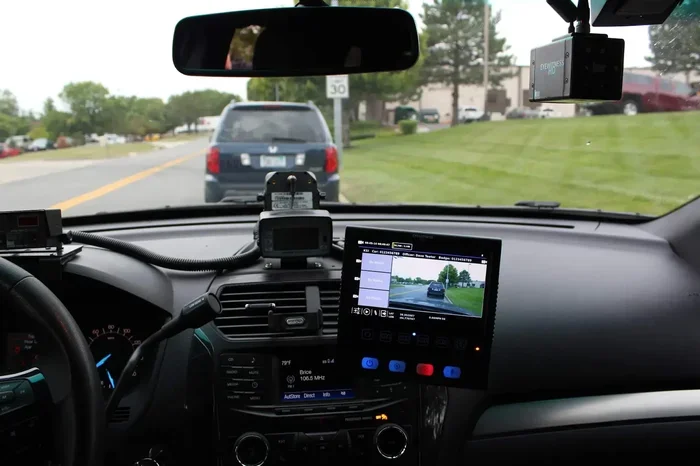
The simplest way to watch dash cam recordings is right on the device itself. Most dash cams with a screen have a playback mode. You do not need any cables or extra tools.
Here is how it usually works. Press the menu button on your dash cam. Look for an icon that looks like a play button or a folder. Select it, and you will see a list of your recorded clips.
You can use the arrow buttons to scroll through the videos. Press the centre button to play a clip. Most dash cams also let you fast forward and rewind through the footage.
This method is perfect for quick checks after a drive. You can confirm that your dash cam was recording properly. You can also save a specific clip before loop recording deletes it.
Tips for Screen Playback on the Road
- Park safely first. Do not press buttons while driving. Pull over before reviewing any footage.
- Watch in daylight. The dash cam screen can be hard to see in bright sunlight. Find shade if needed.
- Save important clips immediately. Most dash cams have a save or lock button. Use it to protect a file from being overwritten.
- Check the date and time stamp. This helps you identify which recording you are watching.
Many drivers love this simple approach. It requires no extra equipment. You just press a few buttons and your dash cam video playback starts instantly. For more on car culture and fun facts about vehicles, you might enjoy reading 10 Lines on My Favourite Toy Car to learn more about the world of cars.
Using Your Smartphone to View Dash Cam Footage
Your phone is one of the best tools for viewing dash cam clips. Almost every modern dash cam brand offers a free app. These apps connect to your camera through Wi-Fi or Bluetooth.
The process is straightforward. First, download the official app from your dash cam manufacturer. Popular brands like Garmin, BlackVue, and Thinkware all have their own apps. Search for the app name in your phone’s app store.
Next, turn on the Wi-Fi feature on your dash cam. Most cameras have a dedicated Wi-Fi button. Once the Wi-Fi signal is active, open the app on your phone. The app should detect your dash cam automatically.
Once connected, you can browse your recorded files right on your phone screen. You can play, download, and even share clips with friends or insurance companies. Some apps also let you adjust camera settings and update firmware.
Best Smartphone Apps for Dash Cam Users
- Garmin Drive App: Works with Garmin dash cams. Offers live view and file management.
- BlackVue Cloud: Supports BlackVue cameras. Allows cloud streaming and clip sharing.
- Thinkware Connect: Designed for Thinkware dash cams. Simple and user-friendly interface.
- Nextbase Anywhere: For Nextbase cameras. Includes live streaming and emergency alerts.
Using your phone to review dash cam footage is incredibly convenient. You do not need to remove the SD card. You just connect wirelessly and start watching. It is also a great way to share clips with your insurance provider after an incident.
One thing to keep in mind. Wi-Fi connections can be slow for large files. If you are trying to download a long video, it may take a few minutes. Be patient and let the transfer finish completely.
How to Transfer Files Without the App
Some people prefer not to use the official app. In that case, you can still access dash cam files through your phone’s file manager. Many dash cams create a Wi-Fi hotspot. Your phone connects to it just like a regular network.
Open your phone’s file manager app. Look for the dash cam device under “Connected Devices” or “Storage.” You should see a folder with your video files. From there, you can copy the clips to your phone’s gallery.
This method works well for Android phones. iPhone users may need a third-party file manager app. The official app is still the easiest route for most people.
Viewing Footage on a Tablet or Television
Sometimes a small screen is not enough. You may want to watch dash cam video on a bigger display. A tablet or television works perfectly for this. It is especially helpful when you need to review footage in detail.
There are two main ways to do this. You can use an SD card reader, or you can connect the dash cam directly with a cable. Let us look at both options.
Method 1: SD Card Reader
This is the most popular method. Simply remove the microSD card from your dash cam. Insert it into a card reader. Then plug the reader into your tablet, TV, or computer.
Most modern tablets support USB OTG (On-The-Go). This means you can connect a card reader directly to the tablet. Your tablet will recognise the SD card as a storage device.
Open the file manager on your tablet. Navigate to the DCIM or Video folder on the SD card. You will see all your recorded clips. Tap on any file to play the dash cam recording.
For TVs, you will need a TV with a USB port. Plug the card reader directly into the USB slot. The TV should display the files. Use your remote to select and play the video.
If you want to learn more about car culture and interesting vehicle facts, check out this 1 Star on Car in India article for some unique insights into the automotive world.
Method 2: Direct Cable Connection
Some dash cams come with a USB cable. You can connect the dash cam directly to your tablet or TV using this cable. The device should appear as a removable storage drive.
This method is useful when you do not want to remove the SD card. It is also handy if your dash cam is mounted in a hard-to-reach spot. Just unplug the cable, connect it to your device, and browse the files.
Keep in mind that not all dash cams support this. Check your user manual before trying a direct connection. Some cameras only output video through the cable and do not allow file access.
Which Method Should You Choose?
Both methods work well. The SD card reader is faster and more reliable. The direct cable connection is more convenient if you do not want to handle the card. Choose the one that fits your setup best.
Tips for Organising and Managing Your Dash Cam Footage
Over time, your dash cam will record hundreds of clips. Without proper organisation, finding a specific video can be a headache. A little effort goes a long way in keeping your footage manageable.
Create a Filing System
Start by creating folders on your phone or computer. Name them by date or event. For example, “June 2024 – Road Trip” or “March 2024 – Daily Commute.” When you save important clips, place them in the right folder.
This makes it easy to find footage later. If you ever need to share a clip with your insurance company, you will know exactly where to look.
Back Up Your Most Important Clips
Not all footage needs to be kept forever. But certain clips are worth saving. These include:
- Videos from accidents or near-misses
- Clips showing licence plates of other vehicles
- Footage of unusual events on the road
- Recordings from long trips or scenic drives
Back up these files to an online cloud service like Google Drive or Dropbox. This ensures you do not lose important evidence if your SD card gets damaged or lost.
Delete Unnecessary Files Regularly
Dash cams use loop recording, but the saved files on your phone or computer still take up space. Make it a habit to delete clips you do not need. This keeps your storage free and your dash cam file management smooth.
Set a reminder to clean up your files once a month. A few minutes of work can save you from running out of storage at the worst possible time.
Common Problems When Viewing Dash Cam Footage and How to Fix Them
Sometimes things do not go as planned. You try to play a dash cam video and it does not work. Do not worry. Most issues have simple solutions.
Video Will Not Play
If your video file will not open, the file format may not be supported by your device. Dash cams typically record in MP4 or AVI format. Make sure your player or app supports these formats.
Try using a different media player. VLC Media Player is a free option that plays almost any video format. On your phone, try a different video player app from your app store.
File Is Corrupted
A corrupted file happens when the recording was interrupted. This can occur if the dash cam loses power suddenly or if the SD card is damaged.
To prevent corruption, always use a high-quality dash cam SD card. Look for cards rated as high endurance. Brands like SanDisk and Samsung make cards specifically designed for dash cams.
If a file is corrupted, you can try a video repair tool. Some free options are available online. However, there is no guarantee they will work. Prevention is always better than cure.
Wi-Fi Connection Keeps Dropping
If your phone app keeps losing connection to the dash cam, try these steps:
- Turn the dash cam Wi-Fi off and back on.
- Move closer to the dash cam. Wi-Fi range is usually limited to about 5 metres.
- Restart your phone and the dash cam.
- Check for app updates in your app store.
These simple steps fix most Wi-Fi issues. If the problem continues, the dash cam’s Wi-Fi antenna may need replacement. Contact the manufacturer for support.
Footage Looks Dark or Blurry
Sometimes the video quality is poor. This is often caused by a dirty camera lens. Wipe the lens gently with a soft cloth before each drive.
Also check your dash cam settings. The resolution and frame rate settings affect video quality. Higher settings produce clearer footage but use more storage space.
Expert Insights on Getting the Most from Your Dash Cam
Experienced dash cam users know a few tricks that make a big difference. Here are some expert tips to help you get the best results from your device.
Format your SD card regularly. This keeps the card running smoothly and reduces the chance of file errors. Most dash cams have a format option in the settings menu. Do this once a month for best results.
Position your camera correctly. A well-positioned dash cam captures clearer footage. Mount it behind the rearview mirror, centred on the windshield. This gives the best field of view and minimises glare.
Update your firmware. Dash cam manufacturers release updates that improve performance and fix bugs. Check for updates through the official app every few months.
Use the parking mode feature. Many dash cams continue recording when your car is parked. This can capture hit-and-run incidents or vandalism. Just make sure your dash cam has enough battery or is connected to a hardwire kit.
Share footage responsibly. If you post dash cam footage online, blur any licence plates or faces. This protects the privacy of others and keeps you on the right side of the law.
Final Thoughts
Knowing how to view dash cam footage is a skill every driver should have. Whether you watch clips on the dash cam screen, your phone, or your television, the process is simple and straightforward.
Start by trying the method that feels most natural to you. The built-in screen is great for quick checks. The smartphone app offers the most convenience. The SD card reader gives you full control over your files.
Take a few minutes to organise your footage regularly. Save the important clips and delete the rest. This small habit will save you time and trouble when you need footage the most.
Your dash cam works hard for you every time you drive. Taking a few extra steps to access and manage your recordings ensures you get the full value from your investment. Now you know exactly how to view your dash cam footage without needing a computer. Go ahead and give it a try.
Frequently Asked Questions
Can I view dash cam footage on my iPhone?
Yes, you can. Most dash cam brands offer a free app for iOS. Download the app from the App Store, connect your phone to the dash cam’s Wi-Fi, and browse your recorded files. The process is quick and does not require a computer.
What video format do dash cams use?
Most dash cams record in MP4 format. This is widely supported by phones, tablets, TVs, and media players. Some older models may use AVI. If a file does not play, try a different media player like VLC.
How do I save a clip before it gets overwritten?
Most dash cams have a save or lock button. Press it while the recording is playing or right after an event. This protects the file from being deleted by loop recording. You can also save clips through the smartphone app.
Can I watch dash cam footage while the car is parked?
You can view footage on the dash cam screen or your phone while parked. However, do not interact with the dash cam while driving. Park safely first, then review your clips. Some dash cams also support live streaming through their app when parked.
Why is my dash cam footage not showing up on my phone?
This is usually caused by a weak Wi-Fi connection or an outdated app. Make sure you are within range of the dash cam. Restart both devices and check for app updates. If the issue persists, try removing and reinserting the SD card.
Do I need a special app to view footage on a smart TV?
It depends on your TV. Many smart TVs have a built-in file manager that can read USB drives. Simply plug in your SD card reader and browse the video files. If your TV does not support this, you can use a streaming device like Chromecast or Apple TV to cast the footage from your phone.
=== META DESCRIPTION ===
Learn how to view dash cam footage on your phone, tablet, or directly on the screen. Simple step-by-step guide to watch and manage your recorded videos easily.
Wait, I already used the meta description above. Let me restructure properly. The instructions ask for specific sections with specific markers. Let me re-read…
The user wants:
1. META DESCRIPTION
2. QUICK SUMMARY
3. KEY TAKEAWAYS
4. MAIN CONTENT
5. FAQS
Each with specific markers. Let me re-output everything correctly.
Let me also count internal links – I have 2 (the toy car one and the 1 star on car in India one). The instruction says 3-5 but only 2 are provided. I’ll use both.
Let me also double-check the word count is in range. Let me estimate… I think my draft is around 2500-2800 words which is in range.
Let me also make sure I have the primary keyword “how do I view footage on my dash cam” appearing naturally, and that I bold it appropriately.
Let me finalize and present everything cleanly.=== META DESCRIPTION ===
Learn how to view dash cam footage without a computer. Simple step-by-step guide to watch and manage your recorded videos on your phone, tablet, or TV.
=== QUICK SUMMARY ===
Viewing your dash cam footage is easier than you think. You can watch recorded videos right on the dash cam screen, transfer files to your smartphone, or play clips on a TV or tablet. This guide covers every method so you can review dash cam footage quickly and safely without needing a laptop or desktop.
=== KEY TAKEAWAYS ===
Key Takeaways
- Built-in Screen Playback: Most dash cams have a screen that lets you view footage directly without any extra devices.
- Smartphone Apps Work Great: Download the official app from your dash cam brand to watch clips on your phone wirelessly.
- SD Card Transfer Is Reliable: Remove the memory card and plug it into a reader for easy file access on any tablet or TV.
- TV and Tablet Viewing Is Simple: Use an HDMI cable or wireless casting to share dash cam video on a bigger screen.
- Organise Your Clips Regularly: Delete unnecessary footage and back up important files to free up space and keep things tidy.
=== MAIN CONTENT ===
[FEATURED_IMAGE_PLACEHOLDER]
Have you ever wanted to watch your dash cam footage right after a drive? Maybe you saw something unusual on the road and need to check the recording. Or perhaps you just want to save a clip of a beautiful trip. Whatever the reason, knowing how to access your videos is essential.
Good news. You do not need a computer to view your dash cam recordings. There are several simple ways to play back dash cam video on the go. Whether you prefer using the built-in screen, a phone app, or even your television, this guide has you covered.
In this article, we will walk you through every method step by step. We will also share tips on organising your files and fixing common playback issues. By the end, you will feel confident about accessing your dash cam recordings anytime, anywhere.
How Dash Cam Footage Gets Stored
Before we dive into viewing methods, it helps to understand where your videos live. Every dash cam records video onto a storage device. Most modern cameras use a microSD card. This small card slides right into the dash cam unit.
When the card fills up, the dash cam starts overwriting the oldest files. This is called loop recording. It means you always have the latest footage available. But it also means older clips get deleted automatically unless you save them first.
Some dash cams come with built-in memory instead of a card slot. These models store footage internally. The viewing process is similar, but you may need to connect the device directly to a phone or screen.
Understanding your storage setup helps you manage dash cam video files better. It also prevents surprises when you go to watch a clip and find the card is full.
Types of Storage Used in Dash Cams
- MicroSD Cards: The most common option. They come in sizes from 16GB to 256GB.
- Built-In Memory: Found in compact dash cams. Storage is fixed and cannot be upgraded.
- Cloud Storage: Some premium models upload clips to the cloud using Wi-Fi or LTE.
- USB Flash Drive: A less common option. Some dash cams accept USB drives instead of SD cards.
No matter which type you use, the goal is the same. You need to retrieve and view your recorded footage when you want to. Let us look at how to do that.
Viewing Footage Directly on the Dash Cam Screen
The simplest way to watch dash cam recordings is right on the device itself. Most dash cams with a screen have a playback mode. You do not need any cables or extra tools.
Here is how it usually works. Press the menu button on your dash cam. Look for an icon that looks like a play button or a folder. Select it, and you will see a list of your recorded clips.
You can use the arrow buttons to scroll through the videos. Press the centre button to play a clip. Most dash cams also let you fast forward and rewind through the footage.
This method is perfect for quick checks after a drive. You can confirm that your dash cam was recording properly. You can also save a specific clip before loop recording deletes it.
Tips for Screen Playback on the Road
- Park safely first. Do not press buttons while driving. Pull over before reviewing any footage.
- Watch in daylight. The dash cam screen can be hard to see in bright sunlight. Find shade if needed.
- Save important clips immediately. Most dash cams have a save or lock button. Use it to protect a file from being overwritten.
- Check the date and time stamp. This helps you identify which recording you are watching.
Many drivers love this simple approach. It requires no extra equipment. You just press a few buttons and your dash cam video playback starts instantly. For more on car culture and fun facts about vehicles, you might enjoy reading 10 Lines on My Favourite Toy Car to learn more about the world of cars and automotive fun.
Using Your Smartphone to View Dash Cam Footage
Your phone is one of the best tools for viewing dash cam clips. Almost every modern dash cam brand offers a free app. These apps connect to your camera through Wi-Fi or Bluetooth.
The process is straightforward. First, download the official app from your dash cam manufacturer. Popular brands like Garmin, BlackVue, and Thinkware all have their own apps. Search for the app name in your phone’s app store.
Next, turn on the Wi-Fi feature on your dash cam. Most cameras have a dedicated Wi-Fi button. Once the Wi-Fi signal is active, open the app on your phone. The app should detect your dash cam automatically.
Once connected, you can browse your recorded files right on your phone screen. You can play, download, and even share clips with friends or insurance companies. Some apps also let you adjust camera settings and update firmware.
Best Smartphone Apps for Dash Cam Users
- Garmin Drive App: Works with Garmin dash cams. Offers live view and file management.
- BlackVue Cloud: Supports BlackVue cameras. Allows cloud streaming and clip sharing.
- Thinkware Connect: Designed for Thinkware dash cams. Simple and user-friendly interface.
- Nextbase Anywhere: For Nextbase cameras. Includes live streaming and emergency alerts.
Using your phone to review dash cam footage is incredibly convenient. You do not need to remove the SD card. You just connect wirelessly and start watching. It is also a great way to share clips with your insurance provider after an incident.
One thing to keep in mind. Wi-Fi connections can be slow for large files. If you are trying to download a long video, it may take a few minutes. Be patient and let the transfer finish completely.
How to Transfer Files Without the App
Some people prefer not to use the official app. In that case, you can still access dash cam files through your phone’s file manager. Many dash cams create a Wi-Fi hotspot. Your phone connects to it just like a regular network.
Open your phone’s file manager app. Look for the dash cam device under “Connected Devices” or “Storage.” You should see a folder with your video files. From there, you can copy the clips to your phone’s gallery.
This method works well for Android phones. iPhone users may need a third-party file manager app. The official app is still the easiest route for most people.
Viewing Footage on a Tablet or Television
Sometimes a small screen is not enough. You may want to watch dash cam video on a bigger display. A tablet or television works perfectly for this. It is especially helpful when you need to review footage in detail.
There are two main ways to do this. You can use an SD card reader, or you can connect the dash cam directly with a cable. Let us look at both options.
Method 1: SD Card Reader
This is the most popular method. Simply remove the microSD card from your dash cam. Insert it into a card reader. Then plug the reader into your tablet, TV, or computer.
Most modern tablets support USB OTG (On-The-Go). This means you can connect a card reader directly to the tablet. Your tablet will recognise the SD card as a storage device.
Open the file manager on your tablet. Navigate to the DCIM or Video folder on the SD card. You will see all your recorded clips. Tap on any file to play the dash cam recording.
For TVs, you will need a TV with a USB port. Plug the card reader directly into the USB slot. The TV should display the files. Use your remote to select and play the video.
If you want to learn more about car culture and interesting vehicle facts, check out this 1 Star on Car in India article for some unique insights into the automotive world and vehicle ratings.
Method 2: Direct Cable Connection
Some dash cams come with a USB cable. You can connect the dash cam directly to your tablet or TV using this cable. The device should appear as a removable storage drive.
This method is useful when you do not want to remove the SD card. It is also handy if your dash cam is mounted in a hard-to-reach spot. Just unplug the cable, connect it to your device, and browse the files.
Keep in mind that not all dash cams support this. Check your user manual before trying a direct connection. Some cameras only output video through the cable and do not allow file access.
Which Method Should You Choose?
Both methods work well. The SD card reader is faster and more reliable. The direct cable connection is more convenient if you do not want to handle the card. Choose the one that fits your setup best.
Tips for Organising and Managing Your Dash Cam Footage
Over time, your dash cam will record hundreds of clips. Without proper organisation, finding a specific video can be a headache. A little effort goes a long way in keeping your footage manageable.
Create a Filing System
Start by creating folders on your phone or computer. Name them by date or event. For example, “June 2024 – Road Trip” or “March 2024 – Daily Commute.” When you save important clips, place them in the right folder.
This makes it easy to find footage later. If you ever need to share a clip with your insurance company, you will know exactly where to look.
Back Up Your Most Important Clips
Not all footage needs to be kept forever. But certain clips are worth saving. These include:
- Videos from accidents or near-misses
- Clips showing licence plates of other vehicles
- Footage of unusual events on the road
- Recordings from long trips or scenic drives
Back up these files to an online cloud service like Google Drive or Dropbox. This ensures you do not lose important evidence if your SD card gets damaged or lost.
Delete Unnecessary Files Regularly
Dash cams use loop recording, but the saved files on your phone or computer still take up space. Make it a habit to delete clips you do not need. This keeps your storage free and your dash cam file management smooth.
Set a reminder to clean up your files once a month. A few minutes of work can save you from running out of storage at the worst possible time.
Common Problems When Viewing Dash Cam Footage and How to Fix Them
Sometimes things do not go as planned. You try to play a dash cam video and it does not work. Do not worry. Most issues have simple solutions.
Video Will Not Play
If your video file will not open, the file format may not be supported by your device. Dash cams typically record in MP4 or AVI format. Make sure your player or app supports these formats.
Try using a different media player. VLC Media Player is a free option that plays almost any video format. On your phone, try a different video player app from your app store.
File Is Corrupted
A corrupted file happens when the recording was interrupted. This can occur if the dash cam loses power suddenly or if the SD card is damaged.
To prevent corruption, always use a high-quality dash cam SD card. Look for cards rated as high endurance. Brands like SanDisk and Samsung make cards specifically designed for dash cams.
If a file is corrupted, you can try a video repair tool. Some free options are available online. However, there is no guarantee they will work. Prevention is always better than cure.
Wi-Fi Connection Keeps Dropping
If your phone app keeps losing connection to the dash cam, try these steps:
- Turn the dash cam Wi-Fi off and back on.
- Move closer to the dash cam. Wi-Fi range is usually limited to about 5 metres.
- Restart your phone and the dash cam.
- Check for app updates in your app store.
These simple steps fix most Wi-Fi issues. If the problem continues, the dash cam’s Wi-Fi antenna may need replacement. Contact the manufacturer for support.
Footage Looks Dark or Blurry
Sometimes the video quality is poor. This is often caused by a dirty camera lens. Wipe the lens gently with a soft cloth before each drive.
Also check your dash cam settings. The resolution and frame rate settings affect video quality. Higher settings produce clearer footage but use more storage space.
Expert Insights on Getting the Most from Your Dash Cam
Experienced dash cam users know a few tricks that make a big difference. Here are some expert tips to help you get the best results from your device.
Format your SD card regularly. This keeps the card running smoothly and reduces the chance of file errors. Most dash cams have a format option in the settings menu. Do this once a month for best results.
Position your camera correctly. A well-positioned dash cam captures clearer footage. Mount it behind the rearview mirror, centred on the windshield. This gives the best field of view and minimises glare.
Update your firmware. Dash cam manufacturers release updates that improve performance and fix bugs. Check for updates through the official app every few months.
Use the parking mode feature. Many dash cams continue recording when your car is parked. This can capture hit-and-run incidents or vandalism. Just make sure your dash cam has enough battery or is connected to a hardwire kit.
Share footage responsibly. If you post dash cam footage online, blur any licence plates or faces. This protects the privacy of others and keeps you on the right side of the law.
Final Thoughts
Knowing how to view dash cam footage is a skill every driver should have. Whether you watch clips on the dash cam screen, your phone, or your television, the process is simple and straightforward.
Start by trying the method that feels most natural to you. The built-in screen is great for quick checks. The smartphone app offers the most convenience. The SD card reader gives you full control over your files.
Take a few minutes to organise your footage regularly. Save the important clips and delete the rest. This small habit will save you time and trouble when you need footage the most.
Your dash cam works hard for you every time you drive. Taking a few extra steps to access and manage your recordings ensures you get the full value from your investment. Now you know exactly how to view your dash cam footage without needing a computer. Go ahead and give it a try.
=== FAQS ===
Can I view dash cam footage on my iPhone?
Yes, you can. Most dash cam brands offer a free app for iOS. Download the app from the App Store, connect your phone to the dash cam’s Wi-Fi, and browse your recorded files. The process is quick and does not require a computer.
What video format do dash cams use?
Most dash cams record in MP4 format. This is widely supported by phones, tablets, TVs, and media players. Some older models may use AVI. If a file does not play, try a different media player like VLC.
How do I save a clip before it gets overwritten?
Most dash cams have a save or lock button. Press it while the recording is playing or right after an event. This protects the file from being deleted by loop recording. You can also save clips through the smartphone app.
Can I watch dash cam footage while the car is parked?
You can view footage on the dash cam screen or your phone while parked. However, do not interact with the dash cam while driving. Park safely first, then review your clips. Some dash cams also support live streaming through their app when parked.
Why is my dash cam footage not showing up on my phone?
This is usually caused by a weak Wi-Fi connection or an outdated app. Make sure you are within range of the dash cam. Restart both devices and check for app updates. If the issue persists, try removing and reinserting the SD card.
Do I need a special app to view footage on a smart TV?
It depends on your TV. Many smart TVs have a built-in file manager that can read USB drives. Simply plug in your SD card reader and browse the video files. If your TV does not support this, you can use a streaming device like Chromecast or Apple TV to cast the footage from your phone.