Can the Toyota App Have Multiple Users Setup Guide
Yes, the Toyota App supports multiple users, allowing families and shared vehicle owners to link their accounts and access key features. This setup guide walks you through every step of adding users, managing profiles, and troubleshooting common issues. Whether you share a Toyota with a spouse, teen driver, or roommate, you can customize access to keep everyone connected and in control.
Have you ever wondered if your Toyota App can handle more than one user? Maybe you share your car with a spouse, an older teen, or a roommate. The good news is that the Toyota App supports multiple users, and setting it up is easier than you might think.
In this complete setup guide, we will walk you through every step of adding users, managing profiles, and getting the most out of shared access. You will learn how each person can enjoy Toyota connected services without stepping on each other’s toes. By the end, you will know exactly how to make the Toyota App multiple users setup work smoothly for your household.
Let us be real for a second. Cars today are smarter than ever. Your Toyota comes packed with technology that connects to your phone. But what happens when more than one person drives the same vehicle? Do you have to keep passing the phone back and forth? Not anymore. The Toyota mobile app was designed with shared vehicles in mind, and we are here to show you how to make it work.
Key Takeaways
- Multiple User Support: The Toyota App allows you to add and manage multiple user profiles under one vehicle or account setup.
- Easy Setup Process: Adding new users takes just a few minutes through the app or Toyota website.
- Custom Permissions: You can control what features each user can access, from remote start to vehicle diagnostics.
- Shared Vehicle Benefits: Multiple users help families and shared vehicle owners stay informed about maintenance, fuel levels, and location.
- Privacy and Security: Each user gets their own login, keeping personal data separate and secure.
- Troubleshooting Available: Common issues like login problems and syncing errors have simple fixes you can try at home.
📑 Table of Contents
- What Is the Toyota App and Why Does Multiple User Access Matter?
- Can the Toyota App Support Multiple Users?
- How to Set Up Multiple Users on the Toyota App
- Managing User Profiles and Permissions
- Common Issues and How to Troubleshoot Them
- Benefits of Using Multiple Users on the Toyota App
- Tips for Getting the Most Out of Multi-User Toyota App Setup
- Frequently Asked Questions
- Conclusion
What Is the Toyota App and Why Does Multiple User Access Matter?
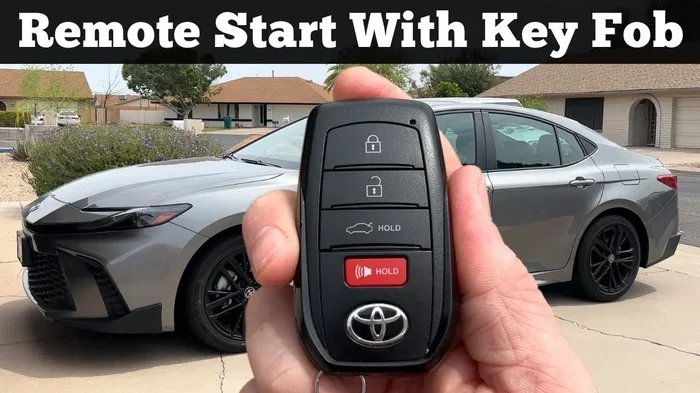
The Toyota App is a free mobile application that connects your smartphone to your Toyota vehicle. Through the app, you can lock and unlock doors, start the engine remotely, check fuel levels, and even run basic diagnostics. It is part of Toyota’s broader Toyota connected services ecosystem that brings your car closer to your digital life.
When you share a vehicle, having a single account creates problems. One person’s preferences override another’s. Notifications go to the wrong phone. And nobody wants to share passwords. That is exactly why multiple user access matters. It gives every driver their own profile inside the same app, with personalized settings and separate logins.
Key Features Available Through the Toyota App
The Toyota App offers a wide range of features that become even more useful when multiple users can access them. Here are some of the standout capabilities:
- Remote Start: Warm up or cool down your car before you get in.
- Vehicle Location: Find your Toyota in a crowded parking lot.
- Fuel Monitoring: Check your fuel level right from your phone.
- Maintenance Alerts: Get notified about oil changes and service needs.
- Lock and Unlock: Control your doors remotely for added security.
- Driving Reports: Review trip history and driving habits.
When you set up Toyota App multiple users, each person can access these features through their own account. This means your spouse gets their own remote start preferences, and your teen driver gets their own notifications. Everyone wins.
Can the Toyota App Support Multiple Users?
The short answer is yes. The Toyota App does support multiple user profiles, but the way it works depends on your specific Toyota model and the version of the app you are using. Most newer Toyota models from 2018 onward come with built-in support for shared access through the Toyota connected services platform.
Here is what you need to know about how the system works:
- Each vehicle can be linked to a primary owner account.
- Additional users can be invited via email or phone number.
- Each user gets their own login credentials.
- Permissions can be customized per user.
- All users share the same vehicle data but see it through their own profile.
Think of it like sharing a Netflix account. Everyone has their own login, but you all access the same library. The Toyota mobile app works similarly. One vehicle, multiple profiles, and each person gets a tailored experience.
Which Toyota Models Support Multiple Users?
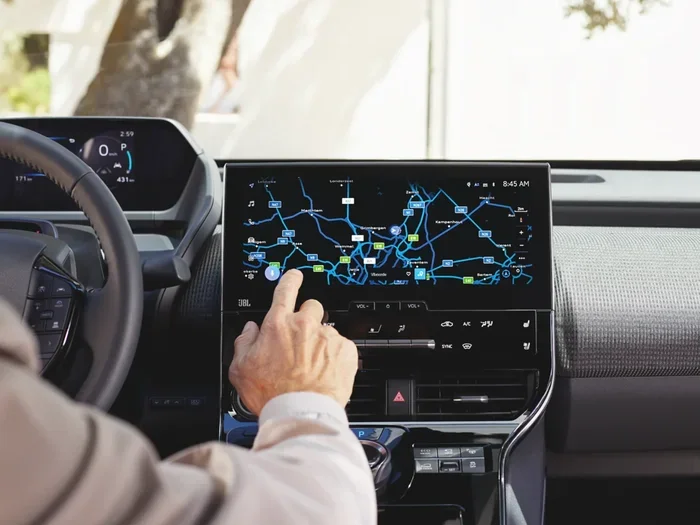
Most Toyota models manufactured after 2018 support the Toyota App multiple users feature. This includes popular models like the Camry, RAV4, Highlander, Corolla, and Tacoma. If you are unsure about your specific model, you can check by visiting the Toyota website or contacting your local Toyota dealer. They can confirm whether your vehicle is equipped with the necessary Toyota infotainment system for shared app access.
Older models may still support basic app features, but the full multi-user experience works best with newer hardware and software. If you have an older Toyota, do not worry. Many core features are still available through a single account, and you can always explore options like downloading an app to start your car for additional convenience.
How to Set Up Multiple Users on the Toyota App
Setting up Toyota App multiple users is a straightforward process. You do not need any technical skills, and it should only take about 10 to 15 minutes total. Follow these steps to get started.
Step 1: Download and Install the Toyota App
First, make sure you have the official Toyota App installed on your smartphone. You can find it in the Apple App Store or Google Play Store. Search for “Toyota” and look for the official app from Toyota Motor North America. Once installed, open the app and log in with your existing Toyota account or create a new one.
If you are new to Toyota apps, you might also want to learn about downloading apps to start your car so you understand the full range of remote features available to you.
Step 2: Link Your Vehicle
After logging in, you need to link your Toyota vehicle to the app. You can do this by entering your vehicle identification number (VIN) or by following the on-screen prompts to connect through your car’s infotainment system. Make sure your vehicle is parked and your phone has a stable internet connection.
Step 3: Navigate to the User Management Section
Once your vehicle is linked, go to the settings menu in the app. Look for a section labeled “Users,” “Shared Access,” or “Manage Users.” This is where you will add new profiles. The exact label may vary depending on your app version.
Step 4: Invite Additional Users
Tap on “Add User” and enter the email address or phone number of the person you want to invite. They will receive a notification with a link to accept the invitation. Once they accept, they can create their own login and start accessing the vehicle profile.
Step 5: Customize Permissions for Each User
This is the step that makes the Toyota App multiple users setup really powerful. You can choose what each user is allowed to do. For example, you might give your teen driver access to vehicle location and lock controls, but restrict remote start. Or you might give your spouse full access to everything. The choice is yours.
Here are some common permission settings you can adjust:
- Remote start and climate control
- Vehicle location tracking
- Lock and unlock doors
- View maintenance alerts
- Access driving reports
- Receive push notifications
Step 6: Test the Setup
After inviting users and setting permissions, ask each person to log in and explore the app. Make sure everything works as expected. Check that notifications are going to the right phone and that each user sees their own profile when they open the app.
Managing User Profiles and Permissions
Once you have set up Toyota App multiple users, you will want to manage those profiles over time. People change, vehicles change, and access needs change too. The Toyota App makes it easy to adjust settings whenever you need to.
How to Edit or Remove a User
To edit a user’s permissions, go back to the User Management section and tap on their profile. You can change what features they can access, update their notification preferences, or remove them from the vehicle entirely. Removing a user revokes their access immediately, so make sure you do this if you no longer want someone connected to your vehicle.
Setting Up a Teen Driver Profile
One of the best uses of multiple user access is setting up a profile for a teen driver. You can monitor their driving habits, set boundaries on which features they can use, and still give them the independence of having their own app login. This is a great way to introduce young drivers to Toyota smart features while keeping safety and control in your hands.
Sharing Your Toyota with a Family Member
If you share your Toyota with a partner or family member, giving them their own profile ensures that everyone’s preferences are saved. One person might prefer a warmer cabin temperature, while the other prefers a cooler setting. With separate profiles, each user can set their own defaults and the app will remember them.
For those interested in understanding more about vehicle features and what your Toyota can do, you might also enjoy learning about what types of vehicles a local dealership carries to explore the full range of options available.
Common Issues and How to Troubleshoot Them
Even with a straightforward setup, you might run into some hiccups when using Toyota App multiple users. Here are the most common issues and how to fix them.
Login Problems
If a new user cannot log in, the first thing to check is their internet connection. Both the app and your phone need a stable data or Wi-Fi connection. If the connection is fine, try resetting the password through the app’s login screen. Make sure the user is using the correct email address they signed up with.
Syncing Issues Between Users
Sometimes, when you add a new user, the app does not sync vehicle data right away. This is usually temporary. Have the new user log out and log back in. If that does not work, try closing the app completely and reopening it. You can also check for app updates in your phone’s app store, as outdated versions can cause syncing problems.
Permission Errors
If a user tries to access a feature they do not have permission for, the app will display a message letting them know. To fix this, go to the User Management section and adjust their permissions. You can always upgrade their access later if needed.
If you experience persistent issues with your vehicle’s technology, you might want to explore doing your own car diagnostics to understand what might be going on under the hood.
App Crashes or Freezes
Like any app, the Toyota App can occasionally crash or freeze. This is usually caused by a low phone memory or an outdated app version. Make sure your phone has enough storage space and that you are running the latest version of the app. Restarting your phone can also help clear temporary glitches.
Vehicle Not Recognized by the App
If the app does not recognize your vehicle after adding a new user, try unlinking and relinking the vehicle. Go to settings, remove the vehicle, and then add it again following the setup prompts. This often resolves connection issues between the app and the car.
Benefits of Using Multiple Users on the Toyota App
Setting up Toyota App multiple users comes with several real-world benefits that make shared vehicle ownership much more convenient.
- Convenience: Every driver has their own login and preferences. No more passing the phone back and forth.
- Safety: You can monitor and restrict features for younger or less experienced drivers.
- Organization: Each user sees their own notifications and alerts, reducing confusion.
- Privacy: Personal data stays separate. Your spouse does not see your driving reports unless you want them to.
- Efficiency: Multiple users can check vehicle status at the same time without logging out and back in.
When you think about it, sharing a car is already complicated enough. The Toyota mobile app takes away one big headache by letting everyone stay connected without creating chaos. It is one of those features that you do not realize you need until you have it.
Another great benefit is that you can keep an eye on your vehicle even when someone else is driving it. If your teen runs an errand, you can check the vehicle’s location and fuel level without calling or texting them. This peace of mind alone is worth the few minutes it takes to set up additional users.
For those who are curious about what else their Toyota can do, learning about fuel options and octane ratings can help you make better decisions at the pump and get the most out of your vehicle’s engine.
Tips for Getting the Most Out of Multi-User Toyota App Setup
Now that you know how to set up and manage Toyota App multiple users, here are some pro tips to help you get the most out of the experience.
- Keep Your App Updated: Toyota regularly releases updates that improve performance and add new features. Make sure all users have the latest version installed.
- Use Strong Passwords: Since multiple people have access, make sure each user picks a unique, strong password to keep the account secure.
- Review Permissions Regularly: Every few months, check the user management section to make sure permissions are still appropriate. People’s needs change over time.
- Enable Two-Factor Authentication: If available, turn on two-factor authentication for an extra layer of security on your Toyota account.
- Educate All Users: Take a few minutes to walk each user through the app’s features. This prevents confusion and ensures everyone gets the full experience.
- Check for Notifications Settings: Make sure each user has notifications turned on for the alerts that matter most to them, like maintenance reminders or low fuel warnings.
These simple steps can make a big difference in how smoothly your shared Toyota setup runs. A little preparation goes a long way toward avoiding frustration later on.
If you are also concerned about how much weight your vehicle can safely carry, check out our guide on how much weight you can put in your car for important safety and performance tips.
Frequently Asked Questions
Can I add more than five users to the Toyota App?
The Toyota App typically allows you to add multiple users to a single vehicle, but the exact limit depends on your app version and Toyota model. Most users find that five to ten profiles work well for a family or shared vehicle situation. If you need more slots, you can contact Toyota support for assistance.
Do all users need a smartphone to use the Toyota App?
Yes, each user needs their own smartphone with the Toyota App installed and their own internet connection to access the full range of features. However, some basic vehicle functions can still be controlled through the car’s built-in infotainment screen without a phone.
Can I remove a user from the Toyota App remotely?
Absolutely. You can remove a user from the app at any time, even if they are not physically near you. Just go to the User Management section, select the user, and choose the option to remove them. Their access will be revoked immediately.
Will adding multiple users affect my vehicle’s performance?
No, adding multiple users to the Toyota App has no effect on your vehicle’s performance. The app simply manages digital access and preferences. Your car’s engine, transmission, and other mechanical systems operate exactly the same regardless of how many app users are connected.
Is the Toyota App free to use with multiple users?
The Toyota App itself is free to download and use. However, some connected services may require a subscription or trial period. Check with your Toyota dealer to understand which features are included with your vehicle and which may require an additional plan.
Can each user set their own remote start preferences?
Yes, each user can set their own preferences within their profile. This includes remote start settings, preferred cabin temperature, and notification choices. When a user logs in, they see their personalized settings rather than someone else’s defaults.
Conclusion
Setting up Toyota App multiple users is one of the smartest things you can do if you share your vehicle with family or friends. It keeps everyone connected, organized, and in control of their own experience. From remote start to vehicle location, every driver gets a personalized profile that makes shared ownership feel seamless.
The process is simple, the benefits are real, and the troubleshooting tips in this guide should help you handle any bumps along the way. Whether you are sharing your Toyota with a spouse, a teen driver, or a roommate, the Toyota mobile app has you covered.
Take a few minutes today to walk through the setup steps outlined above. You will wonder how you ever managed without it. And remember, if you ever need help, your local Toyota dealer is just a phone call away. Happy sharing!