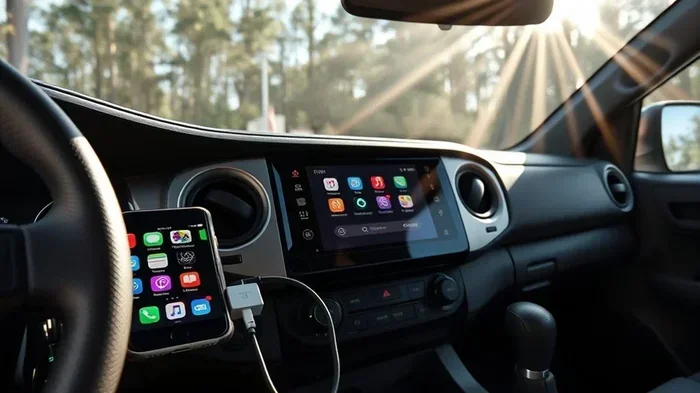
How Do I Connect My iPhone to My Toyota Car Step by Step
Connecting your iPhone to your Toyota car is easier than you think. Whether you use Bluetooth, a USB cable, or Apple CarPlay, this step-by-step guide walks you through every method. You will learn how to stream music, make hands-free calls, and use navigation right from your Toyota touchscreen.
Have you ever jumped into your Toyota and wished you could just connect your iPhone without fuss? You are not alone. Many Toyota owners want to stream music, use navigation, and take calls without digging through cables. The good news is that connecting your iPhone to your Toyota car is a straightforward process. Whether you have a brand new Toyota or a older model, this guide will walk you through every step.
In this article, we will cover Bluetooth pairing, USB connections, Apple CarPlay setup, and wireless options. We will also share quick tips and common mistakes to avoid. By the end, you will know exactly how to get your iPhone talking to your Toyota. Let us get started.
Key Takeaways
- Bluetooth pairing is the most common and wireless way to connect your iPhone to a Toyota car.
- Apple CarPlay offers the best iPhone integration with Toyota infotainment systems.
- USB connection provides a stable link for charging and data transfer.
- Wireless CarPlay is available on newer Toyota models for a cable-free experience.
- Troubleshooting steps can fix most connection issues quickly.
- Hands-free calling and Siri work seamlessly once your iPhone is paired.
📑 Table of Contents
- Why Connecting Your iPhone to Your Toyota Matters
- Method 1: Connecting via Bluetooth
- Method 2: Using a USB Cable
- Method 3: Apple CarPlay Setup
- Troubleshooting Common Connection Issues
- Tips for the Best iPhone-Toyota Experience
- Toyota Models and iPhone Compatibility
- Common Mistakes to Avoid
- Final Thoughts
Why Connecting Your iPhone to Your Toyota Matters
Modern cars are more than just transportation. They are smart devices on wheels. Your Toyota comes with an infotainment system designed to work with your smartphone. When you connect your iPhone, you unlock a whole new level of convenience.
You can make calls without touching your phone. You can ask Siri for directions. You can play your favorite playlists through your car speakers. These features make driving safer and more enjoyable. Plus, staying connected while on the road is no longer a luxury. It is a necessity.
Toyota has invested heavily in smartphone integration across its lineup. From the Corolla to the Camry and RAV4, most modern Toyotas support Apple CarPlay or at least Bluetooth connectivity. Knowing how to set this up saves you time and frustration every single day.
Method 1: Connecting via Bluetooth
Bluetooth is the most popular way to connect an iPhone to a Toyota car. It is wireless, easy, and works with almost every Toyota model. Here is how to do it step by step.
Step 1: Turn on Bluetooth on Your iPhone
Open the Settings app on your iPhone. Tap on Bluetooth. Toggle it on. Make sure your iPhone is visible to other devices. You should see it show as “Discoverable” in the Bluetooth menu.
Step 2: Enable Bluetooth on Your Toyota
Start your Toyota car. Press the Bluetooth button on your steering wheel or touch the Bluetooth icon on the infotainment screen. Go to Settings and select Bluetooth. Choose the option to search for new devices.
Step 3: Pair the Devices
Your Toyota should now show your iPhone on the screen. Tap on your iPhone name. You may see a passkey on both screens. Confirm that the numbers match. Tap Pair on both devices.
Step 4: Test the Connection
Once paired, try playing music from your iPhone. Make a test call. You should hear audio through your car speakers. The connection should feel seamless. If it does not, do not worry. We will cover troubleshooting later.
Quick Tip: If your Toyota has multiple phone profiles, make sure you select your iPhone as the primary device. This ensures calls and music always route to the right phone.
Method 2: Using a USB Cable
A USB connection offers a more stable link between your iPhone and your Toyota. It also charges your phone while you drive. This method is ideal if you experience Bluetooth dropouts or want a reliable connection.
Step 1: Find the USB Port
Most Toyota models have USB ports in the center console. Some newer models also have ports in the rear armrest or under the dashboard. Locate the port that supports data transfer. Not all USB ports charge devices. Look for a port labeled “USB” or with a data symbol.
Step 2: Use the Right Cable
Use a certified Lightning cable or USB-C cable depending on your iPhone model. Cheap cables often cause connection problems. A quality cable makes a big difference. If you have an older iPhone with a 30-pin connector, you will need an adapter.
Step 3: Connect and Trust
Plug the cable into your iPhone and then into the Toyota USB port. Your Toyota screen should display a prompt. Tap Trust on your iPhone. This allows the car to access your phone’s media and contacts.
Step 4: Access Your Content
Once connected, your Toyota infotainment system should recognize your iPhone. You can browse your music library, view photos, and access contacts. Some Toyotas also support USB tethering for internet access.
Quick Tip: If your Toyota does not recognize the USB device, try a different port or a different cable. Dust in the USB port can also cause issues. A quick clean with a toothpick can work wonders.
Method 3: Apple CarPlay Setup
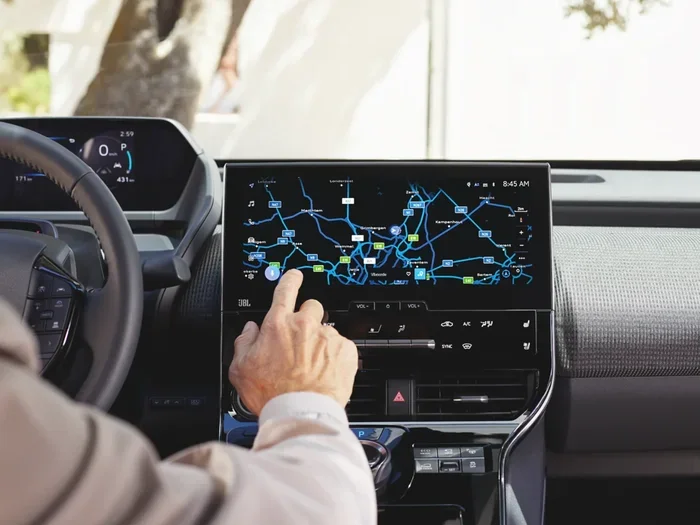
Apple CarPlay is the gold standard for iPhone integration in Toyota vehicles. It mirrors your iPhone interface onto your Toyota touchscreen. You get access to maps, music, messages, and more. Here is how to set it up.
Check CarPlay Compatibility
Not all Toyota models support CarPlay. Check your Toyota owner manual or visit the Toyota website. Most models from 2016 onwards support CarPlay either through the factory system or an aftermarket head unit. If your Toyota supports CarPlay, you are in luck.
Connect via USB for CarPlay
The easiest way to activate CarPlay is through a USB cable. Plug your iPhone into the USB port. Your Toyota screen should display the CarPlay interface. If it does not, go to your Toyota settings and select CarPlay as the source.
Set Up Wireless CarPlay
Newer Toyota models support wireless CarPlay. This means no cables at all. To set it up, go to your Toyota infotainment settings. Select Wireless CarPlay. Your iPhone should appear as an available device. Tap Connect. That is it.
Customize Your CarPlay Experience
CarPlay lets you arrange your favorite apps on the car screen. You can set Google Maps or Apple Maps as your default navigation. You can choose which music apps appear. You can even set Siri as your voice assistant. Take a few minutes to personalize the setup.
Expert Insight: If you also want to explore apps that enhance your car experience, you might consider downloading an app to start your car remotely. This works alongside your CarPlay setup and adds another layer of convenience to your Toyota ownership experience.
Troubleshooting Common Connection Issues
Even with the best setup, things can go wrong. iPhone and Toyota connectivity issues are common but usually easy to fix. Here are the most frequent problems and their solutions.
iPhone Not Showing Up on Toyota Screen
This is the most common issue. First, make sure Bluetooth is on for both devices. Restart your iPhone and your Toyota infotainment system. Sometimes a simple restart fixes everything. If that does not work, delete the old pairing from both devices and try again.
Audio Cuts Out or Sounds Scratchy
Bluetooth audio issues often stem from interference. Move closer to your car. Check if other wireless devices are causing interference. If you use a USB connection, try a different cable. A firmware update for your Toyota infotainment system can also resolve audio problems.
CarPlay Not Loading
If CarPlay freezes or does not start, disconnect and reconnect the cable. Make sure your iPhone is updated to the latest iOS version. Restart both devices. On your Toyota, go to settings and reset the infotainment system. Updating your Toyota software is another fix that works surprisingly often.
Siri Not Responding
Siri needs permission to work through your car system. Go to iPhone Settings. Tap Siri & Search. Enable “Allow Siri When Locked.” Also check that your Toyota allows Siri access. You can do this in the car Bluetooth settings.
Quick Tip: Keep a spare USB cable in your glove box. Cables wear out faster than you think. A backup cable saves you from being stranded with an unconnected phone.
Tips for the Best iPhone-Toyota Experience
Once your iPhone is connected, a few best practices keep things running smoothly. Here are some expert tips to enhance your daily drive.
Keep Your iPhone and Toyota Software Updated
Apple releases iOS updates regularly. Toyota also releases infotainment updates. Both types of updates improve compatibility. Set your iPhone to auto-update. Check your Toyota software version at least twice a year.
Manage Your Bluetooth Devices
If multiple phones are paired with your Toyota, the system can get confused. Go to your Toyota Bluetooth settings and remove old devices. Keep only the phones you actively use. This prevents connection conflicts.
Use Do Not Disturb While Driving
iPhone has a built-in feature called Do Not Disturb While Driving. It silences notifications when you are in the car. You can set it to activate automatically when connected to your Toyota. This keeps you focused on the road.
Explore Your Toyota App Options
Toyota offers its own suite of apps through the Toyota App Suite. These apps work with CarPlay and add features like remote start, vehicle diagnostics, and more. If you want to learn more about diagnosing car issues yourself, you might also explore doing your own car diagnostics with your phone connected.
Charge Your iPhone While Driving
CarPlay and Bluetooth usage drains your iPhone battery. Use a USB connection to charge while you drive. If your Toyota does not have a front USB port, consider a 12V car charger socket adapter that fits in your cigarette lighter. This keeps your phone powered all day long.
Clean Your USB Ports Regularly
Dust and lint build up in USB ports over time. This causes connection problems. Use a can of compressed air or a soft brush to clean the ports. A clean connection means fewer headaches.
Toyota Models and iPhone Compatibility
Different Toyota models offer different levels of iPhone integration. Here is a quick overview of what to expect across popular Toyota vehicles.
- Toyota Corolla: Supports Bluetooth and Apple CarPlay on most models from 2019 onwards. Earlier models may need an aftermarket head unit.
- Toyota Camry: Offers full CarPlay support on all trims from 2018. The touchscreen interface makes navigation and music easy.
- Toyota RAV4: Wireless CarPlay is available on higher trims. The RAV4 is one of the best Toyotas for iPhone integration.
- Toyota Highlander: Supports both wired and wireless CarPlay. The larger screen makes it easy to use while driving.
- Toyota Tacoma: CarPlay support varies by trim and year. Check your specific model for compatibility.
Always check your specific model year before purchasing accessories. Toyota updated its infotainment systems multiple times over the years. Knowing what your car supports helps you set realistic expectations.
Common Mistakes to Avoid
Even experienced car owners make mistakes when connecting their iPhone. Here are the ones to watch out for.
- Using a non-certified cable. Cheap cables often fail to transfer data. Stick with Apple-certified or high-quality third-party cables.
- Ignoring software updates. Outdated software causes the most connection problems. Keep everything current.
- Pairing too many devices. This creates confusion and slows down the system. Keep it simple.
- Forgetting to trust the computer. When you first connect via USB, always tap Trust on your iPhone. Skipping this step blocks data access.
- Leaving Bluetooth on when not needed. This drains your iPhone battery. Turn it off when you are not in the car.
Avoiding these simple mistakes keeps your iPhone-Toyota connection smooth. It takes just a few minutes to get into good habits.
Final Thoughts
Connecting your iPhone to your Toyota car opens up a world of convenience and safety. Whether you choose Bluetooth, USB, or Apple CarPlay, the process is simpler than you might think. Start with the method that fits your needs best. Follow the steps in this guide carefully. You will be streaming music, making calls, and using navigation in no time.
Remember to keep your software updated and your cables clean. These small habits make a big difference. If you run into issues, the troubleshooting section has you covered. The key is patience and following the steps in order.
Your Toyota and your iPhone were designed to work together. Once you get the connection right, you will wonder how you ever drove without it. Enjoy the ride and stay connected on every journey.
Frequently Asked Questions
Can I connect my iPhone to any Toyota model?
Most Toyota models from 2016 onwards support at least Bluetooth connectivity. Apple CarPlay is available on models from 2016 onwards, though wireless CarPlay is limited to newer trims. Check your specific Toyota model year for full compatibility details.
Why does my iPhone keep disconnecting from my Toyota?
Bluetooth disconnections are often caused by software glitches or interference. Try restarting both devices and deleting the old pairing before reconnecting. Also check if your Toyota needs a firmware update, as outdated software frequently causes connection issues.
Do I need a special cable for Apple CarPlay?
You need a Lightning or USB-C cable that supports data transfer. Not all USB cables carry data. Use an Apple-certified cable or a high-quality third-party cable rated for data. A charging-only cable will not work with CarPlay.
Can I use wireless CarPlay with my Toyota?
Wireless CarPlay is available on select Toyota models from 2019 onwards, particularly higher trims. Check your Toyota owner manual or consult your dealer to confirm if your specific model supports wireless CarPlay.
How do I remove a paired iPhone from my Toyota?
Go to your Toyota infotainment settings. Select Bluetooth. Find the iPhone you want to remove. Tap Delete or Forget Device. This clears the pairing and frees up the slot for a new device.
What should I do if my Toyota screen does not respond after connecting my iPhone?
First, try disconnecting the USB cable and restarting your Toyota infotainment system. If that does not work, reset the system through the settings menu. Also ensure your iPhone is unlocked and that you tapped Trust when prompted on your iPhone screen.