How Do I Restart My Bluetooth Cache and Fix Issues
Restarting your Bluetooth cache is the quickest way to fix connectivity problems in your car. Whether your Bluetooth won’t pair, keeps disconnecting, or won’t play audio, clearing the cache often solves the issue. This guide walks you through every method in simple, easy-to-follow steps.
Bluetooth problems in your car can be super annoying. You’re trying to play music, take a call, or use navigation, and nothing works. The connection drops, the audio stutters, or your phone simply won’t pair. Before you call a mechanic or spend money on repairs, there’s a simple fix you can try at home. Restarting your Bluetooth cache clears out the stored data that causes these problems. This guide shows you exactly how to do it, step by step, so you can get back on the road with a working connection.
Many car owners don’t even know that Bluetooth devices store temporary data called a cache. This cache helps your phone and car remember each other for faster pairing. But over time, this stored data can become corrupted. Old pairing records, outdated device info, and cached settings can all lead to Bluetooth connection issues. A simple cache restart wipes the slate clean and lets your devices start fresh. Think of it like restarting your phone when it acts up. It’s a quick fix that works more often than you’d think.
Key Takeaways
- Clearing Bluetooth cache removes old pairing data that causes conflicts.
- Restart methods work on Android, iPhone, and most car infotainment systems.
- Soft reset and hard reset are two different approaches for different problem levels.
- Paired devices may need to be re-paired after a cache restart.
- Regular cache maintenance prevents future Bluetooth issues.
- If cache restart doesn’t work, hardware or software updates may be the cause.
📑 Table of Contents
- What Is Bluetooth Cache and Why Does It Matter?
- Signs Your Bluetooth Cache Needs a Restart
- How to Restart Bluetooth Cache on Your Phone
- How to Restart Bluetooth Cache in Your Car
- Common Bluetooth Cache Problems and How to Fix Them
- Tips to Prevent Bluetooth Cache Problems in the Future
- When to Seek Professional Help
- Final Thoughts
What Is Bluetooth Cache and Why Does It Matter?
Bluetooth cache is a small storage area where your phone and car save pairing information. When you connect your phone to your car’s Bluetooth car system for the first time, the devices exchange data. This data includes device names, PIN codes, audio profiles, and connection preferences. All of this gets saved in the cache for future use.
The next time you get in the car, the Bluetooth pairing happens almost instantly because the cache already has the info. That’s convenient. But here’s the problem. If something changes, like a software update or a new app, the old cached data can conflict with new settings. This causes Bluetooth sync failures, audio dropouts, and pairing errors. Clearing the cache removes these old records so your devices can rebuild a clean connection.
How Bluetooth Cache Works in Cars
Your car’s infotainment system uses a Bluetooth module to handle wireless connections. This module stores cached data just like your phone does. When you pair a new Bluetooth device, the module saves the device’s signature and connection details. Over months of use, this list can grow long and messy. Some of those entries may belong to devices you no longer use. Others may have corrupted data from a past disconnect. All of this bogs down the system and causes Bluetooth not working situations.
The cache also stores audio routing information. This tells the car whether to route audio through the speakers, the microphone, or both. If this cached routing data gets mixed up, you might hear audio from the wrong source. Clearing the cache resets all of this routing info to default. Then you can set it up fresh and correctly.
Signs Your Bluetooth Cache Needs a Restart
Not sure if your Bluetooth cache is the problem? Look for these clear signs. If you notice any of these, a cache restart is likely the solution.
- Your phone won’t pair with the car. Even after deleting and re-adding the device, the connection fails.
- Audio cuts in and out during playback. Music or calls drop randomly, even when both devices are close.
- The car doesn’t recognize your phone. It used to connect automatically, but now it doesn’t detect the device at all.
- Bluetooth settings freeze or crash. The infotainment screen gets stuck when you open the Bluetooth menu.
- Audio plays from the wrong source. Phone calls come through the wrong speakers or the wrong microphone.
- Pairing takes forever or never completes. The devices search endlessly but never establish a connection.
If you’re dealing with any of these, don’t worry. The fix is usually straightforward. A Bluetooth reset takes just a few minutes and doesn’t require any special tools or technical knowledge.
How to Restart Bluetooth Cache on Your Phone
The first place to restart your Bluetooth cache is on your phone. Both Android and iPhone have built-in options for clearing Bluetooth data. Here’s how to do it on each platform.
Restart Bluetooth Cache on Android
Android phones give you direct access to Bluetooth app data. Follow these steps to clear the cache:
- Open the Settings app on your phone.
- Go to Apps or Applications, depending on your phone model.
- Find and tap on Bluetooth in the app list.
- Tap on Storage or Storage & Cache.
- Tap Clear Cache. Do not tap “Clear Data” unless the cache clear doesn’t work.
- Go back to Settings and turn Bluetooth off, then back on.
- Try pairing your phone with your car again.
This method removes the temporary Bluetooth files without deleting your personal data. It’s safe and quick. After clearing the cache, your phone will rebuild the Bluetooth pairing data from scratch. This often fixes Bluetooth connection issues immediately.
Restart Bluetooth Cache on iPhone
iPhones don’t let you clear the Bluetooth cache directly. Instead, you need to reset the network settings. Here’s how:
- Open the Settings app.
- Go to General and then Transfer or Reset iPhone.
- Tap Reset and select Reset Network Settings.
- Enter your passcode if prompted.
- Confirm the reset. Your Wi-Fi passwords will be deleted, but your data stays safe.
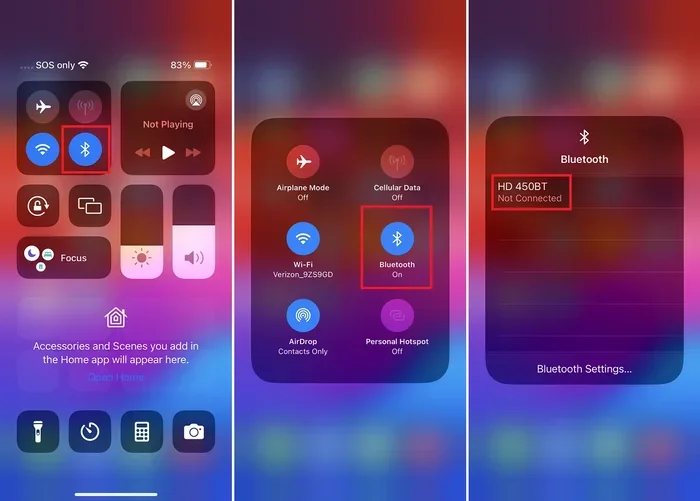
- Turn Bluetooth off and back on from the Control Center.
- Re-pair your phone with your car’s infotainment system.
This resets all network-related settings, including Bluetooth pairings. It’s a more thorough approach than clearing the cache on Android. But it works really well for stubborn Bluetooth pairing problems. After the reset, your iPhone will forget all saved Wi-Fi and Bluetooth connections. You’ll need to reconnect everything, but the fresh start usually solves the issue.
How to Restart Bluetooth Cache in Your Car
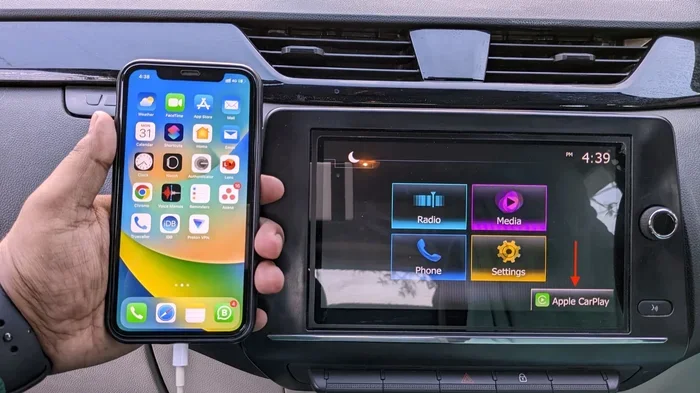
Your car’s infotainment system also stores Bluetooth cache data. Restarting this cache can fix problems that phone-side fixes don’t touch. The exact steps vary by car brand and model, but the general process is similar across most vehicles.
Soft Reset Method
A soft reset restarts the infotainment system without erasing any settings or paired devices. This is the gentlest approach and should always be your first step.
- Turn off your car’s engine but keep the ignition in the accessory or on position.
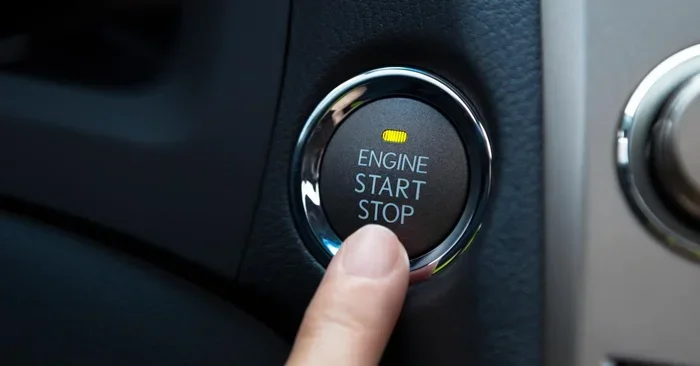
- Press and hold the power button on the infotainment screen for 10 to 15 seconds.
- The screen will go dark and then restart.
- Once the system boots back up, go to the Bluetooth settings.
- Delete your phone from the paired devices list.
- Re-pair your phone by following the on-screen instructions.
A soft reset clears the active Bluetooth session but keeps your saved settings. This is like closing and reopening an app on your phone. It refreshes the connection without losing anything. Many Bluetooth connectivity issues resolve with just a soft reset.
Hard Reset Method
A hard reset clears all Bluetooth data from the car’s system. Use this if a soft reset doesn’t fix the problem. A hard reset removes all paired devices and Bluetooth settings. You’ll need to re-pair everything afterward.
- Turn off the car engine and remove the key or turn the ignition off.
- Disconnect the car battery for 5 to 10 minutes. Use a wrench to loosen the negative terminal first.
- While the battery is disconnected, press and hold the car’s power button for 30 seconds.
- This drains any remaining power from the infotainment system’s capacitors.
- Reconnect the battery, starting with the positive terminal.
- Start the car and wait for the infotainment system to fully boot.
- Go to Bluetooth settings and re-pair all your devices.
A hard reset is like giving your car’s Bluetooth system a complete fresh start. It wipes the cache and resets the Bluetooth module to factory defaults. This method works for even the most stubborn Bluetooth cache problems. Just be careful when disconnecting the battery, and make sure you know your radio security code if your car has one.
Using the Car’s Built-In Bluetooth Reset Option
Many modern cars have a dedicated Bluetooth reset option in the settings menu. Check your car’s manual or the infotainment system for a “Reset Bluetooth” or “Factory Reset Bluetooth” option. Some cars let you reset the Bluetooth module without touching the battery. This is the easiest method if your car supports it.
For example, some BMW and Mercedes models have a “Bluetooth Reset” button hidden in the system settings. Toyota and Honda vehicles often let you reset Bluetooth through the audio system menu. Ford SYNC systems have a “Clear Pairing List” option that works similarly. Check your specific car model for the best approach.
Common Bluetooth Cache Problems and How to Fix Them
Even after restarting the cache, you might run into specific problems. Here are the most common issues and how to fix them.
Bluetooth Pairs But No Audio Plays
This happens when the audio profile isn’t set correctly after a cache restart. Your phone connects to the car, but the sound doesn’t come through the speakers. To fix this, go to your phone’s Bluetooth settings and check the audio profile. Make sure “Media Audio” and “Call Audio” are both turned on for the car connection. On the car side, check that the audio source is set to Bluetooth, not radio or aux.
Phone Connects but Car Doesn’t Show Caller ID
If calls come through but the name doesn’t show up, the contact sync is broken. This is a common Bluetooth sync issue after a cache restart. To fix it, go to your phone’s Bluetooth settings, find the car connection, and make sure “Contacts Sync” is enabled. You may also need to re-accept the contact access permission on your phone.
Bluetooth Keeps Disconnecting While Driving
Intermittent disconnections often point to a weak signal or interference. But after a cache restart, this can also mean the paired device list is too long. Go into your car’s Bluetooth settings and remove any old or unused devices. A shorter paired list means less clutter for the Bluetooth module to manage. This improves signal stability and reduces disconnections.
Bluetooth Won’t Turn On After Cache Restart
If the Bluetooth toggle is grayed out or won’t turn on, the Bluetooth module itself may be stuck. Try a full system restart of the infotainment unit. On most cars, you can do this by holding the power button for 20 seconds. If that doesn’t work, you may need to update the car’s firmware. Check with your dealer or the car manufacturer’s website for updates.
Tips to Prevent Bluetooth Cache Problems in the Future
Once you fix your Bluetooth issues, you want to keep them fixed. Here are some simple tips to prevent future cache problems.
- Keep your phone and car software up to date. Updates often fix Bluetooth bugs and improve compatibility. Check for updates regularly on both devices.
- Limit the number of paired devices. Only keep devices in the paired list that you actually use. Old devices take up memory and can cause conflicts.
- Restart Bluetooth once a month. Turn Bluetooth off and back on regularly. This clears minor cache glitches before they become big problems.
- Avoid pairing in crowded areas. Lots of Bluetooth signals in one place can cause interference. Park in a clear spot when pairing new devices.
- Use high-quality audio codecs if supported. Some cars support aptX or LDAC codecs. These provide better audio quality and more stable connections.
- Don’t ignore warning messages. If your car warns you about a Bluetooth error, address it right away. Early fixes prevent bigger problems later.
Taking care of your Bluetooth car system is just like taking care of any other part of your vehicle. A little regular maintenance goes a long way. These simple habits keep your connections strong and your audio flowing.
When to Seek Professional Help
Most Bluetooth cache issues resolve with the steps above. But sometimes the problem is deeper than a cache glitch. Here are signs that you need professional help.
- The Bluetooth module physically stopped working. If the Bluetooth toggle never turns on, even after a full system reset, the hardware may be damaged.
- You get a Bluetooth error code on the dashboard. Error codes like U0100 or B1000 often point to module failures that need diagnostic tools to fix.
- The problem persists after multiple cache restarts. If you’ve tried both soft and hard resets several times and nothing works, the issue may be in the wiring or the module itself.
- Your car is still under warranty. Before attempting major fixes, check with your dealer. They may cover Bluetooth repairs under your warranty at no cost.
Dealers and certified technicians have diagnostic tools that can read your car’s Bluetooth module in detail. They can see error logs and firmware versions that you can’t access from the dashboard. If the problem is hardware-related, a professional can replace the Bluetooth module quickly and correctly.
If you enjoy working on car accessories and personalizing your vehicle, you might also enjoy learning about 10 Lines On My Favourite Toy Car. It’s a fun read for car enthusiasts who love all things automotive, from real cars to miniature collectibles.
Final Thoughts
Restarting your Bluetooth cache is one of the easiest and most effective ways to fix car Bluetooth problems. Whether you clear the cache on your phone, reset your car’s infotainment system, or do both, the fix is usually quick and painless. Most Bluetooth issues come from corrupted or outdated cached data. A simple restart wipes that data away and lets your devices build a fresh, clean connection.
Remember to try the soft reset first. It’s the least disruptive and solves many problems on its own. If that doesn’t work, move to the hard reset or factory reset options. And always keep your software updated to prevent future issues. With these steps in your toolkit, you’ll handle Bluetooth troubleshooting like a pro. No more dropped calls, no more silent speakers, and no more frustration in the driver’s seat.
Take a few minutes today to restart your Bluetooth cache. It takes less time than a coffee break, and the results can be immediate. Your car and your phone will thank you for it. Happy driving, and enjoy your music, calls, and navigation without any Bluetooth interruptions.
Frequently Asked Questions
How long does it take to restart Bluetooth cache?
Restarting your Bluetooth cache takes just a few minutes on both your phone and your car. A soft reset takes about 2 to 3 minutes. A hard reset with battery disconnection takes around 10 minutes. The actual time depends on your car model and phone type, but it’s always a quick process.
Will restarting Bluetooth cache delete my phone data?
No, restarting Bluetooth cache does not delete any personal data from your phone. It only removes temporary pairing information and cached connection files. Your photos, contacts, messages, and apps stay completely safe. However, you will need to re-pair your phone with your car after the cache restart.
How often should I restart my Bluetooth cache?
You don’t need to restart your Bluetooth cache regularly. Only do it when you notice connection problems. That said, doing a quick Bluetooth restart once a month can help prevent issues from building up. Think of it as a little maintenance check for your car’s wireless system.
Can a Bluetooth cache restart fix audio quality issues?
Yes, a cache restart can often fix audio quality problems. Corrupted cache data can cause audio to sound muffled, crackly, or distorted. Clearing the cache resets the audio routing and codec settings, which can restore clear, high-quality sound during calls and music playback.
What should I do if restarting the Bluetooth cache doesn’t work?
If cache restarts don’t solve the problem, try updating your phone and car software. Outdated firmware is a common cause of Bluetooth issues. If updates don’t help, the Bluetooth module itself may need professional diagnosis. Visit your dealer or a qualified car technician for further troubleshooting.
Is it safe to disconnect my car battery to reset Bluetooth?
Yes, it is generally safe to disconnect your car battery for a short time to reset the Bluetooth system. Just make sure you know your radio security code before disconnecting, as some cars require it after a battery reset. Also, always disconnect the negative terminal first and reconnect it last for safety.