How Do I Connect Apple CarPlay to My RAV4 Step by Step
Connecting Apple CarPlay to your Toyota RAV4 is simpler than you think. Whether you use a USB cable or go wireless, this guide walks you through every step with clear instructions. You will learn what you need, how to set it up, and how to fix common problems. Apple CarPlay brings your favorite apps, maps, and music right to your RAV4’s screen. Let us get you connected in just a few minutes.
Have you just picked up a Toyota RAV4 and want to get your iPhone working with the car’s screen? You are in the right place. Apple CarPlay is one of the best features you can add to your driving experience. It lets you access maps, music, messages, and calls all through a simple, driver-friendly interface. In this guide, we will walk you through connecting Apple CarPlay to your RAV4 step by step. We will cover both wired and wireless methods so you can pick what works best for you.
Before we dive in, let us quickly talk about what Apple CarPlay actually does. Think of it as a mirror of your iPhone, but built for your car. Your RAV4’s touchscreen becomes a safe and easy way to use the apps you already love. You get directions from Maps, listen to Spotify or Apple Music, send and receive text messages, and even make calls. All of this happens without you ever touching your phone. Smartphone integration like this is what makes modern driving so much more convenient and safer too.
Key Takeaways
- Two Connection Methods: You can use a USB cable or set up wireless Apple CarPlay depending on your RAV4 model year.
- Wired is Faster and More Reliable: A USB connection gives you a stable link and charges your phone at the same time.
- Wireless CarPlay Requires a One-Time Setup: Once paired, it connects automatically every time you start your car.
- Troubleshooting Is Simple: Most connection issues can be fixed with a quick reset, cable swap, or software update.
- Apple CarPlay Works with Many RAV4 Years: Models from 2019 onward generally support wireless, while older years work great with a cable.
- Siri Voice Control Keeps You Safe: You can make calls, send texts, and get directions without taking your hands off the wheel.
📑 Table of Contents
What Is Apple CarPlay and Why Does It Matter in the RAV4?
Apple CarPlay is Apple’s official system for connecting your iPhone to your car’s display. It was designed with driver safety in mind. The interface is clean, simple, and easy to use. When you connect your iPhone to a RAV4, the car’s infotainment system takes over and shows you a simplified version of your phone’s screen.
The RAV4 is one of the most popular SUVs on the road, and Toyota made sure it works beautifully with Apple CarPlay. Whether you drive a 2019 model or a brand-new 2024 RAV4, you will find solid support for this feature. The system is part of Toyota’s multimedia system, which also includes Android Auto for those who use Samsung or Google phones. But for iPhone users, Apple CarPlay is the star of the show.
What Can You Do with Apple CarPlay in the RAV4?
Once connected, you get access to a range of useful features:
- Navigation: Use Apple Maps or Google Maps for turn-by-turn directions on your RAV4’s touchscreen.
- Music and Podcasts: Stream Apple Music, Spotify, Audible, and other apps right through your car speakers.
- Hands-Free Calling: Make and receive phone calls without ever picking up your iPhone.
- Text Messages: Hear incoming messages and respond using voice dictation through Siri voice control.
- Siri Commands: Say “Hey Siri” to send a text, find a restaurant, or play a playlist.
- Podcasts and Audiobooks: Keep entertained on long drives with your favorite audio content.
All of these features keep your eyes on the road and your hands on the wheel. That is the real beauty of Apple CarPlay. It brings the power of your iPhone to your car in a safe and organized way.
What You Need Before You Start
Setting up Apple CarPlay in your RAV4 is easy, but you do need a few things ready first. Let us go through the checklist so you are not stuck halfway through the process.
Required Items
- An iPhone: Any iPhone from the iPhone 5 and newer will work with Apple CarPlay. The iPhone 12, 13, 14, and 15 models all work perfectly with the RAV4.
- A Lightning or USB-C Cable: Depending on your iPhone model, you will need the right cable. iPhone 15 and newer use USB-C, while older models use Lightning.
- A Compatible RAV4 Model: Most RAV4 models from 2019 onward support Apple CarPlay. Some earlier models also work but may only support a wired connection.
- An Active Cellular Data Plan: For maps and streaming, you need a working data connection on your phone.
Optional but Helpful
- A Wireless CarPlay Adapter: If your RAV4 does not support wireless Apple CarPlay out of the box, a compatible adapter can add this feature.
- A Quality USB Cable: A braided or reinforced cable lasts longer and connects more reliably than cheap alternatives.
Once you have these items ready, you are all set to move on to the actual setup. It only takes a few minutes, and you will be up and running in no time.
Step-by-Step: Wired Apple CarPlay Connection
The wired method is the most straightforward way to connect Apple CarPlay to your RAV4. It works with nearly every RAV4 model year that supports the feature. You simply plug your iPhone into the car’s USB port, and the connection happens automatically.
Step 1: Find the USB Port in Your RAV4
Open the center console of your RAV4. You will see one or two USB ports. On most RAV4 models, the USB port is located in the center console between the front seats. Some models also have a USB port in the lower part of the dashboard. Plug your iPhone’s cable into the port that is labeled for data, not just charging.
Step 2: Connect Your iPhone
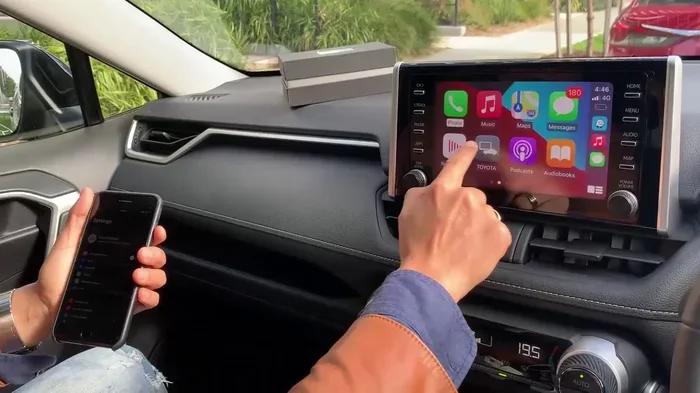
Plug the cable into your iPhone and then into the RAV4’s USB port. Wait a few seconds. You should see the Apple CarPlay icon appear on your RAV4’s touchscreen. If it does not appear automatically, tap the CarPlay icon on the infotainment screen to start it manually.
Step 3: Set Up Apple CarPlay
On your iPhone, you may see a prompt asking if you trust this car. Tap “Trust” and enter your passcode if asked. This one-time setup allows your iPhone to communicate with the RAV4’s system. After that, the connection should be smooth every time you plug in.
Step 4: Start Using Apple CarPlay
Once connected, your RAV4’s screen will display the Apple CarPlay home screen. You will see your favorite apps, recent calls, and suggested destinations. Use the touchscreen or the car’s rotary dial to navigate. You can also use Siri voice control to make commands without touching the screen at all.
Quick Tip: If you want to switch between Apple CarPlay and the RAV4’s native media system, simply tap the CarPlay icon on the screen or unplug and replug your iPhone. It is that easy.
Step-by-Step: Wireless Apple CarPlay Setup
If your RAV4 supports wireless Apple CarPlay, you can skip the cables entirely. This feature is available on RAV4 models from 2019 onward, depending on the trim level and technology package. Wireless connection is convenient because it pairs automatically every time you start your car.
Step 1: Make Sure Wireless CarPlay Is Enabled
On your iPhone, go to Settings, then General, and tap CarPlay. If your RAV4 shows up in the list, tap on it and select “Enable Wireless CarPlay.” This tells your iPhone to look for the RAV4’s system automatically.
Step 2: Start Your RAV4
Start your car and make sure the infotainment system is on. On the RAV4’s screen, go to Settings, then choose “Apple CarPlay.” Select the option for wireless connection. The system will now search for your iPhone.
Step 3: Pair Your iPhone
Your iPhone should appear on the RAV4’s screen. Tap on it to begin pairing. You may see a confirmation prompt on both your phone and the car’s display. Accept the pairing, and that is it. From now on, Apple CarPlay will connect automatically whenever you start your RAV4 and have your iPhone with you.
Step 4: Enjoy a Cable-Free Experience
Once paired, you will see the Apple CarPlay home screen on your RAV4’s display without ever plugging in a cable. Your phone charges wirelessly if your RAV4 has a wireless charging pad, or it stays at its current battery level. The connection is stable and works just as well as a wired setup.
If your RAV4 does not support wireless Apple CarPlay from the factory, you can still add it. A wireless adapter plugs into the USB port and enables wireless connectivity. These adapters are affordable and work with most RAV4 models. Just make sure you buy one that is compatible with your specific RAV4 year.
Troubleshooting Common Apple CarPlay Issues
Even though Apple CarPlay is designed to work smoothly, you might run into a problem now and then. Do not worry. Most issues are easy to fix. Here are the most common problems and how to solve them.
Apple CarPlay Does Not Turn On
If Apple CarPlay does not start when you plug in your iPhone, try these steps:
- Unplug the cable and plug it back in firmly.
- Make sure the USB port is clean and free of dust or debris.
- Restart your iPhone by holding the power button and sliding to power off.
- Restart the RAV4’s infotainment system by holding the power button for about 10 seconds.
- Try a different USB cable or a different USB port in your RAV4.
Sometimes the simplest fix works. A loose cable or a dirty port causes most connection problems. If you are also curious about whether you can download an app to start your car, that is a related topic worth exploring for tech-savvy car owners.
Apple CarPlay Keeps Disconnecting
A connection that keeps dropping can be frustrating. Here is what to do:
- Check that your cable is not damaged. Frayed cables often cause intermittent disconnections.
- Make sure your iPhone is running the latest version of iOS. Go to Settings, then General, then Software Update.
- Check that your RAV4’s infotainment system is updated. You can find updates through the system settings or by visiting a Toyota dealer.
- Turn Apple CarPlay off and back on from both your iPhone and the RAV4’s screen.
Siri Voice Control Is Not Working
If Siri does not respond when you use voice commands, check the following:
- Make sure “Hey Siri” is enabled on your iPhone. Go to Settings, then Siri & Search.
- Check that your iPhone’s microphone is not blocked by a case or cover.
- Make sure your RAV4’s audio system volume is turned up so you can hear Siri’s responses.
For more complex issues that persist, you might want to explore doing your own car diagnostics to check if there is a deeper system issue affecting the infotainment unit.
CarPlay Shows a Black Screen
A black screen on the RAV4 display when Apple CarPlay is connected usually means one of two things. Either the cable is not carrying data, or there is a software glitch. Try a different cable first. If that does not work, restart both your iPhone and the RAV4’s system. This almost always fixes a black screen issue.
Remember, keeping your iPhone and your RAV4’s system updated is the best way to avoid most problems. Updates fix bugs and improve compatibility between devices.
Apple CarPlay Features You Should Know About
Once you have Apple CarPlay connected to your RAV4, there are several features that make driving even better. Let us highlight some of the most useful ones.
Maps and Navigation
Apple CarPlay gives you access to Apple Maps, Google Maps, and Waze. You get real-time traffic updates, route suggestions, and estimated arrival times. The RAV4’s large touchscreen makes it easy to see your route clearly. You can search for gas stations, restaurants, and parking by voice using Siri. This is especially helpful when you are driving in an unfamiliar area.
Music and Entertainment
With Apple CarPlay, you can control all your audio apps from the RAV4’s screen. Apple Music, Spotify, Pandora, and Spotify all work seamlessly. You can browse playlists, search for songs, and control playback with just a tap. The audio comes through your car’s speakers, which in the RAV4 are surprisingly good for an SUV. You can also connect a 12V DC to 220V AC car power inverter if you need to charge other devices while enjoying your music.
Communication and Safety
Apple CarPlay keeps you connected without compromising safety. You can hear incoming text messages read aloud and respond using voice commands. Phone calls come through the car’s speakers and microphone, so you never need to hold your phone. This hands-free calling feature is one of the biggest safety benefits of Apple CarPlay. It keeps your eyes on the road and your hands on the wheel.
It is also worth noting that keeping your RAV4 well-maintained, including proper weight distribution, contributes to overall safety. If you are ever unsure about how much weight your vehicle can handle, check out our guide on whether you can put too much weight in your car for helpful guidelines.
Customizing Your Apple CarPlay Experience
You can customize which apps appear on the Apple CarPlay home screen. On your iPhone, go to Settings, then General, then CarPlay. Tap your RAV4’s name, and you can rearrange or remove apps. This lets you keep the screen clean and focused on what matters most while driving. You can pin your favorite navigation app, keep your music app front and center, and hide apps you rarely use.
Apple CarPlay by RAV4 Model Year
Not all RAV4 models are created equal when it comes to Apple CarPlay support. Here is a quick breakdown of what to expect based on your model year:
- 2019 RAV4: Supports both wired and wireless Apple CarPlay on higher trims. The base LE trim may only offer wired connectivity.
- 2020 RAV4: Similar to 2019, with wireless Apple CarPlay available on XLE and XSE trims.
- 2021 RAV4: Expanded wireless support across more trims. The SE and XLE trims generally include wireless Apple CarPlay.
- 2022 and Newer RAV4 Models: Full wireless Apple CarPlay support across most trims. The latest models also include updated infotainment systems with faster performance.
If you are unsure whether your specific RAV4 supports wireless Apple CarPlay, check your owner’s manual or look up your VIN on Toyota’s website. You can also visit a Toyota dealer and they will be happy to confirm compatibility for you.
Connecting Apple CarPlay to your RAV4 is one of the best upgrades you can make for your daily commute or road trips. It keeps you connected, entertained, and navigating with ease. The setup process is straightforward, and even if you run into a hiccup, the fixes are simple and quick.
Remember to keep your iPhone updated, use a good quality cable, and explore the many features Apple CarPlay offers. From Siri voice control to real-time maps, this system transforms your RAV4 into a smarter, safer, and more enjoyable vehicle to drive. Take a few minutes today to set it up, and you will wonder how you ever drove without it.
Frequently Asked Questions
Can I Use Apple CarPlay in All RAV4 Trims?
Most RAV4 trims from 2019 onward support Apple CarPlay, but wireless functionality depends on the trim level. Higher trims like XLE, XSE, and Limited typically include wireless Apple CarPlay, while base trims may only offer a wired connection. Check your owner’s manual or consult a Toyota dealer to confirm your specific trim’s capabilities.
Do I Need a Special Cable for Apple CarPlay in My RAV4?
You need a standard Lightning or USB-C cable depending on your iPhone model. However, using a high-quality, data-capable cable ensures a stable and reliable Apple CarPlay connection. Cheap or damaged cables are the most common cause of connection problems, so investing in a good one is worth it.
Why Does Apple CarPlay Keep Disconnecting From My RAV4?
Frequent disconnections are usually caused by a loose cable, a dirty USB port, or outdated software. Try using a different cable, cleaning the USB port, and updating both your iPhone and your RAV4’s infotainment system. Restarting both devices often resolves the issue as well.
Can I Use Apple CarPlay While Charging My iPhone?
Yes, when you use a wired connection with a USB cable, your iPhone charges while using Apple CarPlay. This is one of the benefits of the wired method. With wireless Apple CarPlay, your iPhone does not charge through the car’s system unless your RAV4 has a wireless charging pad.
Is Apple CarPlay Free to Use in My RAV4?
Apple CarPlay itself is free and built into your iPhone. There are no additional fees to use it with your RAV4. However, some apps you use through Apple CarPlay, like Spotify or Google Maps with premium features, may require a subscription. The core CarPlay experience is completely free.
Can I Use Apple CarPlay and the RAV4’s Built-In Navigation at the Same Time?
When Apple CarPlay is active, it takes over the RAV4’s main display. You can switch back to the factory navigation system by tapping the RAV4’s native map icon or disconnecting Apple CarPlay. Many drivers prefer using Google Maps through CarPlay because it offers more detailed and up-to-date mapping than the built-in system.
=== CONCLUSION ===
Connecting Apple CarPlay to your Toyota RAV4 is a straightforward process that takes just a few minutes. Whether you choose the wired method for reliability or go wireless for convenience, you will enjoy a safer and more connected driving experience. The steps in this guide cover everything from initial setup to troubleshooting common issues. Keep your devices updated, use quality cables, and explore all the features Apple CarPlay has to offer. Your RAV4 is already a great vehicle, and with Apple CarPlay, it becomes even better. Start the setup today and enjoy the ride.