How Do I Pair My Samsung Phone to My Car Easy Steps Inside
Pairing your Samsung phone to your car is easier than you think. This guide walks you through every step of connecting Samsung phone to car Bluetooth quickly and safely. You will learn wireless and wired methods, troubleshooting tips, and how to get the best car connectivity experience. Whether you drive a Toyota, Honda, Ford, or any other brand, these steps work for nearly every vehicle.
Have you ever jumped into your car and wished your Samsung phone would just connect already? You are not alone. Millions of people search for how to pair their Samsung phone to their car every single month. The good news is that it is way simpler than most people think.
Whether you drive a new model or an older ride, this guide covers everything you need. We will walk you through each step clearly and simply. No tech jargon. No confusing manuals. Just plain, easy-to-follow instructions that actually work.
By the end of this article, you will know exactly how to get your Samsung Galaxy connected to your car’s audio system. You will also learn how to fix common problems, boost your connection quality, and use cool features like hands-free calling. Let us get started.
Key Takeaways
- Bluetooth pairing is the most common method for connecting a Samsung phone to a car infotainment system.
- Android Auto offers a seamless smartphone integration experience for Samsung Galaxy users.
- Wireless and wired connections both have benefits depending on your car model and year.
- Troubleshooting steps can fix most connection issues like dropped calls or no audio streaming.
- Hands-free calling and media streaming make driving safer and more enjoyable.
- Updating your phone and car software prevents most pairing problems before they start.
📑 Table of Contents
- Why Pairing Your Samsung Phone to Your Car Matters
- How Do I Pair My Samsung Phone to My Car: Step-by-Step Guide
- Wireless vs Wired Connection: Which Is Better for Samsung?
- Android Auto: The Best Way to Connect Samsung to Your Car
- Troubleshooting: What to Do When Your Samsung Phone Won’t Connect
- Quick Tips to Improve Your Samsung Car Connection
- Common Mistakes People Make When Pairing Samsung Phones to Cars
- Expert Insights on Samsung Car Connectivity
- Key Takeaways
- Frequently Asked Questions
- Conclusion
Why Pairing Your Samsung Phone to Your Car Matters
Connecting your phone to your car is about more than just playing music. It is about safety, convenience, and staying connected while you drive. When you set up Bluetooth connection properly, you unlock a whole new driving experience.
Here are the main reasons why Samsung car connectivity matters so much:
- Hands-free calling keeps your hands on the wheel and your eyes on the road.
- Media streaming lets you enjoy Spotify, Pandora, or YouTube Music through your car speakers.
- Navigation apps like Google Maps speak directions through your car audio system.
- Phone mirror features show your notifications and messages on your car display.
- Wireless charging in newer cars keeps your Samsung phone powered up during long drives.
- Safer driving means fewer distractions and fewer accidents.
When you understand the benefits, pairing your device feels less like a chore and more like a smart upgrade. Every modern car supports some form of device pairing, and Samsung phones work with almost all of them.
How Do I Pair My Samsung Phone to My Car: Step-by-Step Guide
The Samsung phone car pairing process is straightforward once you know the exact steps. Below, we break it down into simple phases. Follow along and your phone will be connected in just a few minutes.
Step 1: Prepare Your Samsung Phone
Before you touch your car’s settings, get your phone ready first. This small step saves a lot of time later.
- Turn on Bluetooth on your Samsung phone. Go to Settings, then Connections, then tap Bluetooth.
- Make sure your phone is updated to the latest software version. Older software can cause connection problems.
- Turn off other Bluetooth devices nearby that might interfere with the pairing process.
- Restart your phone if you have had connection issues in the past. A fresh start works wonders.
These quick prep steps make a huge difference. Many people skip them and then wonder why the connection fails.
Step 2: Enable Bluetooth on Your Car
Now it is time to wake up your car’s Bluetooth system. Every car is a little different, but the general process is similar across most brands.
- Start your car engine or put it in accessory mode.
- Go to the infotainment system on your dashboard.
- Find the Settings or Phone menu on the car display.
- Select Bluetooth and turn it on.
- Set your car to “Discoverable” or “Search for Devices” mode.
Some cars have a dedicated Bluetooth button on the steering wheel or the infotainment knob. Check your car manual if you are not sure where to look. The manual will have the exact steps for your specific model.
Step 3: Search and Connect
This is the moment where everything comes together. Your phone and car need to find each other.
- On your Samsung phone, go to Settings > Connections > Bluetooth.
- Tap “Scan” or “Search for devices.” Your phone will look for nearby Bluetooth devices.
- Look for your car’s name in the list of available devices. It might say something like “Toyota Audio” or “Ford SYNC.”
- Tap on your car’s name to initiate the pairing request.
- Check both screens for a matching PIN or passkey. Confirm it on both your phone and car display.
- Wait for the connection to complete. You will see a confirmation on both screens.
Once connected, your Samsung Galaxy phone will automatically pair with your car the next time you get in. That is the beauty of saving the connection. You only need to do this process once.
Step 4: Allow Permissions
After the initial connection, your phone will ask for permissions. These are important for full functionality.
- Allow Contacts access so your car can show caller names during hands-free calling.
- Allow Media Audio so music and podcasts stream through your car speakers.
- Allow Calls Audio so phone calls route through your car microphone and speakers.
- Allow Notifications if your car supports message display on the screen.
Granting these permissions ensures you get the full smartphone integration experience. Without them, you might only get partial functionality.
Wireless vs Wired Connection: Which Is Better for Samsung?
When you connect your Samsung phone to your car, you generally have two options: wireless Bluetooth or a wired USB connection. Both work well, but they serve different needs.
Wireless Bluetooth Connection
Wireless Bluetooth connection is the most popular method for a reason. It is convenient, cable-free, and works with almost every car made in the last 15 years.
Here is what you get with a wireless setup:
- No cables to manage or clutter your dashboard.
- Automatic reconnection every time you start your car.
- Hands-free calling with your car’s built-in microphone.
- Audio streaming for music and podcasts through car speakers.
The main downside is that Bluetooth can occasionally drop the connection, especially in older cars. Signal interference from other devices can also cause minor issues. But for most people, wireless Bluetooth is the way to go.
Wired USB Connection
A USB wired connection uses a cable to link your Samsung phone directly to your car’s infotainment system. This method is more reliable in some situations.
Here is what a wired connection offers:
- More stable connection with fewer dropouts or interruptions.
- Faster data transfer for music libraries and navigation maps.
- Charging while driving so your phone battery stays full.
- Better compatibility with older car models that lack modern Bluetooth.
The downside is the cable itself. You need to plug it in every time, and cables can wear out or get tangled. Also, some newer Samsung phones no longer include headphone jacks, so you may need an adapter.
Comparison Table
| Feature | Wireless Bluetooth | Wired USB |
|---|---|---|
| Convenience | Very high | Moderate |
| Connection stability | Good | Excellent |
| Automatic reconnect | Yes | No |
| Charging while connected | No | Yes |
| Works with older cars | Yes (if Bluetooth supported) | Yes (USB port needed) |
| Setup time | 2-3 minutes | 1 minute |
For most Samsung users, wireless Bluetooth is the best daily driver. Keep a USB cable in your glove box as a backup for when you need a more reliable connection.
Android Auto: The Best Way to Connect Samsung to Your Car
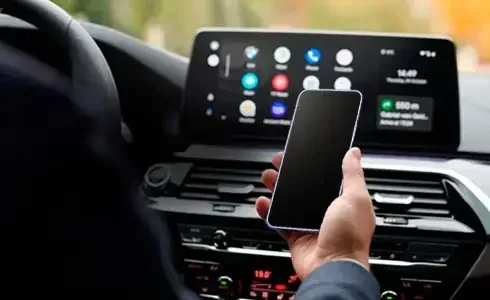
If you want the ultimate smartphone integration experience, Android Auto is the answer. This free app from Google transforms your Samsung phone into a powerful car companion. It works with most cars made after 2016.
What Android Auto Offers
Android Auto gives you a simplified, driver-friendly interface on your car screen. It mirrors the most useful apps and features from your Samsung phone.
Here is what you can do with Android Auto:
- Use Google Maps or Waze with voice-guided navigation on your car display.
- Control music apps like Spotify, YouTube Music, and Pandora with a clean interface.
- Send and receive messages using voice commands through Google Assistant.
- Make and receive calls with a clean, easy-to-read caller interface.
- Use voice commands to keep your hands on the wheel and eyes on the road.
How to Set Up Android Auto
Setting up Android Auto is simple. First, download the app from the Google Play Store on your Samsung phone. Then connect your phone to your car using either a USB cable or wirelessly (if your car supports it). Follow the on-screen prompts to complete the setup. Android Auto will remember your preferences and launch automatically next time.
Android Auto is especially great for Samsung Galaxy users because Samsung phones and Google work very well together. The integration is smooth, and updates keep improving the experience over time.
Troubleshooting: What to Do When Your Samsung Phone Won’t Connect
Even with the best setup, sometimes the Bluetooth connection just will not work. Do not panic. Most connection problems have simple fixes. Here are the most common issues and how to solve them.
Samsung Phone Not Showing Up on Car Display
If your car cannot find your Samsung phone, try these steps:
- Toggle Bluetooth off and back on on your phone.
- Restart both your phone and your car’s infotainment system. A simple reboot fixes many issues.
- Make sure your phone is not connected to another device. Bluetooth can only connect to one device at a time in some cases.
- Delete old paired devices from both your phone and car memory. A clean slate often works best.
- Move your phone closer to the car’s infotainment system. Distance and obstacles can weaken the Bluetooth signal.
Connected But No Sound or Music
If your phone connects but you cannot hear music, check these things:
- Check the media audio setting on your phone’s Bluetooth menu. Make sure it is turned on.
- Check your car’s audio source and make sure it is set to Bluetooth or Aux.
- Lower the car volume first, then raise it slowly after connecting. This prevents audio routing issues.
- Check if your phone is in Do Not Disturb mode. This can block audio streaming to your car.
Call Quality Is Poor or Echoing
If your calls sound bad through your car speakers, try these fixes:
- Move your phone closer to the car’s microphone or Bluetooth antenna. This is usually near the steering column.
- Check for signal interference. Other Bluetooth devices, USB cables, or even phone cases can cause problems.
- Update your car’s firmware. Many dealerships and manufacturers offer free updates that improve Bluetooth performance.
- Clear the Bluetooth cache on your Samsung phone. Go to Settings > Apps > Bluetooth > Storage > Clear Cache.
Quick Tips to Improve Your Samsung Car Connection
Once your Samsung phone is paired and working, these tips will help you get the best experience every time you drive.
Keep Your Software Updated
Software updates fix bugs and improve compatibility. Update your Samsung phone regularly through Settings > Software Update. Also check if your car manufacturer has released any infotainment updates. These updates often address Bluetooth issues and improve connection quality.
Delete Old Pairings Regularly
If you have paired your phone with multiple cars or devices, old connections can cause confusion. Clear old pairings from both your phone and car periodically. This keeps the connection list clean and prevents the phone from trying to connect to the wrong device.
Use a Quality USB Cable
If you use a wired connection, invest in a high-quality USB cable. Cheap cables can cause intermittent connection drops and slow charging. Look for cables that are certified by USB-IF and rated for data transfer, not just charging.
Turn Off Unnecessary Bluetooth Devices
Your Samsung phone might be trying to connect to a smartwatch, earbuds, or another device at the same time. Turn off Bluetooth on nearby devices that you are not actively using. This reduces interference and helps your car connection stay strong.
Restart Your Car’s Infotainment System
Just like your phone, your car’s infotainment system benefits from a fresh restart. Turn your car off, wait 30 seconds, and turn it back on. This clears the system’s temporary memory and often fixes minor glitches that affect Bluetooth performance.
Common Mistakes People Make When Pairing Samsung Phones to Cars
Even tech-savvy people make mistakes during the Samsung phone car pairing process. Here are the most common ones and how to avoid them.
Skipping the Car Manual
Every car’s infotainment system works a little differently. The car manual has specific instructions for your model. Skipping it can lead to frustration and wasted time. Spend five minutes reading the Bluetooth section before you start pairing.
Not Clearing Old Paired Devices
Many car infotainment systems can only remember a limited number of paired devices. If your car’s memory is full, it might not connect to your Samsung phone. Delete old or unused pairings from both your phone and car before trying to connect.
Ignoring Software Updates
Outdated phone or car software is one of the top causes of Bluetooth connection problems. Always check for updates before attempting to pair a new device. A simple update can solve issues that would otherwise take hours to troubleshoot.
Pairing in a Crowded Bluetooth Environment
Trying to pair your phone in a busy parking lot full of other Bluetooth devices can cause interference. Move your car to a quiet area or park away from other vehicles when pairing for the first time.
Forgetting to Grant Permissions
After pairing, your phone will ask for permissions. If you tap “Deny” on everything, you will get a very limited experience. Grant all relevant permissions so you can use hands-free calling, media streaming, and notifications fully.
Expert Insights on Samsung Car Connectivity
Automotive tech experts agree that Samsung car connectivity has improved dramatically in recent years. The combination of powerful Samsung Galaxy hardware and modern car infotainment systems makes pairing smoother than ever before.
According to industry professionals, the key to a great Bluetooth connection experience is preparation. Taking five minutes to update your phone, clear old pairings, and read your car’s manual before you start will save you significant time and frustration.
Experts also recommend testing your connection in a safe, parked location before relying on it during a long drive. This way, you can troubleshoot any issues without the pressure of being on the road.
One professional tip from automotive tech reviewers is to reset your car’s Bluetooth settings as a first step for any connection problem. This clears all saved pairings and forces a fresh start. It is a simple step that solves the majority of Bluetooth issues quickly.
Key Takeaways
- Pairing your Samsung phone to your car Bluetooth is simple and only takes a few minutes once you know the steps.
- Wireless Bluetooth is the most convenient method for daily use, while USB works best for stability and charging.
- Android Auto provides the best smartphone integration for Samsung Galaxy users who want navigation and voice commands.
- Most connection problems have easy fixes like toggling Bluetooth, restarting devices, or clearing old pairings.
- Keeping your phone and car software updated prevents most pairing issues before they happen.
- Avoid common mistakes like skipping the car manual or pairing in crowded Bluetooth environments.
- Hands-free calling and media streaming make every drive safer, more connected, and more enjoyable.
Frequently Asked Questions
How long does it take to pair a Samsung phone to a car?
The Samsung phone car pairing process usually takes about 2 to 3 minutes. The first time you connect, it might take a little longer as you set up permissions and preferences. After that, your phone will automatically reconnect whenever you get in the car.
Why won’t my Samsung phone connect to my car Bluetooth?
Several things can cause this. Your phone or car Bluetooth might be turned off, old paired devices might be taking up memory, or software might need updating. Try toggling Bluetooth off and on, restarting both devices, and deleting old pairings. These steps solve the problem in most cases.
Can I connect my Samsung phone to any car?
Most cars made after 2010 support Bluetooth device pairing. If your car has an infotainment system, it almost certainly supports connecting a Samsung phone. Very old cars without any electronics may need a Bluetooth adapter to enable the connection.
What is the difference between Android Auto and Bluetooth connection?
Bluetooth connection provides basic hands-free calling and audio streaming. Android Auto adds a full car-optimized interface with navigation, voice commands, and app integration. Android Auto requires a compatible car or a compatible aftermarket head unit to work properly.
Does pairing my Samsung phone drain my car battery?
A Bluetooth connection uses very little power and will not meaningfully drain your car battery. However, if you leave your phone connected for weeks without driving, the small standby draw could contribute to a slow battery drain. This is rarely a real concern for regular drivers.
Can I connect my Samsung phone to multiple cars?
Yes, your Samsung phone can remember multiple paired cars. When you get into a different car, it will usually connect automatically to the nearest paired device. You can manage your paired devices list in your phone’s Bluetooth settings and delete any cars you no longer use.
Conclusion
How Do I Pair My Samsung Phone to My Car is a question with a very simple answer. You just need to follow the right steps and know what to expect. With Bluetooth, Android Auto, or a USB cable, connecting your Samsung Galaxy to your car is something anyone can do in just a few minutes.
Remember to prepare your phone first, enable Bluetooth on your car, search for the device, and grant the right permissions. If problems come up, the troubleshooting tips in this guide will help you fix them fast. Keep your software updated, clear old pairings regularly, and enjoy a seamless car connectivity experience every time you drive.
The best part is that once you have it set up, you never have to think about it again. Your phone connects automatically, your music plays through your car speakers, and your calls route through your car microphone. It is one of the simplest yet most rewarding upgrades you can make to your daily driving routine. So go ahead, give it a try, and enjoy the ride.