Can You Put More Apps on CarPlay and How to Add Them
Yes, you can put more apps on CarPlay. Apple CarPlay supports a wide range of third-party apps, and adding them is simpler than most people think. In this guide, we walk you through exactly how to add apps, organize them, and get the most out of your CarPlay experience.
Have you ever looked at your CarPlay screen and wished you could fit more apps on it? Maybe you love using Spotify for music, Google Maps for navigation, and WhatsApp for messages. But CarPlay only shows a few apps by default. So, can you put more apps on CarPlay? The short answer is yes. The longer answer is that there are a few simple steps you need to follow, and some things you should know first.
In this article, we will show you exactly how to add more apps to Apple CarPlay, how to organize them, and what to do if an app does not show up. Whether you drive a Ford, BMW, Honda, or any other CarPlay-supported vehicle, this guide will help you get the most out of your dashboard screen.
Keeping your car interior clean is just as important as keeping your digital setup organized. If you want tips on removing unwanted items from your car glass, check out our guide on 30 Unwanted Things You Can Remove From Car Glass. A clean car makes everything better, from your driving experience to your CarPlay display.
Key Takeaways
- You can add more apps: Apple CarPlay allows many third-party apps beyond the default ones.
- Adding apps is easy: You can install CarPlay apps directly from your iPhone.
- Customization matters: You can reorder and pin your favorite apps for quick access.
- Not all apps work: Some apps are not CarPlay compatible, so check before downloading.
- Keep your setup clean: A tidy CarPlay setup improves safety and usability while driving.
📑 Table of Contents
- What Is Apple CarPlay and Why Does It Matter?
- Can You Put More Apps on CarPlay?
- How to Add More Apps to CarPlay Step by Step
- Why Your CarPlay Apps Might Not Be Showing Up
- Tips for Organizing Your CarPlay Apps
- CarPlay App Limits and What to Know
- Best CarPlay Apps You Should Consider Adding
- Common Mistakes People Make With CarPlay Apps
- Expert Tips for Getting the Most From CarPlay
- Final Thoughts
What Is Apple CarPlay and Why Does It Matter?
Apple CarPlay is a system that mirrors certain features from your iPhone onto your car’s infotainment screen. It lets you make calls, send messages, listen to music, and use navigation apps safely while driving. Instead of holding your phone, you can use your car’s touchscreen or voice commands through Siri.
CarPlay has become a standard feature in many new vehicles. Even older cars can get CarPlay support through aftermarket head units. The system is designed to reduce distractions and keep your eyes on the road. But here is the thing many people do not realize right away: the default CarPlay home screen only shows a limited number of apps.
If you are someone who uses several apps daily, that small set of icons can feel limiting. You might find yourself asking, “How do I add more apps to CarPlay?” or “Can I customize my CarPlay home screen?” These are great questions, and the answers are simpler than you might expect.
How CarPlay Works With Your iPhone
CarPlay connects to your iPhone through a cable or wirelessly, depending on your car model. Once connected, your car screen becomes a simplified version of your iPhone interface. The apps that appear on CarPlay are not copies of your phone apps. They are specially designed versions that work safely in a car environment.
Apple controls which apps are allowed on CarPlay. Each app must meet specific guidelines for safety and functionality. This means you cannot just mirror any iPhone app onto your car screen. But Apple has approved a large number of apps across many categories, including music, navigation, messaging, podcasts, and more.
Can You Put More Apps on CarPlay?
The big question is, can you put more apps on CarPlay? Absolutely. Apple CarPlay supports many third-party apps, and you can add them to your home screen. The default CarPlay layout shows a few apps, but you can expand that list significantly.
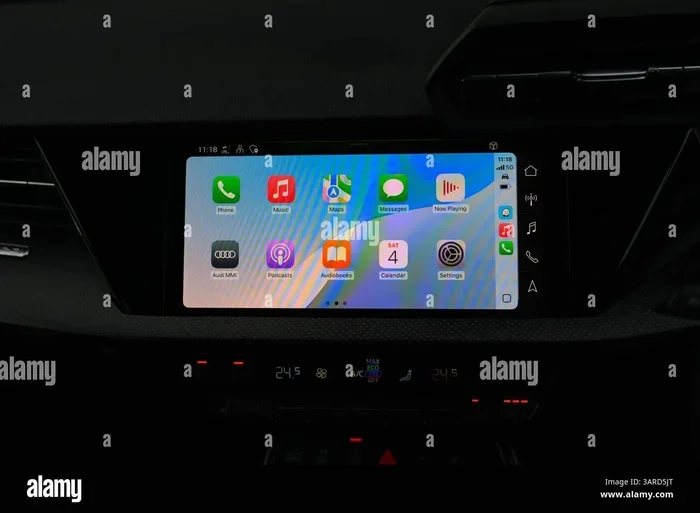
Here is what you need to know. CarPlay has two main areas where apps appear. The first is the CarPlay home screen, which shows your most-used apps as large icons. The second is the CarPlay dock, which holds additional apps you can scroll through. By default, CarPlay shows a handful of apps, but you can customize both areas.
Not every iPhone app works with CarPlay. Apps that are CarPlay compatible are specifically built or updated to work on the car screen. You can check if an app is CarPlay compatible by looking at the App Store description or by searching for “CarPlay” in the app’s details. Popular CarPlay apps include Spotify, Google Maps, Waze, WhatsApp, iHeartRadio, and many more.
Types of Apps You Can Add to CarPlay
CarPlay supports a wide variety of app categories. Here are some of the most popular types of apps you can add:
- Navigation apps: Google Maps, Waze, Apple Maps, and Sygic.
- Music and audio apps: Spotify, Apple Music, Pandora, Amazon Music, and iHeartRadio.
- Messaging apps: WhatsApp, Telegram, and iMessage.
- Podcast apps: Apple Podcasts, Spotify, and Pocket Casts.
- Audiobook apps: Audible and Libby.
- News apps: Apple News and NPR.
As you can see, the range is broad. If an app you love has a CarPlay version, you can add it to your car screen. The key is knowing how to find and install these apps, which we will cover next.
How to Add More Apps to CarPlay Step by Step
Adding apps to CarPlay is straightforward. You do not need any special tools or technical skills. Here is the simple process to follow.
Step 1: Make Sure You Are Connected
First, connect your iPhone to your car using a Lightning cable or wirelessly if your car supports it. Make sure CarPlay is active on your car screen. You should see the CarPlay home screen appear automatically when you start your vehicle.
Step 2: Open Settings on Your iPhone
On your iPhone, go to Settings > General > CarPlay. You will see a list of your CarPlay-connected vehicles. Tap on your car to view the customization options.
Step 3: Customize Your App Layout
In the CarPlay settings, you can choose which apps appear on your home screen. Apple lets you select up to six favorite apps for the home screen. You can also reorder them by dragging and dropping. This means you can prioritize the apps you use most often.
If you want to add more apps beyond the home screen favorites, simply open the CarPlay interface on your car screen and scroll to the right. The dock and additional pages will show more of your CarPlay-compatible apps.
Step 4: Download CarPlay-Compatible Apps
If an app you want is not showing up, it might not be installed on your iPhone yet. Open the App Store on your iPhone and search for the app you want. Make sure the app supports CarPlay. Most popular apps will clearly mention CarPlay compatibility in their description.
Step 5: Test Your New Setup
After adding and organizing your apps, disconnect and reconnect CarPlay to see your new layout in action. You should now see all your added apps ready to use while driving.
Why Your CarPlay Apps Might Not Be Showing Up
Sometimes, even after you try to add more apps, they do not appear on CarPlay. This can be frustrating, but there are common reasons for this issue. Let us look at the most frequent causes.
1. The App Is Not CarPlay Compatible
The most common reason is that the app simply does not support CarPlay. Not all iPhone apps are designed to work on a car screen. Before downloading, always check the App Store for CarPlay support.
2. Your iPhone Needs an Update
Older iOS versions may not support the latest CarPlay features. Make sure your iPhone is running the most recent version of iOS. Go to Settings > General > Software Update to check.
3. CarPlay Needs to Be Reconnected
Sometimes CarPlay simply needs a fresh connection. Disconnect your iPhone, restart your car, and reconnect. This often fixes minor display issues.
4. The App Needs to Be Updated
If you have an older version of an app, it might not work with the current CarPlay setup. Open the App Store and check for updates. Keeping your apps current ensures smooth CarPlay performance.
5. Your Car’s Infotainment System Needs a Reset
In some cases, the car’s screen itself needs a restart. Turn off your car, wait a few seconds, and turn it back on. This refreshes the infotainment system and can resolve display problems.
Tips for Organizing Your CarPlay Apps
Once you have added more apps to CarPlay, you will want to keep things organized. A cluttered CarPlay screen can be distracting, which defeats the purpose of a safer driving experience.
Pin Your Most Used Apps
Your top six apps on the CarPlay home screen should be the ones you reach for every time you get behind the wheel. For most people, that means navigation, music, and messaging apps. Keep these front and center.
Use the Dock for Quick Access
The CarPlay dock holds additional apps that you can scroll through. Place apps you use frequently but not as much as your favorites in the dock. This gives you quick access without crowding the home screen.
Remove Apps You Never Use
If an app sits unused on your CarPlay screen, remove it from the customization settings. A leaner CarPlay setup means less distraction and faster access to the apps you actually need.
Keep Your Driving Focused
Remember, CarPlay is designed to help you drive more safely. Do not add apps just because you can. Only add apps that genuinely improve your driving experience or keep you connected in a safe way. For more car care tips that go beyond apps, you might enjoy reading 1 Star On Car In India for insights on car culture and vehicle appreciation.
CarPlay App Limits and What to Know
Apple does not impose a strict limit on the total number of CarPlay-compatible apps you can install on your iPhone. However, only a select number of apps appear on the CarPlay home screen at any given time. The home screen displays your six favorite apps, and the dock and additional pages show the rest.
This means you can have many apps installed, but the visible interface is designed to keep things simple and safe. Apple wants to minimize distractions, so the layout encourages you to use only the apps you truly need while driving.
If you want to explore more about car culture and fun car-related content, check out 10 Lines On My Favourite Toy Car for a fun look at car enthusiasm that connects to the broader world of automotive passion.
Does Wireless CarPlay Support More Apps?
Wireless CarPlay works the same way as wired CarPlay when it comes to apps. You get the same app compatibility and customization options. The only difference is the connection method. Wireless CarPlay uses Bluetooth and Wi-Fi instead of a cable, which is more convenient but does not change the number of apps you can use.
Best CarPlay Apps You Should Consider Adding
If you are not sure which apps to add to your CarPlay, here are some of the best options across different categories.
| Category | App | Why It Is Great |
|---|---|---|
| Navigation | Google Maps | Detailed maps and real-time traffic updates |
| Navigation | Waze | Community-based traffic alerts and shortcuts |
| Music | Spotify | Huge music library and personalized playlists |
| Music | Pandora | Smart radio stations based on your tastes |
| Messaging | Send and receive messages hands-free | |
| Podcasts | Apple Podcasts | Built-in and optimized for CarPlay |
| Audiobooks | Audible | Seamless audiobook playback while driving |
| News | Apple News | Curated news stories read aloud by Siri |
These apps are all CarPlay-compatible and widely used by millions of drivers. Adding even a few of them can transform your CarPlay experience from basic to powerful.
Common Mistakes People Make With CarPlay Apps
Avoid these common mistakes to get the best results from your CarPlay setup.
- Assuming all iPhone apps work on CarPlay. Many apps do not support CarPlay. Always verify before downloading.
- Overloading your home screen. More apps do not mean better. Keep your home screen focused on the essentials.
- Ignoring app updates. Outdated apps can cause CarPlay glitches and compatibility issues.
- Not using Siri. Siri is a powerful tool for hands-free control. Use voice commands to launch apps while driving.
- Forgetting to reconnect after updates. After an iOS update, CarPlay may need to be reconnected and reconfigured.
Expert Tips for Getting the Most From CarPlay
Here are some expert-level tips that will help you master your CarPlay setup.
First, use Siri to open apps without touching your screen. Say “Hey Siri, open Spotify” or “Hey Siri, navigate home.” This keeps your eyes on the road and your hands on the wheel. Second, take advantage of CarPlay’s do-not-disturb feature while driving. This silences notifications and reduces distractions.
Third, customize your CarPlay background. Apple now allows you to choose a custom wallpaper for your CarPlay home screen. Pick something clean and easy to see, especially in bright sunlight. Fourth, set up your favorite contacts in the Phone app so you can make calls with just one tap or voice command.
Finally, keep your iPhone charged while using CarPlay. Navigation and music apps can drain your battery quickly. Use a high-quality car charger to keep your phone powered throughout your trip.
Final Thoughts
Can you put more apps on CarPlay? Yes, you absolutely can. Apple CarPlay gives you the flexibility to add, organize, and customize the apps on your car screen. From navigation to music to messaging, you can build a CarPlay setup that fits your lifestyle and keeps you connected safely.
The process is simple. Just make sure your apps are CarPlay-compatible, customize your layout in Settings, and keep things organized for the best experience. A well-set-up CarPlay system makes every drive more enjoyable and less distracting.
Remember, your car is more than just a machine. It is a space where technology and driving come together. Taking a few minutes to optimize your CarPlay apps can make a real difference in your daily commute or long road trips. Keep exploring, keep customizing, and enjoy the ride.
Frequently Asked Questions
Can I add any app to CarPlay?
No, you can only add apps that are specifically compatible with CarPlay. Apple requires apps to meet certain guidelines before they can appear on the CarPlay interface. Check the App Store to confirm an app supports CarPlay before downloading it.
How many apps can I have on my CarPlay home screen?
CarPlay displays up to six favorite apps on the home screen. You can choose which six apps appear there and rearrange them in the Settings app on your iPhone. Additional apps are accessible through the dock and scrollable pages.
Do I need Wi-Fi to use CarPlay apps?
Most CarPlay apps work with a cellular data connection or Wi-Fi. Navigation apps like Google Maps and Waze need an internet connection for real-time traffic updates. Music apps like Spotify also require data unless you have downloaded content for offline use.
Can I use CarPlay apps while driving?
Yes, CarPlay is designed for safe use while driving. Most apps offer simplified interfaces and voice control through Siri. You can tap the screen, use your car’s controls, or speak commands to interact with apps without taking your eyes off the road for long.
Why do some of my apps not show up on CarPlay?
If an app does not appear on CarPlay, it may not be CarPlay-compatible. It could also be that the app needs updating, or your iPhone needs a software update. Try restarting CarPlay by disconnecting and reconnecting your iPhone to see if the issue is resolved.
Can I change my CarPlay home screen layout?
Yes, you can customize your CarPlay home screen layout from your iPhone. Go to Settings > General > CarPlay, select your car, and choose which apps to display. You can reorder apps, pin favorites, and remove ones you do not use.