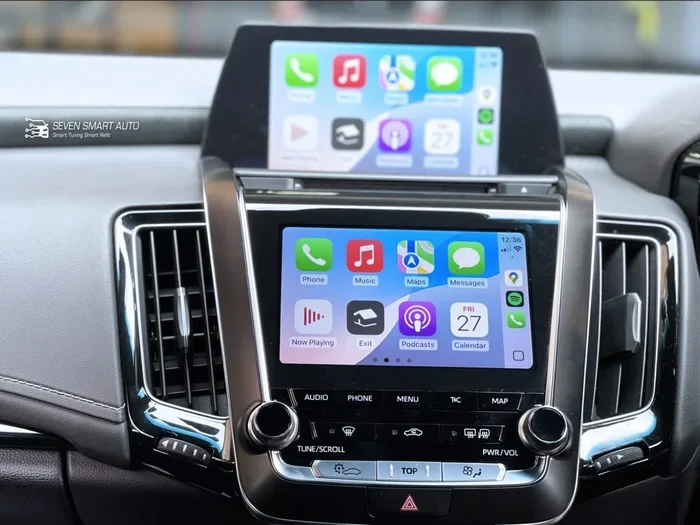
Can You Use Apple CarPlay Without USB on Your Toyota
Yes, you can use Apple CarPlay without a USB on many Toyota models through wireless Bluetooth or aftermarket adapters. Wireless CarPlay offers hands-free convenience, but compatibility depends on your Toyota year and trim level. This guide walks you through every option, setup method, and common fix for a smooth Toyota CarPlay experience.
You just got into your Toyota, dropped your phone on the console, and thought, “Why do I still need a cable?” It is a fair question. Apple CarPlay has become a must-have feature for drivers who rely on their phones for navigation, music, and messaging. And the idea of ditching the USB cable sounds like pure freedom.
But can you actually use CarPlay without USB on a Toyota? The short answer is yes, but with some important caveats. Wireless CarPlay availability depends on your Toyota model, year, and trim level. Some newer Toyotas support it natively, while others need a small adapter to unlock the feature.
In this guide, we will break down every option, every compatible model, and every step you need to take. Whether you drive a brand-new 2024 Toyota RAV4 or an older Camry, you will find the answer you need right here.
Key Takeaways
- Wireless CarPlay is available on select Toyota models from 2019 onward without needing a USB cable.
- Older Toyota models may need a wireless CarPlay adapter or aftermarket solution to go USB-free.
- Bluetooth pairing is the most common method to connect CarPlay without a physical cable.
- Toyota’s infotainment system varies by trim, so not every Toyota supports wireless connectivity out of the box.
- Aftermarket adapters like Carlinkit offer a budget-friendly way to add wireless CarPlay to older Toyotas.
- Troubleshooting steps can resolve most CarPlay connection issues without visiting a dealer.
📑 Table of Contents
- What Is Apple CarPlay and Why Does It Matter?
- Can You Use CarPlay Without USB on Your Toyota?
- Which Toyota Models Support Wireless CarPlay?
- How to Set Up Wireless CarPlay on Your Toyota
- Troubleshooting CarPlay Connection Issues
- Wired vs Wireless CarPlay on Toyota: Which Is Better?
- Tips to Get the Most Out of CarPlay on Your Toyota
- Common Mistakes to Avoid with Toyota CarPlay
- Final Thoughts
What Is Apple CarPlay and Why Does It Matter?
Apple CarPlay is Apple’s smartphone integration system that mirrors key iPhone features onto your car’s display. It lets you access Maps, Phone, Messages, Music, and third-party apps safely while driving. The system uses Siri voice commands so you can keep your eyes on the road.
For Toyota owners, CarPlay is a big deal. It turns your car’s infotainment screen into a powerful smartphone hub. You get hands-free driving, real-time navigation, and seamless audio streaming without fumbling with your phone.
How CarPlay Works with Toyota Vehicles
Toyota vehicles use their own infotainment system to host CarPlay. The connection typically starts through a USB cable. Once paired, your iPhone displays on the Toyota screen, and you can control everything through the touchscreen or steering wheel buttons.
Newer Toyota models introduced wireless CarPlay support. This means no cable is needed at all. Your phone connects through Bluetooth, and the experience feels just as smooth as a wired connection.
But here is the catch. Not every Toyota comes with wireless CarPlay built in. The feature depends heavily on the model year and trim level. We will cover that in detail below.
Can You Use CarPlay Without USB on Your Toyota?
This is the question most Toyota owners want answered. The truth is, there are multiple ways to use CarPlay without a USB cable. Let us explore each one.
Wireless CarPlay on Newer Toyota Models
Starting around 2019, Toyota began offering wireless CarPlay on select models and trims. The Toyota RAV4, Highlander, Camry, and Avalon are among the models that support this feature. However, wireless CarPlay is often reserved for higher trim levels or optional packages.
For example, a base trim Toyota RAV4 might only offer wired CarPlay through USB. The higher trims, like the XLE or Limited, may include wireless connectivity as a standard or optional feature. Always check your specific trim before assuming wireless support.
Using Bluetooth Pairing for CarPlay
The most common way to use CarPlay without USB is through Bluetooth pairing. Here is how it works on compatible Toyota models:
- Make sure your Toyota infotainment system is updated to the latest software.
- Turn on Bluetooth on your iPhone.
- Go to your Toyota’s infotainment settings and select Bluetooth.
- Put your iPhone in pairing mode.
- Select your iPhone from the Toyota’s Bluetooth device list.
- Once paired, CarPlay should launch automatically when you connect your phone.
After the initial pairing, your Toyota should remember your iPhone. You can connect wirelessly every time you get in the car without reaching for a cable.
Aftermarket Wireless CarPlay Adapters
If your Toyota does not support wireless CarPlay natively, do not worry. You have options. Aftermarket wireless CarPlay adapters are small devices that plug into your Toyota’s USB port and create a wireless bridge between your phone and the infotainment system.
Popular options include devices like Carlinkit, which are affordable and easy to install. These adapters essentially upgrade your Toyota’s wired CarPlay to wireless. They work with most Toyota models regardless of year.
One thing to keep in mind. These adapters need a constant power source, so they stay plugged into the USB port even when you are not using them. Some drivers find this a minor inconvenience, but the wireless convenience is often worth it.
For more on keeping your car tech running smoothly, check out our guide on can I do my own car diagnostics to make sure your Toyota’s system is always in top shape.
Which Toyota Models Support Wireless CarPlay?
Not all Toyotas are created equal when it comes to wireless connectivity. Here is a breakdown of models and their wireless CarPlay support.
| Toyota Model | Year Range | Wireless CarPlay Support |
|---|---|---|
| RAV4 | 2019+ | Available on higher trims |
| Camry | 2019+ | Available on XLE and above |
| Highlander | 2020+ | Available on select trims |
| Avalon | 2019+ | Available on Limited and above |
| Corolla | 2020+ | Limited support on newer trims |
| Tacoma | 2024+ | Available on select trims |
Always confirm with your Toyota dealer or check your owner’s manual. Software updates can also add wireless CarPlay support to older models in some cases.
How to Set Up Wireless CarPlay on Your Toyota
Setting up wireless CarPlay is straightforward on compatible models. Follow these steps for a seamless Toyota wireless CarPlay setup.
Step 1: Update Your Toyota Infotainment System
Before anything else, make sure your Toyota’s software is current. Outdated software can cause compatibility issues. You can check for updates through the infotainment settings or visit your local Toyota dealer for a free software update.
Step 2: Enable Wireless CarPlay on Your iPhone
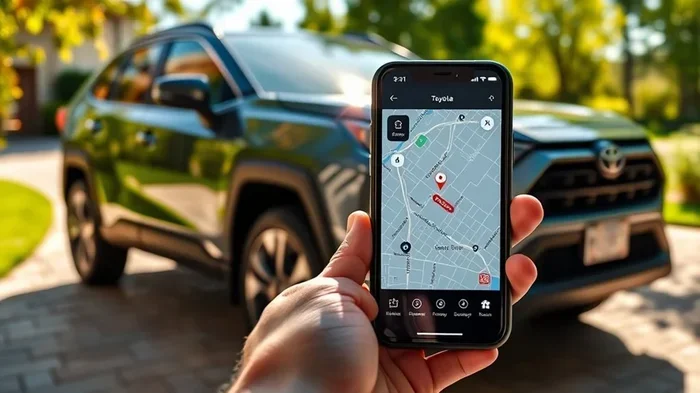
On your iPhone, go to Settings, then General, then CarPlay. Select your Toyota from the list of available vehicles. Make sure Bluetooth and Wi-Fi are both turned on. Wireless CarPlay uses a combination of Bluetooth for initial pairing and Wi-Fi for data transfer.
Step 3: Connect and Test
Start your Toyota and bring your iPhone near the infotainment system. CarPlay should appear automatically on the screen. If it does not, go to your Toyota’s Bluetooth settings and select your iPhone. Once connected, you should see CarPlay on the display.
Test it out. Try launching Maps, playing music, or sending a message using Siri. If everything works, you are all set to go cable-free.
For drivers who also use their cars for app-based services or remote features, you might find our article on can I download an app to start my car helpful for exploring additional tech integration options.
Troubleshooting CarPlay Connection Issues
Even on the best Toyotas, CarPlay connection issues can happen. Here are the most common problems and how to fix them.
CarPlay Not Connecting Wirelessly
If your CarPlay will not connect, try these steps first:
- Toggle Bluetooth off and back on from your iPhone settings.
- Restart your Toyota infotainment system by holding the power button for 10 seconds.
- Restart your iPhone completely.
- Delete the Toyota from your iPhone Bluetooth list and re-pair.
- Make sure both devices are within close proximity.
CarPlay Keeps Disconnecting
Intermittent disconnections are frustrating but common. They often happen due to Wi-Fi interference or outdated software. Try these fixes:
- Check for iOS updates on your iPhone.
- Check for Toyota infotainment updates at the dealer.
- Reset network settings on your iPhone.
- Move away from other Bluetooth or Wi-Fi devices that might cause interference.
CarPlay Shows But Is Unresponsive
Sometimes CarPlay loads but the screen does not respond to touches. This is usually a software glitch. A simple restart of both your iPhone and Toyota infotainment system almost always fixes it.
Wired vs Wireless CarPlay on Toyota: Which Is Better?
Both wired and wireless CarPlay have their advantages. Here is a quick comparison to help you decide.
| Feature | Wired CarPlay | Wireless CarPlay |
|---|---|---|
| Connection Method | USB cable | Bluetooth and Wi-Fi |
| Setup Required | Plug in cable | Pair once via Bluetooth |
| Convenience | Moderate | High |
| Connection Stability | Very stable | Good, but can vary |
| Charging While Driving | Yes | No (unless using adapter) |
| Compatible Toyota Models | All models with CarPlay | Select models and trims |
| Cost | Free (uses existing USB) | Free (native) or $30-$80 (adapter) |
For most drivers, wireless CarPlay is the better choice. It eliminates cable clutter and offers a cleaner, more convenient experience. However, wired CarPlay is more reliable and charges your phone simultaneously. If you do a lot of long drives, having your phone charge through the USB cable can be a real advantage.
Tips to Get the Most Out of CarPlay on Your Toyota
Want to maximize your CarPlay experience? Here are some practical tips that make a real difference.
- Keep your iPhone updated. New iOS updates often improve CarPlay stability and add features.
- Use Siri for hands-free control. Say “Hey Siri” to make calls, send messages, or get directions without touching your phone.
- Organize your CarPlay apps. Rearrange apps on the CarPlay home screen to put the ones you use most front and center.
- Clean your USB port regularly. Dust and debris in the USB port can cause connection problems with wired CarPlay.
- Check for Toyota software updates. Toyota occasionally releases infotainment updates that improve CarPlay performance.
- Use a quality USB cable if going wired. Cheap cables can cause slow charging and connection drops.
These small steps can dramatically improve your daily driving experience with Toyota CarPlay.
Common Mistakes to Avoid with Toyota CarPlay
Even experienced CarPlay users make mistakes that cause frustration. Here are the ones to watch out for.
- Ignoring software updates. Both your iPhone and Toyota infotainment system need to stay current for the best experience.
- Using a damaged USB cable. A frayed or cheap cable is the number one cause of wired CarPlay problems.
- Not clearing old Bluetooth pairings. Too many saved devices can confuse your Toyota’s system and cause connection delays.
- Overloading CarPlay with apps. Too many apps on CarPlay can slow down the system and make it less responsive.
- Assuming all Toyotas support wireless CarPlay. Always verify before purchasing a vehicle or paying for an adapter.
Avoiding these mistakes saves time, money, and a lot of headache.
Final Thoughts
So, can you use CarPlay without USB on your Toyota? Absolutely. Whether your Toyota supports wireless CarPlay natively or you need a small aftermarket adapter, going cable-free is entirely possible. Wireless CarPlay brings a new level of convenience to your daily commute or road trips.
The key is knowing your specific Toyota model and trim capabilities. Check your owner’s manual, talk to your dealer, and explore the wireless and adapter options available to you. With the right setup, you will enjoy seamless smartphone integration every time you get behind the wheel.
Take the time to set it up properly, keep your software updated, and enjoy the freedom of a cable-free driving experience in your Toyota.
Frequently Asked Questions
Can all Toyota models use CarPlay without a USB cable?
No, not all Toyota models support wireless CarPlay. Only select models and trims from certain years offer this feature. Older Toyotas and base trims usually require a USB cable for CarPlay. You can confirm your model’s capabilities by checking the owner’s manual or contacting a Toyota dealer.
How much does a wireless CarPlay adapter cost for Toyota?
Most wireless CarPlay adapters cost between $30 and $80. Popular brands like Carlinkit are affordable and easy to install. The adapter plugs into your Toyota’s USB port and creates a wireless bridge for CarPlay.
Why does my Toyota CarPlay keep disconnecting wirelessly?
Wireless CarPlay disconnections are often caused by software glitches, Wi-Fi interference, or outdated software. Restarting both your iPhone and Toyota infotainment system usually fixes the problem. Make sure both devices have the latest updates installed.
Does wireless CarPlay charge my phone on Toyota?
No, wireless CarPlay does not charge your phone through the Bluetooth connection. If you need to charge your phone while using wireless CarPlay, you can use a wireless charging pad or a separate USB charger.
Can I use CarPlay wirelessly on a 2017 Toyota Camry?
Most 2017 Toyota Camry models do not support wireless CarPlay natively. However, you can add wireless capability using an aftermarket wireless CarPlay adapter that plugs into the USB port.
Is wireless CarPlay as reliable as wired CarPlay on Toyota?
Wireless CarPlay is generally reliable but can occasionally experience minor hiccups like brief disconnections. Wired CarPlay offers a more stable connection since it uses a physical cable. For most drivers, the difference is barely noticeable in daily use.